Storefront Descriptions
Every inventory item in Loupe Factory carries a Storefront Description: the shopper-facing copy you publish on a webshop, marketplace, catalog, or sales sheet. You can type it yourself, or use Write with AI to draft it from the details already on the item record.
With Shopify, the Product description supplies the main product copy, with a Finished lot's description as a fallback. Each lot's description can also sync both ways through a separate variant field. The JewelCloud integration includes each listed jewelry style's own description in its feed. For other channels, your team copies the finished text where it is needed.
Who Can Write Descriptions
Inventory item descriptions are available on every Loupe Factory plan. Users with the Admin or Manager role can write, generate, and edit them. Members do not see the option.
Every save is recorded on the item's history with who made the change and when. For how this sits alongside the other role rules, see Security and Access.
Product Type Descriptions
Admins can also write a storefront description for a product type as a whole. Each inventory lot keeps its own copy. Managers and members can read the product type's description.
In Product Settings, see Write a storefront description for a product type and Draft descriptions for its lots.
Write a Description with AI
- Go to Inventory and open the details page for the item you want to write about.
- Click More Actions, then select Storefront Description.
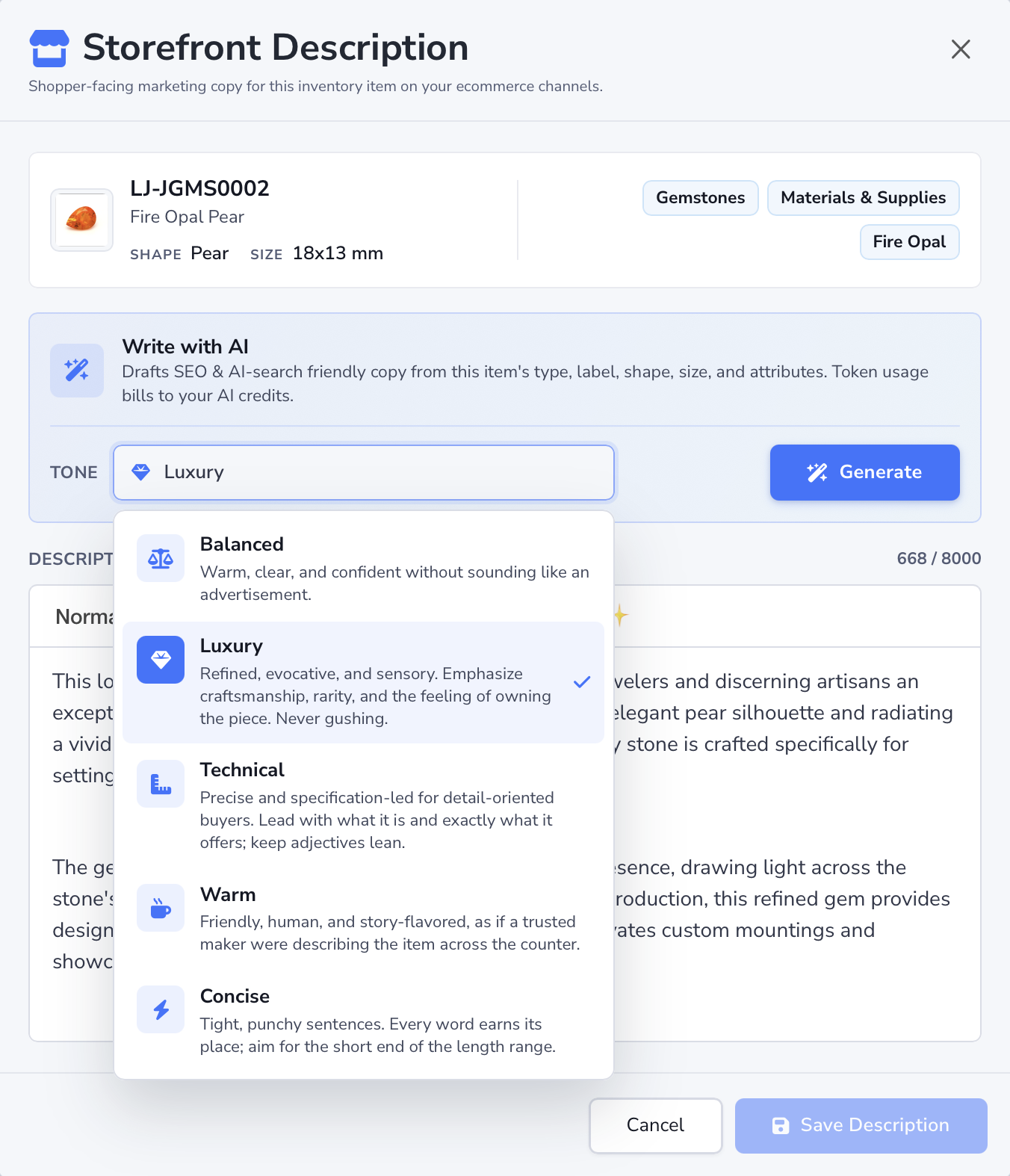
- Check the item card at the top of the window. It shows the tag ID, storefront label, shape, size, and inventory type, which is what the AI writes from.
- Choose a Tone.
- Click Generate. The draft appears in the editor a few seconds later.
- Read the draft. Correct anything that does not match the item, rewrite lines that do not sound like your brand, and add headings, lists, or links.
- Click Save Description.
If the item already has a description, generating again improves the text you have instead of starting over. To try a different voice on the same item, change the tone and generate again.
Nothing is saved until you click Save Description
Cancel closes the window and discards the draft. The item keeps whatever description it had before.
Choose a Tone
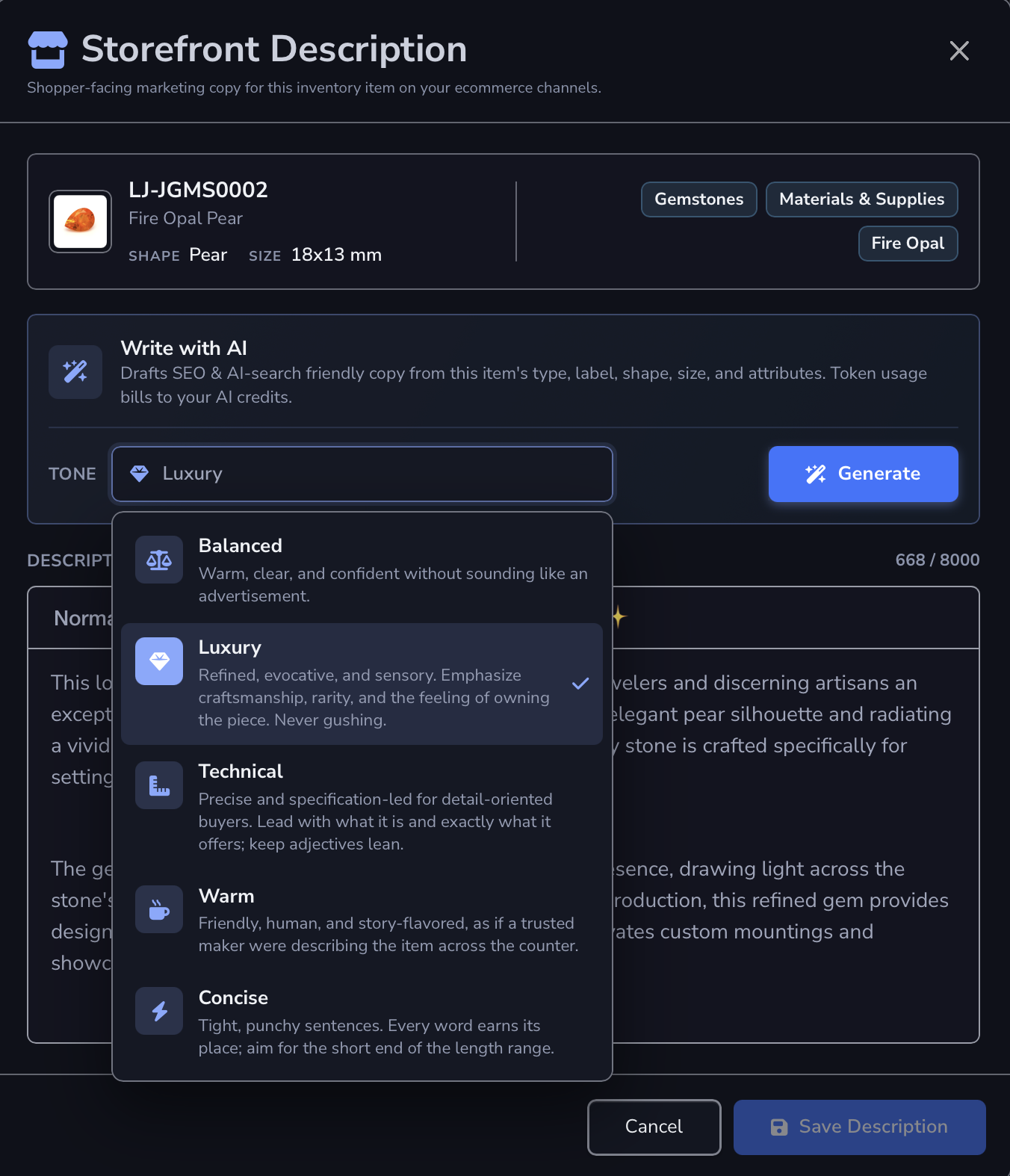
Tone changes the voice, not the facts. All five options write from the same record.
Warm, clear, and confident without sounding like an advertisement.
Use it when one house voice has to cover a mixed catalog.
Refined, evocative, and sensory. Emphasize craftsmanship, rarity, and the feeling of owning the piece. Never gushing.
Use it when the buyer is paying for rarity, hand work, or provenance.
Precise and specification-led for detail-oriented buyers. Lead with what it is and exactly what it offers; keep adjectives lean.
Use it when buyers compare specifications before they compare stories.
Friendly, human, and story-flavored, as if a trusted maker were describing the item across the counter.
Use it when you sell direct and the maker behind the item is part of what people buy.
Tight, punchy sentences. Every word earns its place; aim for the short end of the length range.
Use it when the listing template gives you two lines, or the channel cuts long copy short.
Balanced is the safe starting point for a mixed catalog. If you are not sure, generate once in Balanced, try one more tone on the same item, and keep the version that sounds like you.
What the AI Reads, and What It Never Sees
The AI sees the shopper-safe part of the item record:
- product name and storefront product label
- inventory type and its description
- finished type or materials and supplies type, and its description
- shape, size, color, and quality
- weight and its unit
- the item's custom attributes
- your organization's industry
Loupe Factory strips the commercial and internal fields out before the item reaches the AI:
- unit prices, currency, and rate details
- cost components and internal pricing
- internal notes
- tag IDs
- HS and HSN codes
Loupe Factory also instructs the AI to write only from what the record says, and never to mention price, availability, discounts, or shipping.
Two things follow from that. A thin record produces thin copy, so fill in shape, size, color, quality, and attributes before you generate. And because price and stock never enter the text, a saved description does not go out of date when you reprice the item or sell the last one.
How the Draft Is Built
Every draft follows the same three-part shape:
- an opening paragraph that says plainly what the item is and who it is for
- a paragraph on why it is worth choosing
- a details list built from the record
That shape is deliberate. Search engines and AI assistants usually answer a shopper by quoting one passage rather than a whole page, so the opening paragraph is written to make sense on its own. The details list then sets out the specifications one line at a time, taken from your record rather than guessed.
Edit Before You Save
The draft lands in a formatting editor, not a plain text box. You can rewrite any line, apply headings, build bulleted or numbered lists, and add links. Descriptions hold up to 8,000 characters, and the counter above the editor tracks how much of that you have used.
Read every draft before saving. The AI writes only from the record, so an inaccurate record produces confident, inaccurate copy. Check that:
- every specification in the text matches the item
- the copy claims no certification, origin, or treatment the item does not have
- the description reads well on its own, without the photo beside it
- the voice matches your other listings
Where the Description Goes
| Where | What to expect |
|---|---|
| The item record | The saved description lives on the inventory item, and the item history records who changed it and when. |
| Inventory CSV exports | Included as the Storefront Description column, exported as plain text. See Exporting Inventory to CSV. |
| The Materials & Supplies export | Not included. That export downloads the visible table columns as shown on screen. |
| The inventory table | The item's copy appears in the Storefront Description column. Hover over the description to read the full text in a card. |
| Product tab headers | On All Inventory and Finished Inventory, each product tab header shows the product type's storefront description. |
| The product page | Shows the product type's description under its name. See Product Details Page. |
| Product shots with AI | The AI reads the description, with the product name, to choose scenes and props for each shot. An item without its own description uses its product type's, and the Media Gallery header shows the one the AI will read. See Generate Product Shots with AI. |
| Shopify | The Product description supplies the main product copy, with a Finished lot's description as a fallback. A lot's description can also sync through a separate variant metafield. See How Descriptions Reach Shopify. |
| JewelCloud | Each listed jewelry style's own description is included as plain text in the next feed. Product type descriptions and internal notes are not used. See JewelCloud jewelry listing details. |
| Other stores and marketplaces | Not pushed. Copy the text into the channel yourself. |
How Descriptions Reach Shopify
The Shopify integration keeps the shared Product description and each lot's description separate. An admin starts Products and stock pushes.
| Description | Push to Shopify | Pull into Loupe Factory |
|---|---|---|
| Product's Storefront Description, saved on the product type | Updates the main Shopify product description. If blank, uses the newest Finished lot on that Product with a saved description. | Fills the description when creating a Product or first linking an existing Product whose description is blank. Later pulls preserve it. |
| Lot's Storefront Description | Updates that variant's loupe_factory.variant_description, creating the definition when needed. | A supported, populated value from that metafield updates the lot's description. |
The main Shopify product description is not copied onto every lot. Lot descriptions sync through the variant description field in Shopify, which Loupe Factory creates as Rich text when a push needs it. Existing Rich text, Multi-line text, and Single line text definitions are reused.
After editing a variant description in Shopify, run Products and stock > Pull. Displaying it to shoppers requires compatible theme settings.
Blank lot descriptions do not clear copy in either direction. Clearing the Product description can activate the Finished-lot fallback. Supplied updates replace the corresponding Shopify copy, but unchanged records can be skipped. Review blank-value rules before clearing copy or editing in both places.
AI Credit Usage
Generating a description draws on the same AI credit balance as the rest of Loupe Factory's AI features. Credits are calculated from AI token usage at:
1 AI credit per 1,000 tokens, rounded up
A single draft usually costs a small number of credits. Writing or editing the description by hand costs nothing, and neither does saving it.
For allowances, top-ups, and usage history, see AI Credits & Billing.
Tips for Better Descriptions
- Set the item's storefront product label before you generate. It is the name the AI leads with.
- Fill in shape, size, color, quality, and weight first. Every empty field is a sentence the AI cannot write.
- Pick colors from your workspace color list instead of typing them, so the same finish reads the same way across every listing.
- Start with your best-documented item. It shows you what each tone sounds like at full strength.
- Keep one description you are happy with as the house reference, and match the rest of the catalog to it.
Next Steps
- Inventory Management: Add, edit, search, and categorize the inventory items these descriptions are written from.
- Inventory Item Details: Review one item across stock, traceability, pricing, and AI assists.
- AI Inventory Image Editing: Pair the copy with a clean, catalog-ready product image.
- Product shots with AI: Turn the item's main image into 10 product photos, with scenes chosen from this description.
- AI Credits & Billing: Review how AI credits, usage logs, top-ups, and overage work.
- Shopify integration: Review the separate sync rules for Product and lot descriptions.
- JewelCloud integration: Prepare the description, photos, and listing details for each jewelry style you offer to retailers.