Staff Management
Use Staff Management to maintain operational staff records for people who work in your business. Staff records help teams assign production jobs, order ownership, departments, designations, and locations.
Staff records are different from workspace login access. If a person also needs to sign in to Loupe Factory, manage their user account in Users & Access under Admin Settings.
What Staff Records Are Used For
Staff records support day-to-day operations across Loupe Factory. They help your team:
- assign production jobs to the right person
- assign an order lead or workflow owner
- organize staff by location, department, and designation
- filter work by team or site
- keep activity history and reports easier to understand
Before You Start
Confirm that your organization has the right locations, departments, and designations before you add many staff records. Admins can manage those values from Admin Settings > Organization Settings.
Access depends on your role:
- Admins can add, view, edit, and delete staff records.
- Managers can view staff records, but contact details are hidden.
- Members do not have Staff Management access by default.
For the full role matrix, see Security and Access.
Add a Staff Member
To create a new staff record:
- Go to People > Staff > Staff Directory.
- Click Add Staff.
-
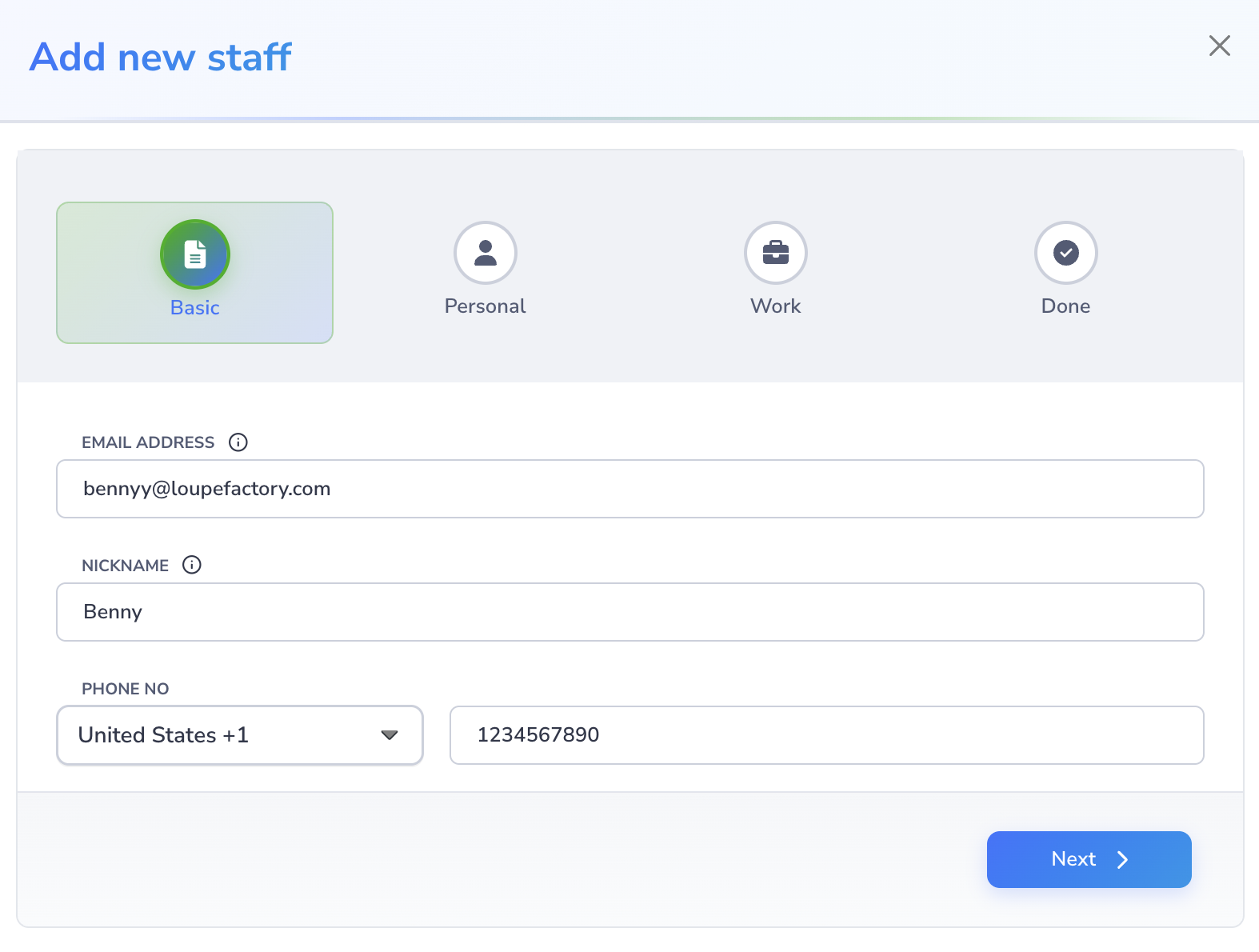
On the Basic step, enter the staff member's nickname. Staff email and phone number are optional.
-
On the Personal step, enter the staff member's first name and last name. The avatar or profile photo is optional. If you upload one, the file must be less than 4 MB and must be a
.jpg,.jpeg,.png, or.giffile. Images marked as locked will not be uploaded to the staff record.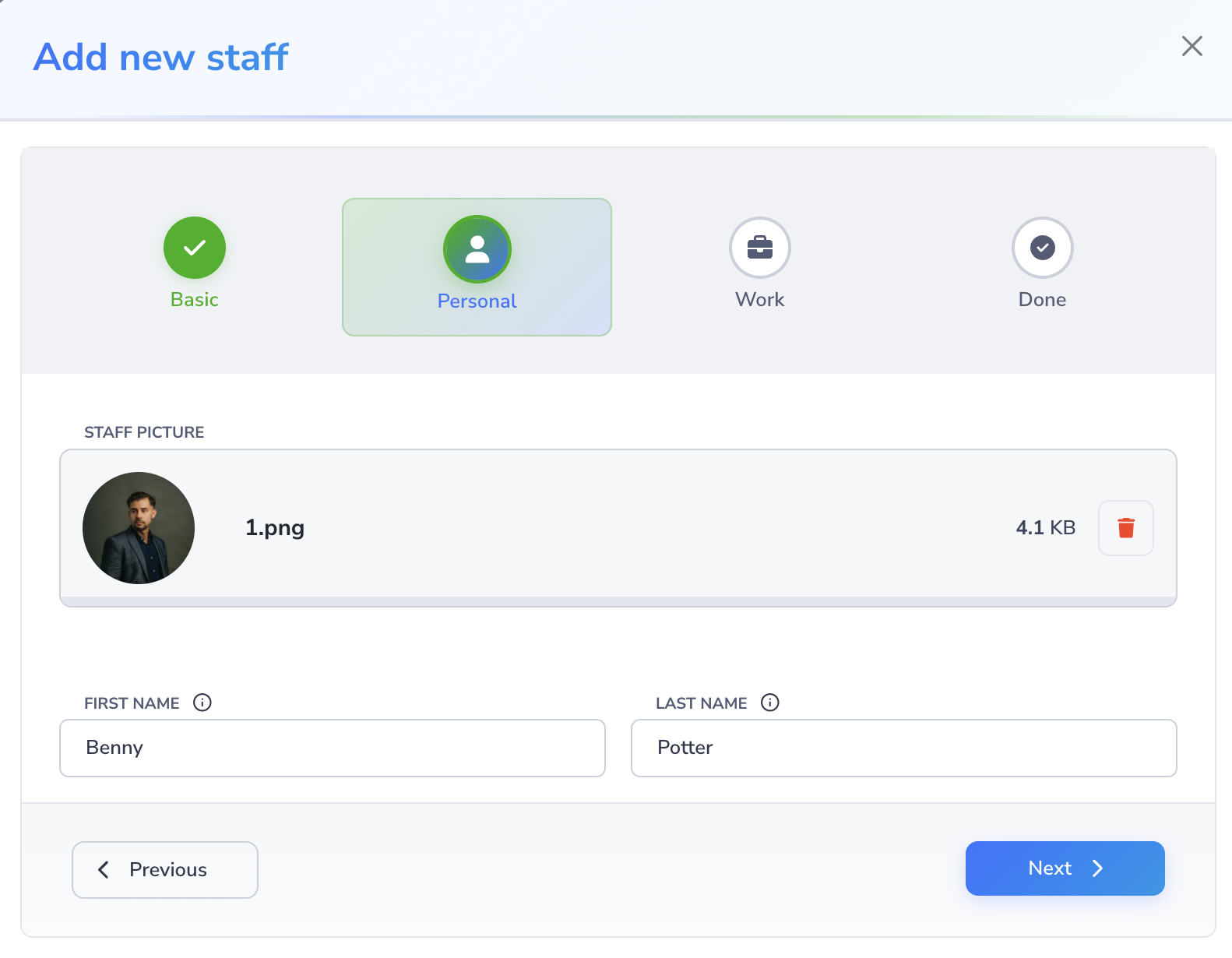
-
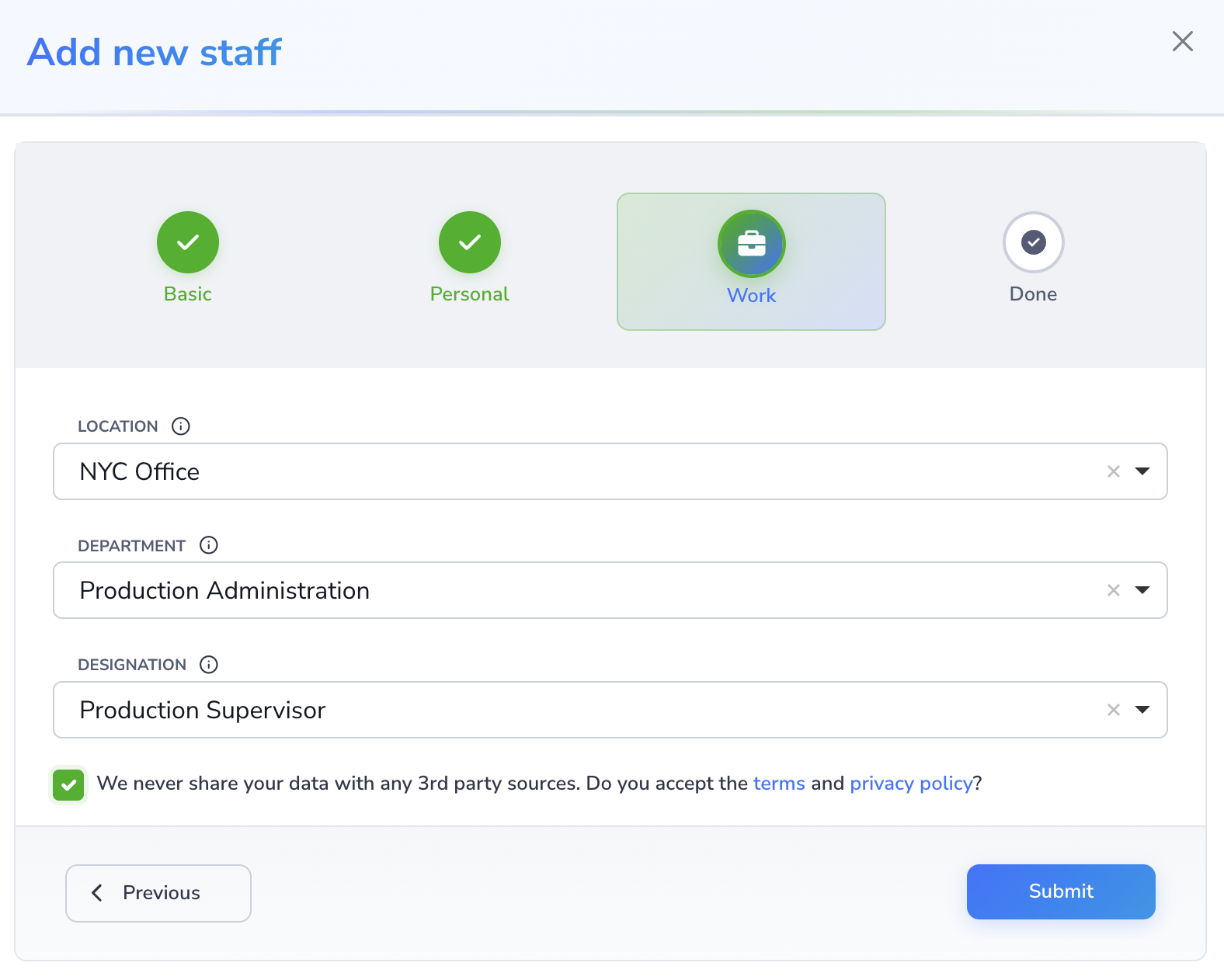
On the Work step, choose the staff member's location, department, and designation.
-
Accept the terms and privacy confirmation, then continue.
-
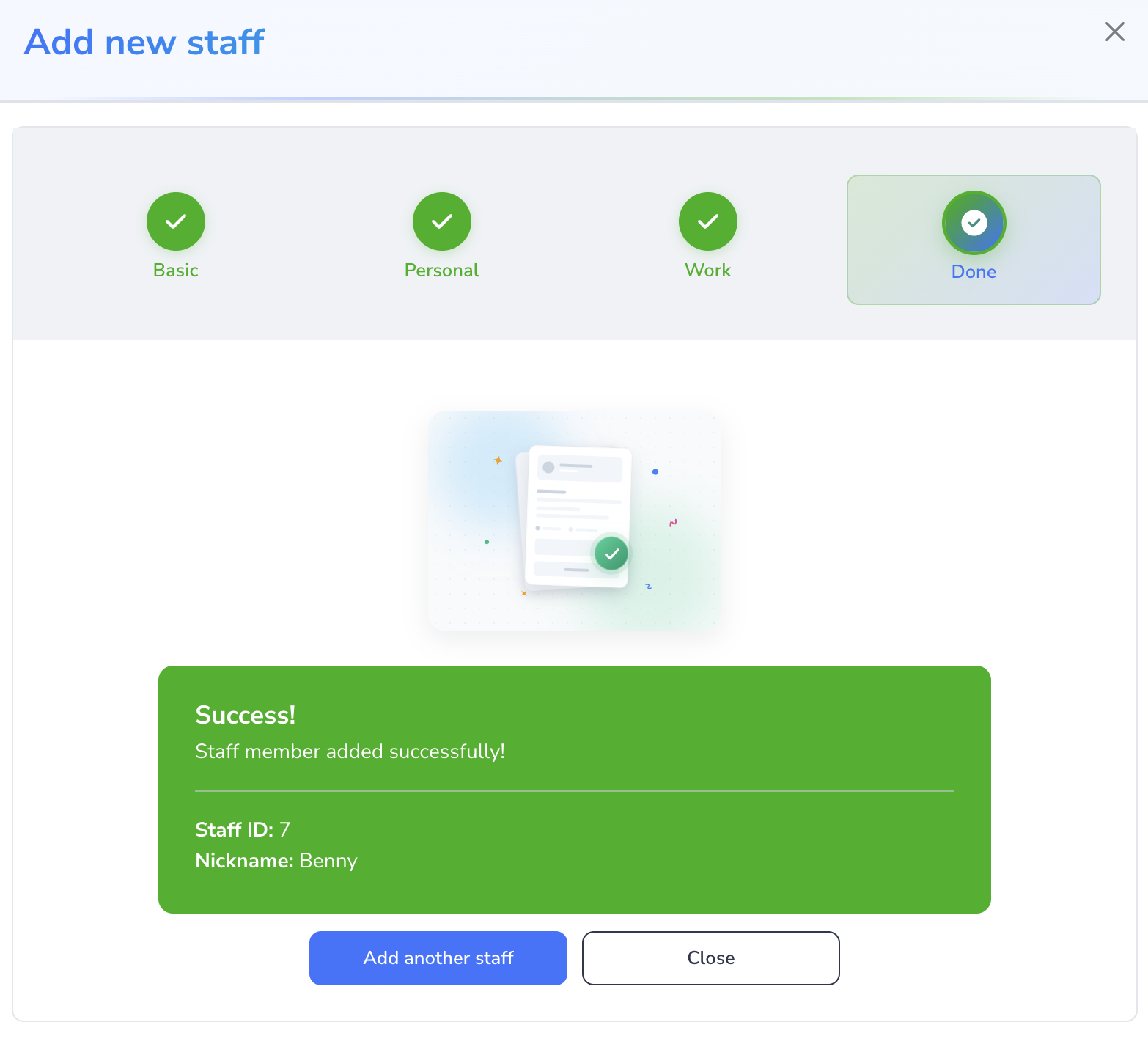
On the Done step, review the result. From there, you can add another staff member, fix errors, or close the window.
Required fields are First name, Last name, Nickname, Location, Department, and Designation. Optional fields include Staff email, Phone number, and Avatar. Phone number is optional, but is validated if provided.
Edit a Staff Member
Use edit when a person's work details change, such as a new department, designation, location, phone number, or preferred nickname.
- Go to People > Staff > Staff Directory.
-
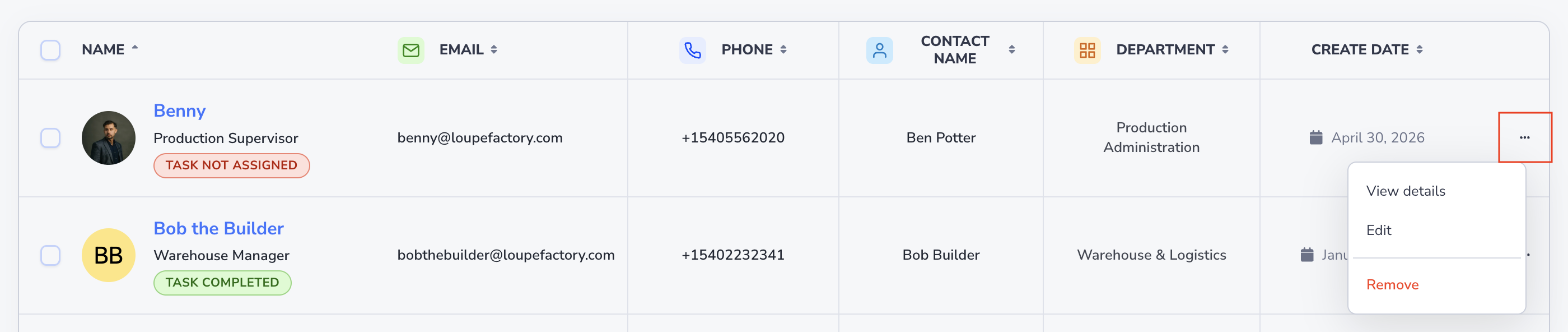
Select the ⋯ menu on the staff member's row and select Edit
-
Or open the staff record you want to update & click Edit.
- Update the fields that changed.
- Save the record.
Click a staff member's name in the Staff Directory table to open that person's Staff Details page.
Keep staff records current so production assignment, order ownership, and reports stay reliable.
Review Staff Production Performance
Admins see a Production Performance card on each staff member's Staff Details page. It adds up every production job assigned to that person and shows how the material split into received, pending, rejected, scrapped, and wasted weight. Two figures sit below the chart:
- Total Output adds received, rejected, scrapped, and wasted weight.
- Yield is the share of issued weight that came back as good, received output across all of that person's jobs.
For example, say one job is issued 10 g and returns 6 g received and 2 g rejected, and a second job is issued 10 g and returns 8 g received. Yield is 14 g out of 20 g, or 70%. The 2 g of rejected weight lowers yield because only good, received output counts toward it.
Loupe Factory converts every job to your workspace's default weight unit before adding them up, so jobs recorded in grams and carats still total correctly.
To compare people side by side, open Staff > Production Performance. Admins and managers can see the same figures there for every staff member who has worked on production jobs.
Delete a Staff Member
Admins can delete a staff record when it should no longer appear in operational assignment lists.
- Go to People > Staff > Staff Directory.
- Open the staff record you want to remove.
- Open the row actions menu.
- Select Delete or Remove, depending on the action shown in your workspace.
-
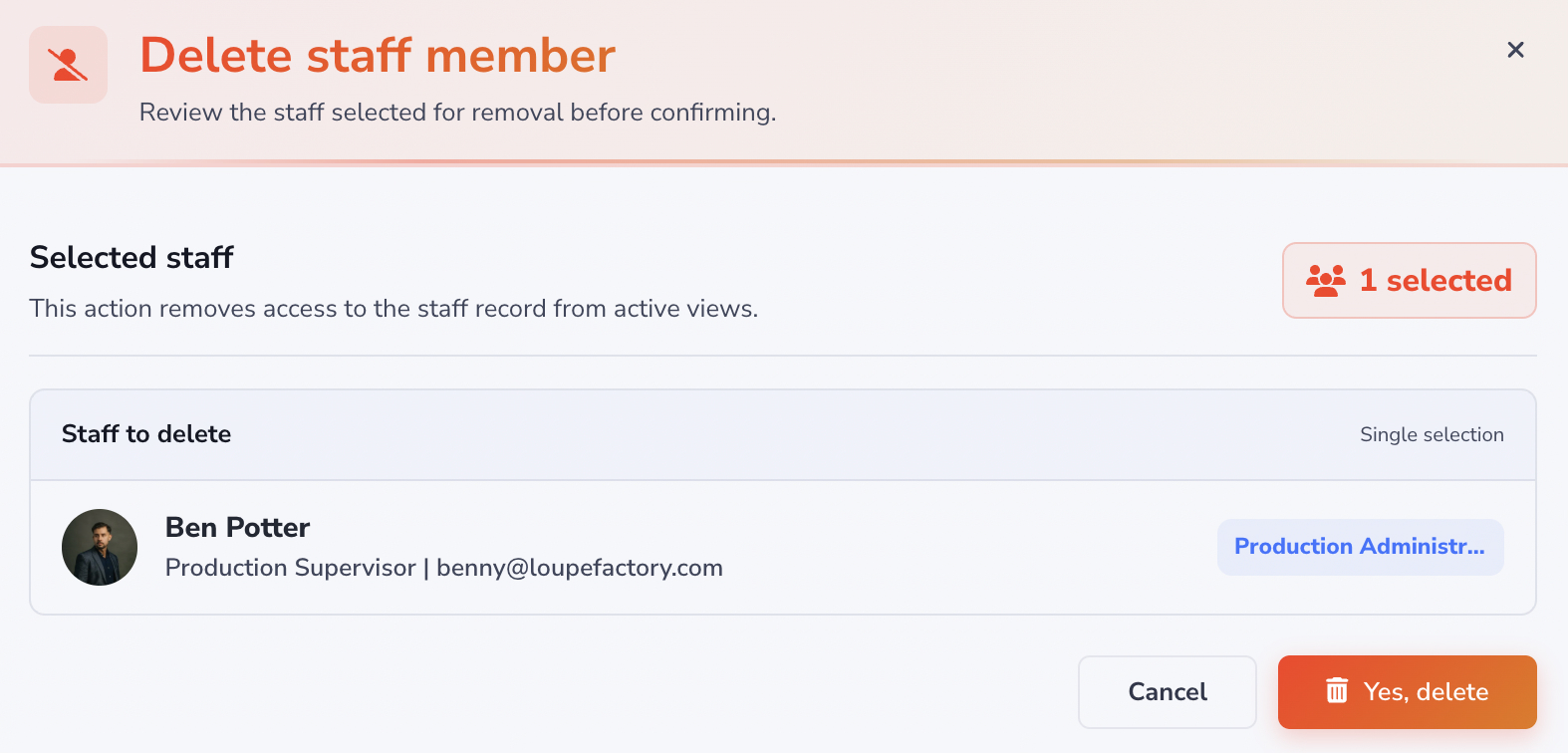
Review the confirmation message.
-
Confirm the removal only when you are sure the staff record is no longer needed.
Warning
Deleting a staff record can affect future assignment lists and filters. If the person has historical activity, review any linked production jobs, orders, or reports before removing the record.
Export the Staff List
Admins and managers can export the staff list to CSV. The download uses the same in-app one-time email code as the other protected lists. Members do not see the export. See Verified list exports.
Staff Record vs Workspace Access
A staff record is the operational profile for a person inside Loupe Factory. It does not automatically give that person permission to sign in.
A workspace user account controls login access, role, and permissions. Manage workspace users from Admin Settings > Users & Access.
Create or update the staff record when you need the person to appear in assignment lists. Invite or update the user account when the person needs to sign in and use the platform.
Recommended Information to Prepare
Before adding staff, confirm:
- first and last name
- nickname or display name
- main work location
- department
- designation or job title
- work email address, if you want it stored on the staff record
- preferred phone number, if you want it stored on the staff record
- avatar or profile photo, if useful. The file must be less than 4 MB and must be a
.jpg,.jpeg,.png, or.giffile. Images marked as locked will not be uploaded to the staff record.
Keeping these details consistent makes handoffs, filters, and reporting easier for multi-site teams.
Best Practices
- Add the person's real work email when your team needs it for internal communication.
- Keep department and designation values consistent across teams.
- Add the correct location so production and order ownership reports stay clean.
- Use nicknames only when they help teams identify people faster in daily work.
- Manage login access separately in Admin Settings > Users & Access.
Next Steps
- Security and Access: Review role permissions for Admin, Manager, and Member users
- Organization Settings: Manage locations, departments, and designations
- Production Tracking: Assign staff to production jobs and record job progress
- Order Management: Assign order leads and track work against customer or supplier orders