Order Management
Loupe Factory supports both sales orders and purchase orders with a guided creation flow that turns commercial notes into structured requested products your team can review before saving.
Create a Sales Order
To create a sales order:
- Go to Orders > Sales Orders.
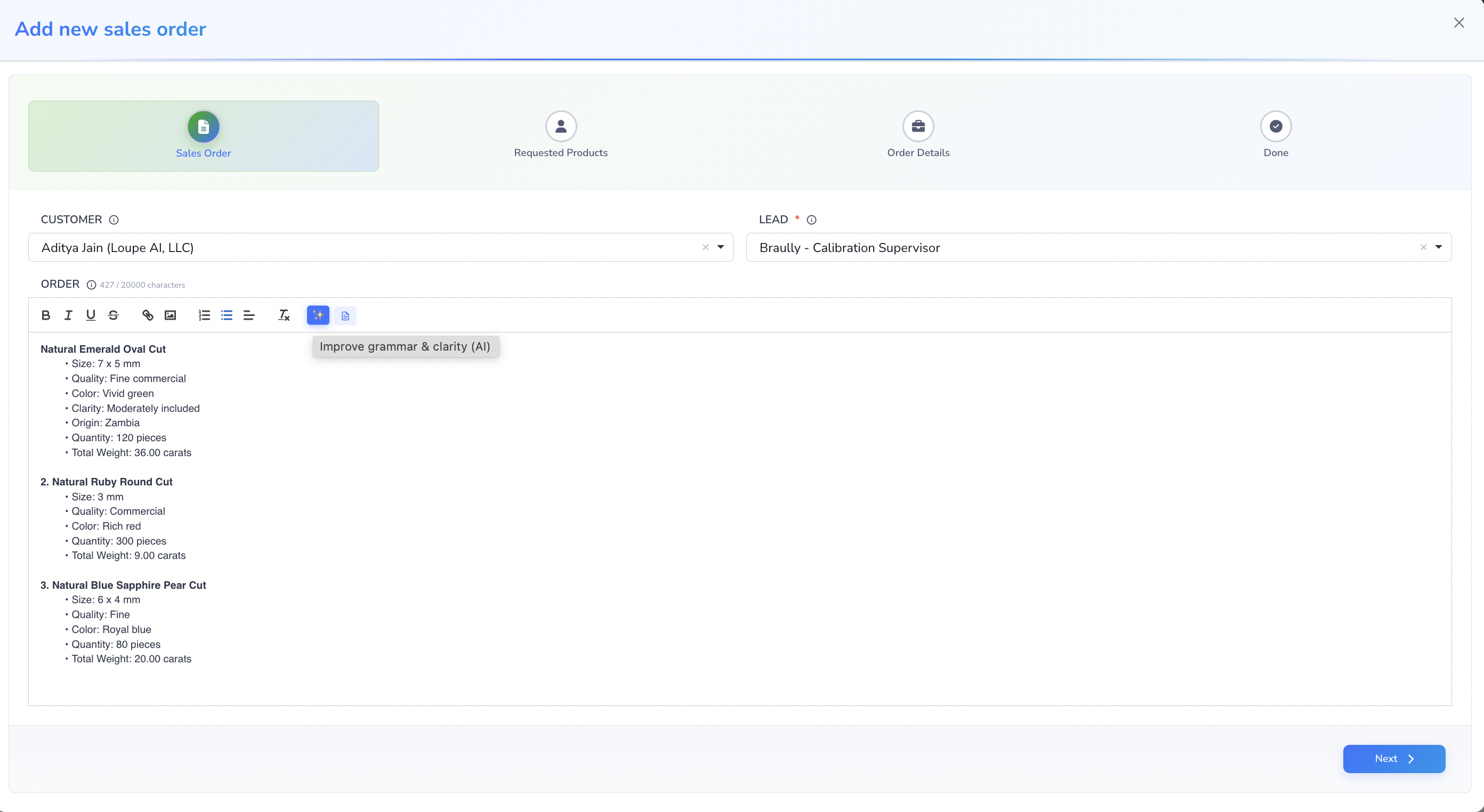
- Click Create sales order, then choose Create with AI.
- In the first step, select the customer and the internal order lead.
-
Add clear notes that describe what the customer needs.
-
On Requested Products, review the AI-prepared line items and correct any quantities, sizes, weights, or descriptions before saving.
- On Order Details, complete the timing fields such as date required and the order deadline used by your team.
- If your role allows it, confirm optional commercial values such as currency and internal budget.
- Accept the terms and submit the order.
Create a Purchase Order
To create a purchase order:
- Go to Orders > Purchase Orders.
- Click Create purchase order, then choose Create with AI.
- Select the supplier and the internal order lead.
- Add clear notes describing what should be purchased.
- Review the AI-prepared requested products and adjust them where needed.
- Complete the timing and commercial details, including currency, optional internal budget, and required dates.
- Accept the terms and submit the order.
Screenshot Placeholder
Add a screenshot of the purchase order creation wizard showing the supplier selection, notes field, requested products review, and order details step.
Writing Better Notes for AI Product Extraction
You will get the best requested-products review table when your notes are specific. Include useful details such as:
- product names
- requested quantities
- sizes or dimensions
- weight expectations
- material or quality notes
- colors or finishes, using the names on your workspace's color list
- delivery priorities
When your notes mention a color, Create with AI prefers the names on your color list, so a note that says rose gold is drafted as Rose Gold rather than as a new spelling. See Item Colors.
The AI review step is there to save time, but your team should always validate the final requested products before submitting the order.
Screenshot Placeholder
Add a screenshot of the AI-prepared requested products table after notes are processed, including an example row that can be reviewed before saving.
Tracking Order Status
The order details page gives your team several ways to understand progress at a glance.
What you can monitor on the order page
At the top of the order page, Loupe Factory shows:
- line-item status summary chips such as Not Started, In Progress, Ready, Shipped, Cancelled, Backordered, Returned, and Partially Returned
- the order-level Fulfillment status chip
- the order-level Payment Status
Inside the line-items table, Loupe Factory also shows:
- each line item's own status
- linked production progress
- fulfilled quantity
- shipped quantity
- shipment status
- the requested color, with a dot in its shade when the color has one
The activity area below the table can also show:
- linked production jobs
- shipments and tracking progress
- inventory selections tied to the order
How fulfillment status changes
Loupe Factory updates the order's fulfillment status from the combination of line-item statuses, shipped quantities, and linked shipment tracking statuses. Cancelled line items are ignored for most aggregate checks unless every line on the order is cancelled.
Loupe Factory applies these rules in priority order:
| Priority | Condition | Fulfillment status |
|---|---|---|
| 1 | Every line item is Cancelled | Cancelled |
| 2 | Any linked shipment has Exception status | On Hold |
| 3 | All active line items are Returned | All Returned |
| 4 | Any line item is Returned or Partially Returned | Partially Returned |
| 5 | All active line items are Completed | Completed |
| 6 | All active line items are Shipped, at least one shipment is linked, and every linked shipment is Delivered | Completed |
| 7 | All active line items are Shipped | Shipped |
| 8 | Any line item is Shipped or Partially Shipped, or has shipped_qty > 0 | Partially Shipped |
| 9 | All active line items are Backordered | Backordered |
| 10 | Some active line items are Backordered | Partially Backordered |
| 11 | All active line items are Ready or Production Completed | Ready to Ship |
| 12 | Every active line item is Not Started, Ready, or Production Completed, with at least one Not Started and at least one Ready or Production Completed | Partially Ready |
| 13 | Any line item is In Progress, Production Completed, or Ready | In Production |
| 14 | No higher-priority condition matches | Not Started |
In API and audit data, line-item status values use underscores, such as PARTIALLY_SHIPPED and PARTIALLY_RETURNED. Order fulfillment statuses use display values with spaces, such as PARTIALLY SHIPPED and PARTIALLY RETURNED.
Loupe Copilot uses these same statuses when you ask for orders by fulfillment status.
Loupe Factory recalculates the parent order status after line-item updates, marking a line ready, shipment updates, tracking refreshes, webhook updates, and returns. This means the order header becomes a reliable summary for sales, operations, warehouse, and customer-service teams without requiring them to inspect every line manually.
Screenshot Placeholder
Add a screenshot of the order details header showing the line-item status chips, fulfillment chip, payment status, and the line-items table with status-related columns visible.
Recording Payments
Payment status on a sales order is calculated from payment records, not picked from a menu. Record each payment on the order page, next to the payment status. The badge, the outstanding balance, and the customer's Paid figure all use the same arithmetic.
Only admins can record, edit, or delete payments. See Security and Access for what managers can do on a sales order.
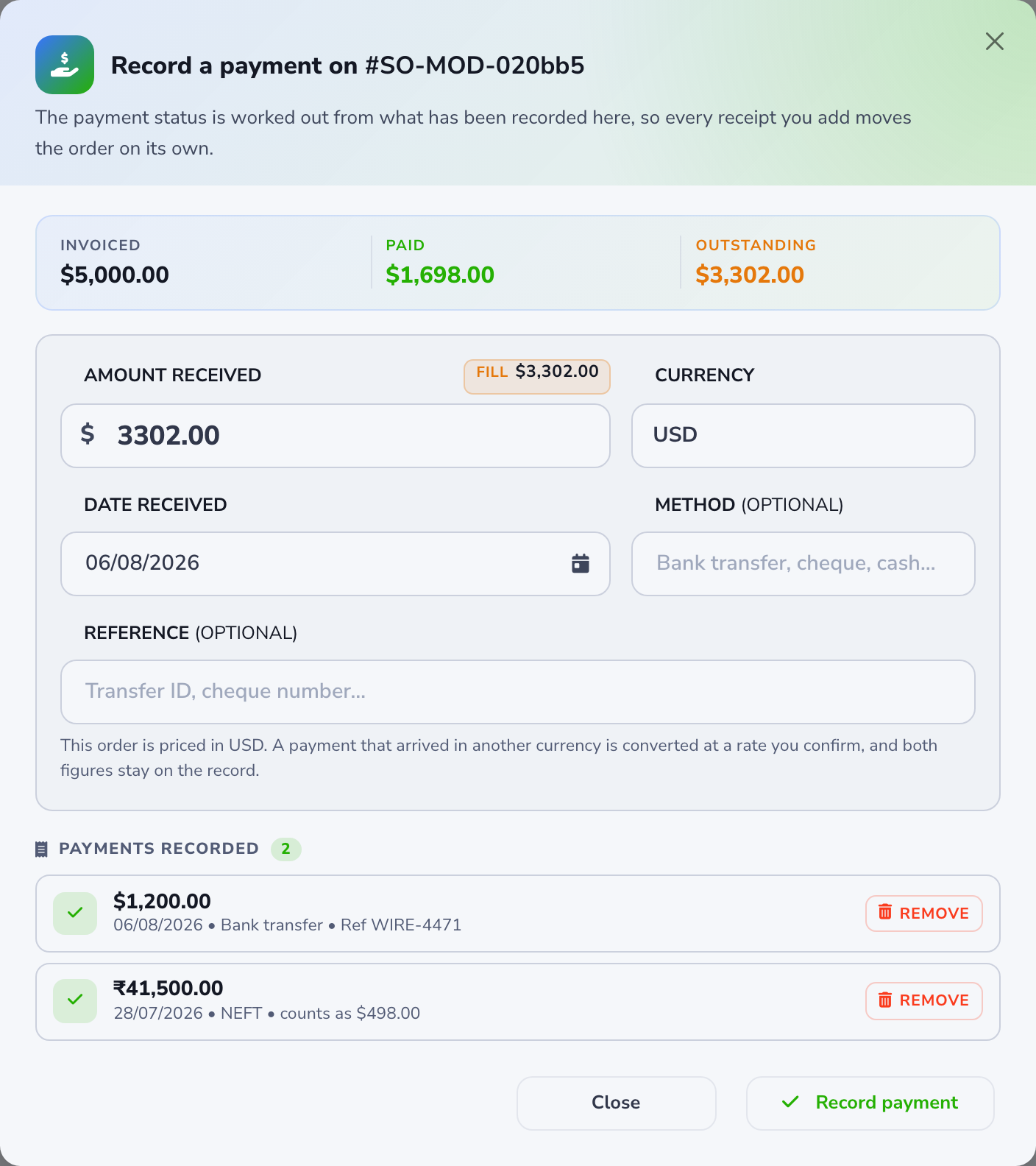
Record a payment
- Open the sales order.
- Click Record payment, next to the payment status.
- Enter the amount, the date it landed, and how it arrived: bank transfer, cheque, cash, card, or the method you actually use.
- Add the reference your bank gave you so the row matches your statement later.
- Save the payment.
Each payment lists with its date, method, and reference. Open Record payment again to see the history. Delete a payment recorded in error and the status recalculates immediately.
What the payment status means
Outstanding is invoiced minus paid, in the order's own currency. The badge tells you whether that status came from recorded payments or was set by hand.
| Status | When you see it |
|---|---|
| Unpaid | The order has been invoiced and nothing has been recorded against it. |
| Partially paid | Some of the billed amount has arrived. The outstanding balance is the rest. |
| Paid | Recorded payments cover the billed amount. |
| Pending | Money arrived before anything was invoiced. That is an advance, not a settlement. |
| Overdue | The invoice payment due date has passed and the order is not fully paid. |
A proforma is a quotation, not a demand for payment. It does not count toward what the order has been billed, so a quoted order that you later invoice can still reach Paid.
Overdue is the one status no action produces. A scheduled pass recalculates every order's payment status daily, using the payment due date on the invoice. Fill that field in when you invoice and unpaid orders flag themselves the morning after the due date. See Creating an Invoice.
Get paid in a currency you do not price in
Loupe Factory can record a payment in any of 153 currencies. When you pick a currency other than the order's, a conversion panel opens. It pre-fills from a live rate. You edit the converted amount, because the market rate is not the rate your bank gave you.
Enter the figure you can see on your statement, not a rate. A rate has to be read in some direction, and either reading looks plausible. The exchange rate is worked out from your two numbers and stored with the payment.
The rate is frozen when you record it. Nothing is reconverted later, so last quarter's payment does not change value because the market did.
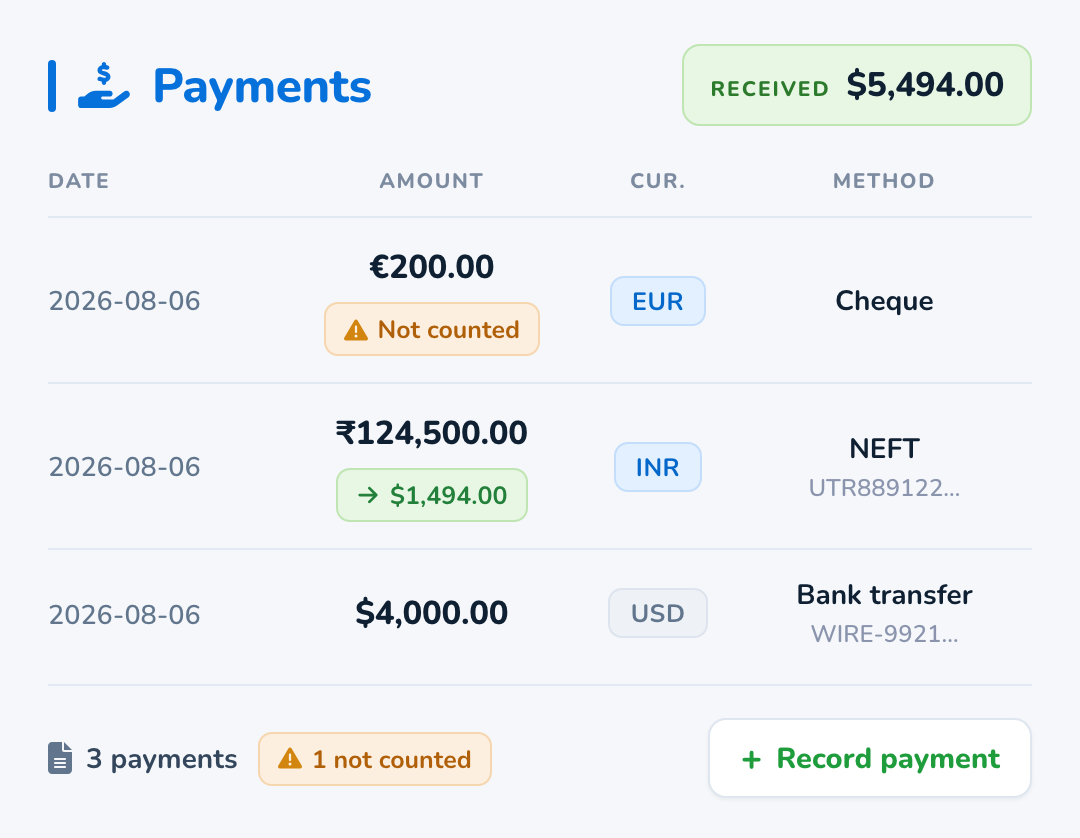
Both figures stay on the record. A payment can show 607,113.50 rupees and count as $7,000.00. Your bank reconciliation and your order totals then use the same booking.
If you raise an export invoice in a local currency, its stored total already has the exchange rate baked in. Loupe Factory reads those figures back through their own stored rate, so a $1,000 order with an INR invoice is not reported as $83,000 invoiced.
If a figure cannot be stated honestly in one currency, it is not folded into the total. It is reported separately. You can always tell the difference between a customer who has paid nothing and a customer whose payment cannot be expressed in the currency you asked about.
Order Totals
The order footer is the commercial total your invoices and PDFs should match.
If you price a parcel per lot, that price is the price of the lot. A 200-piece lot at $500 a lot is $500, in the order footer, at invoice creation, and in the regenerated PDF. Existing invoices stay as they were. Only newly calculated figures change.
A cancelled line is not a sale. It is excluded from every figure and listed by name in the disclosure below the total.
Returns are deducted where you can see them. The footer reads Items subtotal, then Less returns, then Net.
Loupe Factory does not guess at a partially returned line priced per lot. There is no lot fraction to apportion, so that case is named in the disclosure instead of estimated.
The Payments block on the order lists each receipt and the received total.
Fulfilling an Order
For sales orders, the main operational fulfillment flow happens on the order details page through Select Inventory and Manage Shipment.
For purchase orders, the equivalent operational step is typically Receive Inventory, because stock is coming in rather than being shipped out.
Selecting Inventory
Use Select Inventory when you want to reserve or retrieve stock for sales order line items before shipment.
- Open the order details page.
- Select one or more line items from the table, or open a single line item's row action menu and choose Select Inventory.
- In the modal, review the line-item card for each selected row.
- Choose one or more inventory records for that line item.
- Enter the exact selection quantities for each chosen inventory item, or use Full when the full available amount should be selected.
- Repeat for each line item in the modal.
- Submit Select Inventory.
When you save, Loupe Factory associates those inventory records with the order line items and deducts stock from the selected inventory items.
Screenshot Placeholder
Add a screenshot of the Select Inventory modal showing one line-item card, the inventory lookup table, and the per-inventory quantity controls.
Marking Items as Ready
Inside the Select Inventory flow, each line item includes a checkbox to Mark this line item as "Ready".
Use that option when the inventory for that line has already been properly assigned and the item is operationally ready for the next fulfillment step.
In practice:
- Select the inventory for the line item.
- Turn on the Mark this line item as "Ready" checkbox when appropriate.
- Submit the inventory selection.
If all active line items are now in Ready or Production Completed status, the order's fulfillment chip can move to Ready to Ship.
Screenshot Placeholder
Add a screenshot of a line-item card in the Select Inventory modal with the Mark this line item as "Ready" checkbox visible.
Creating a Shipment
Use Manage Shipment or Create Shipment when stock is ready to leave your business.
- Open the order details page.
- Select the relevant line items from the table, or use a line item's row action menu and choose Manage Shipment.
- In the shipment modal, select the carrier.
- Enter the tracking number.
- For each line item, review the shipment card:
- If inventory was already retrieved earlier, Loupe Factory can show the pre-retrieved inventory as ready to ship.
- If inventory was not pre-retrieved, choose the inventory to ship and enter the exact ship quantities for each selected inventory item.
- Submit Create Shipment.
After shipment creation, Loupe Factory updates shipped quantities, shipment statuses, and shipment activity on the order page. The order's fulfillment chip then recalculates from the priority rules above, so it may move to Partially Shipped, Shipped, Completed, or On Hold depending on the line items and linked shipment statuses.
Screenshot Placeholder
Add a screenshot of the Create Shipment modal showing carrier, tracking number, and one shipment line card with inventory and ship quantity controls.
Marking an Order as Fulfilled
On the order details page, Loupe Factory does not rely on a separate manual "mark fulfilled" action for the overall order. Instead, the order-level fulfillment status updates from the real workflow.
In practice:
- line items move through statuses such as Ready, Partially Shipped, and Shipped
- shipment cards and shipment-status badges show whether shipments are Pending, In Transit, Out for Delivery, Delivered, Exception, or Cancelled
- the order becomes Completed when all active line items are shipped and all linked shipments are delivered
- the order becomes On Hold if any linked shipment has an exception
This keeps the order's top-level status aligned with actual shipping and delivery progress.
Screenshot Placeholder
Add a screenshot of the order details page showing the fulfillment chip, shipment timeline entries, and delivered shipment status badges.
Cancelling an Order
On the order details page, cancellation is usually handled at the line-item level, which is helpful when only part of an order should stop moving forward.
Cancel selected line items
- Open the order details page.
- Select one or more line items from the table.
- Click Cancel selected.
- Review the confirmation modal.
- Confirm Cancel items.
The selected lines are marked as Cancelled, and Loupe Factory recalculates the order's overall fulfillment status after the change.
Remove the full order
If the entire order should be removed permanently, use Actions > Remove.
Warning
Remove is a permanent delete action. It deletes the order and its associated line items, tasks, and shipments. Use it only when you truly want the record removed, not when you only need to stop part of the order.
Screenshot Placeholder
Add a screenshot of the Cancel selected line items confirmation modal, and optionally a second screenshot of the Actions > Remove delete dialog for the full order record.
How Loupe Factory Calculates Production Metrics on an Order
When an order has linked production jobs, Loupe Factory shows production numbers in two layers:
- Job-level progress on timeline cards, which follows the same logic as Production Job Progress
- Order-level efficiency on the order details production summary, which looks across the full production chain for that order
Order progress bar
The order progress bar combines all linked production jobs into one operating view. Loupe Factory adds together each job's progress base and each recorded weight bucket:
This gives sales, production, and customer-service teams one shared progress view without forcing them to inspect each production job separately.
Final output weight
For the order-wide efficiency card, Loupe Factory first determines the Final Output Weight. To do this, it finds the most recently received production stage on the order and then sums the measured output from that same stage across all related jobs.
This treats the final stage as the order's last real production checkpoint.
Net input weight
Loupe Factory then calculates the Net Input Weight across the full order:
In practical terms, this represents the net material still consumed by the full production chain after intermediate stage outputs are backed out and the final stage output is added back in once.
Order-level efficiency metrics
After those two weights are established, Loupe Factory calculates the order's top-line efficiency metrics. Before doing so, it normalizes all linked production-job weights into your organization's default weight unit, so the order is measured consistently even when different jobs were recorded in different units.
Output % shows how much of the order's net material input became final-stage output.
Gross Waste % captures the total material loss across the order, including tracked scrap.
Net Waste % is the order-level loss waste figure. It isolates true unrecoverable loss and excludes scrap that is still separately tracked.
Consumption % shows how much material was lost for each unit of final output produced. Lower values indicate a more efficient production chain.
How to read the order metrics
- Higher Output % is better
- Lower Gross Waste % is better
- Lower Net Waste % means lower true loss
- Lower Consumption % means the order used material more efficiently
Screenshot Placeholder
Add a screenshot of the order details production summary showing the order progress view and the efficiency metrics together.
Export the Order List
Admins can export the sales order list to CSV. Admins and managers can export the purchase order list. Both downloads use the same in-app one-time email code as the other protected lists. See Verified list exports.
After the Order Is Created
Once saved, the order becomes the commercial and operational record your team can use for:
- production planning
- purchasing follow-up
- Bill of Materials creation and review
- inventory selection
- shipment preparation
- invoicing
- customer or supplier communication
Screenshot Placeholder
Add a screenshot of the full order details page showing the order header, line-items table, and activity area together.
Creating and Reviewing BOMs
Use Create BOM when an order or order line needs a Bill of Materials for an estimate, quote, production workflow, actual-cost review, invoice support, or internal costing record.
In the Create BOM modal, choose the BOM type, link the correct order line, add rows from saved cost components, rate profiles, production context, or manual entries, then review the final BOM before saving. After a BOM is saved, the BOM Summary modal gives your team a read-only view of the linked order line, related inventory, notes, totals, currency, effective dates, and line-item details.
Different BOM types show and hide different fields in the review step and PDF. Customer-facing BOMs hide sensitive cost, margin, sourcing, exchange rate, and internal note details. Internal BOMs keep the full costing and operational record. See Bill of Materials for the complete BOM workflow and type guide.
Next Steps
- Customer & Supplier Management: Keep the contacts behind your orders accurate and usable.
- Production Tracking: Turn order demand into production jobs and track output back to the order.
- Bill of Materials: Create and review BOMs from a sales order or order line before downloading the right PDF for the workflow.
- Shipment Tracking: Manage dispatch and tracking once an order is ready to ship.
- Invoicing: Create an invoice from the order, then use the same payment records to track what has been billed and what is still owed.