Inventory QR & Barcode Tags
Loupe Factory gives each inventory item a tag image that helps your team identify stock quickly, open the correct item record, and keep movement across storage, production, and fulfillment organized.
Each inventory item tag is available in two formats:
- a QR tag
- a barcode tag, available on the Professional, Business, and Enterprise plans
Both formats are based on the same inventory record. The main difference is the type of scannable code shown on the tag.
For details about how inventory tag IDs are created, see Inventory Tag IDs.
Open an Inventory Tag
You can open an inventory tag from places where the inventory item's tag ID is shown.
To view a tag:
- Go to Inventory and find the item.
- Click the tag ID in the inventory list, or open the item details page.
- If you are on the item details page, open More Actions and click View Tag.
- The tag opens in a modal window.
- Use the toggle to switch between QR Code and Barcode, if barcode tags are included in your plan.
- On the Professional, Business, and Enterprise plans, use Copy Image or Download if you want to print or share the tag.
- Use View Details to open the full inventory item record.
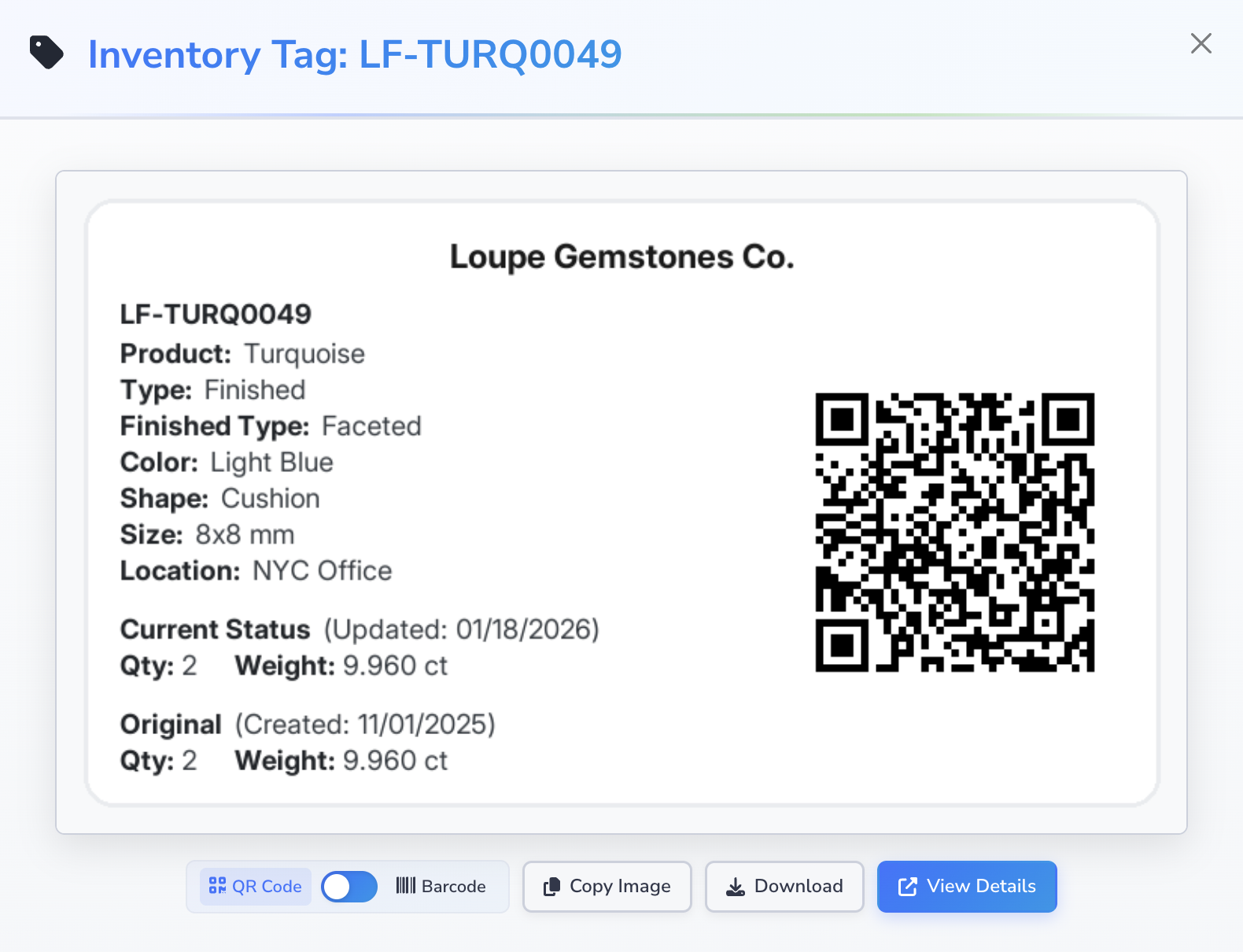
Loupe Factory opens the tag in QR Code view by default.
What the QR Tag Shows
The QR tag is designed for teams that want a scannable label that can open the full inventory item record quickly.
Depending on the item, the QR tag can show:
- your organization name and logo, if they are set up
- the inventory tag ID
- the product name, when that field applies to the item
- the inventory type
- the finished type, when the item is finished inventory
- color, when recorded
- shape
- size
- location
- rack, on the same line as location when rack tracking is used
- a Current Status section with the latest update date
- the current quantity and weight
- an Original section with the item creation date
- the original quantity and weight
- a QR code that opens the inventory item details page in Loupe Factory
Not every tag shows every field. Loupe Factory only shows the details that are relevant to that inventory item.
What "Current Status" and "Original" Mean
The Current Status section helps your team see the inventory values that are true right now.
The Original section helps your team see the starting quantity and starting weight recorded when the item was first created.
This makes the tag more useful for quick stock checks, review work, and traceability conversations.
What the Barcode Tag Shows
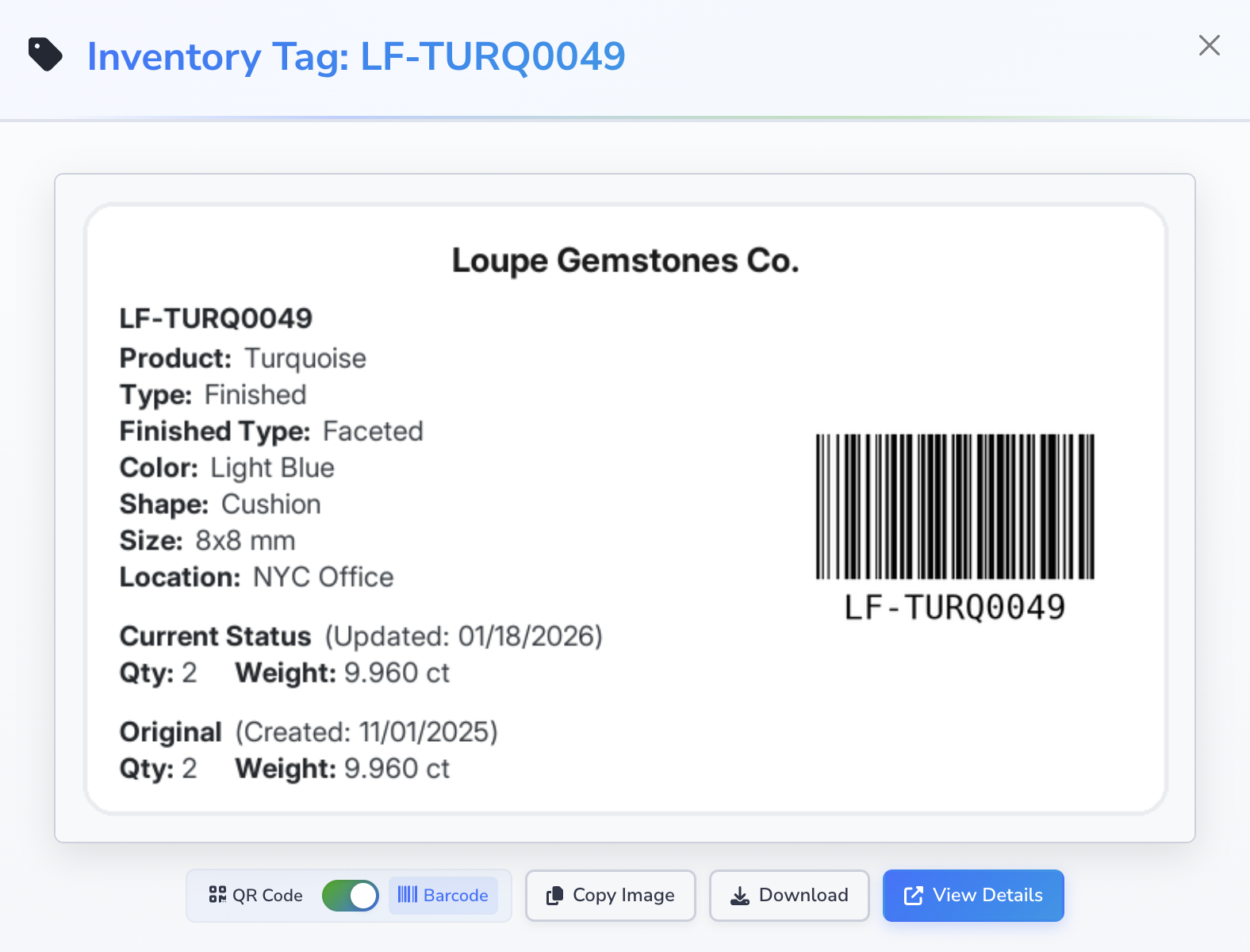
The barcode tag is available to users on the Professional, Business, and Enterprise plans. It shows the same business information as the QR tag, but the scannable area is shown as a Code 128 formatted barcode instead of a QR code.
Loupe Factory generates barcode tags in Code 128 format. Code 128 is a widely supported, high-density barcode format that can be read by standard barcode scanners, including scanners commonly used in warehouse, stockroom, and fulfillment workflows. This makes the barcode tag practical for teams that already rely on scanning hardware and want fast item identification without changing their existing process.
That means the barcode tag can include:
- your organization name and logo, if they are set up
- the inventory tag ID
- the relevant item details, such as type, finished type, color, shape, size, and location
- the current quantity and weight
- the original quantity and weight
- a barcode version of the item's tag ID
Choose the barcode view when your team wants a compact, scanner-friendly tag format that fits fast scan-based workflows, simple label printing, and repeated inventory handling.
When to Use QR Tags vs Barcode Tags
Use a QR tag when:
- someone needs to open the full item record from a phone or shared device
- your team wants more context at the moment of scanning
- supervisors, sales staff, or quality teams need a faster path to the item details page
Use a barcode tag when:
- your team prefers a more traditional warehouse or stockroom label
- the goal is fast item identification during repetitive handling work
- you want a compact label style for storage bins, packets, trays, or shelves
- your team uses standard barcode scanners and wants the inventory tag ID in a Code 128 format
In practice, many teams use both formats for the same inventory item, depending on where the label is being used.
How Wholesalers Can Use These Tags
For wholesalers, inventory tags are useful anywhere stock needs to be found, checked, packed, or reviewed quickly.
Common uses include:
- labeling trays, packets, shelves, bins, or cartons
- checking that the right item is picked for an order
- separating similar items by size, shape, color, or type
- helping sales or support teams open the exact item record during customer conversations
- keeping stock counts more organized during audits and cycle counts
QR tags are especially useful when a team member needs to jump from a physical item to the full digital record quickly.
Barcode tags, available on Professional, Business, and Enterprise plans, are especially useful in high-volume handling areas where simple Code 128 barcode scan-and-identify workflows matter most.
How Manufacturers Can Use These Tags
For manufacturers, inventory tags help keep materials, work-in-progress, and finished goods clearly identified as they move through operations.
Common uses include:
- labeling raw materials before issue or use
- identifying work-in-progress between production stages
- keeping output items clearly matched to the right inventory record
- helping quality, production, and warehouse teams review the same item
- reducing mix-ups when similar materials or finished items are stored together
- preparing finished inventory for storage, packing, or dispatch
QR tags are helpful when supervisors or operators need quick access to the full item details page.
Barcode tags are helpful when production support or warehouse teams need fast, repeatable Code 128 barcode scanning during daily movement and handling.
Best Practices
- On the Professional, Business, and Enterprise plans, print or download the tag soon after the inventory item is created.
- Attach the tag where it can be seen and scanned easily.
- Keep location, rack, quantity, and weight records current so the tag remains useful.
- Replace labels that become damaged, hard to scan, or hard to read.
- Use a consistent approach across teams so everyone knows when to use QR tags and when to use barcode tags.
Next Steps
- Inventory Tag IDs: Learn how inventory tag IDs are created for regular inventory, production activity, and connected apps.
- Inventory Management: Learn how inventory items are created, updated, and organized.
- Inventory Settings: Review tag ID prefixes and inventory setup rules.
- Production Tracking: See how tagged inventory moves through production work.
- Shipment Tracking: Learn how inventory moves into fulfillment and dispatch workflows.