Dashboard Overview
After logging in, the Loupe Factory dashboard is your central hub for monitoring operations at a glance. This page explains the layout, the key metrics displayed, and how to navigate to each platform module.
Dashboard Layout
Open the Loupe Factory dashboard to follow along with this guide.
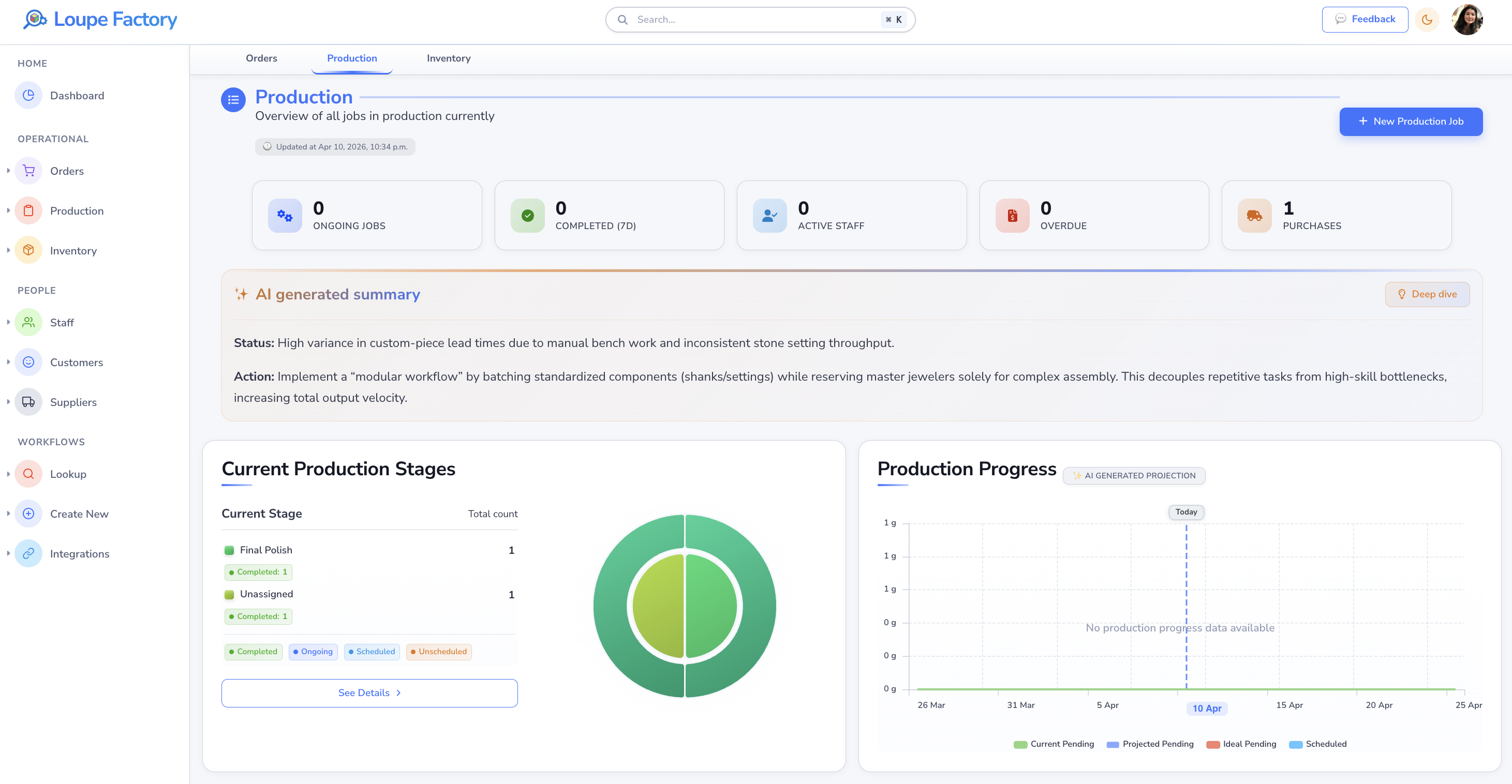
The dashboard is divided into three main areas:
- Top navigation bar: access universal search, the feedback button, your organization switcher, notifications, and account settings.
- Left sidebar: the primary navigation menu linking to each platform module.
- Main content area: displays the Home dashboard, Loupe Copilot ask box, summary cards, key metrics, and recent activity feeds.
Universal Search
Universal search helps you find work, records, pages, reports, charts, and actions from one search box. Use the search field in the top navigation bar, or press Command+K on macOS or Ctrl+K on Windows to open it from anywhere in Loupe Factory.
You can search by details your team already uses day to day, such as order numbers, inventory tags, production job IDs, product names, customer or supplier details, staff emails, page names, report names, chart names, and operational keywords.
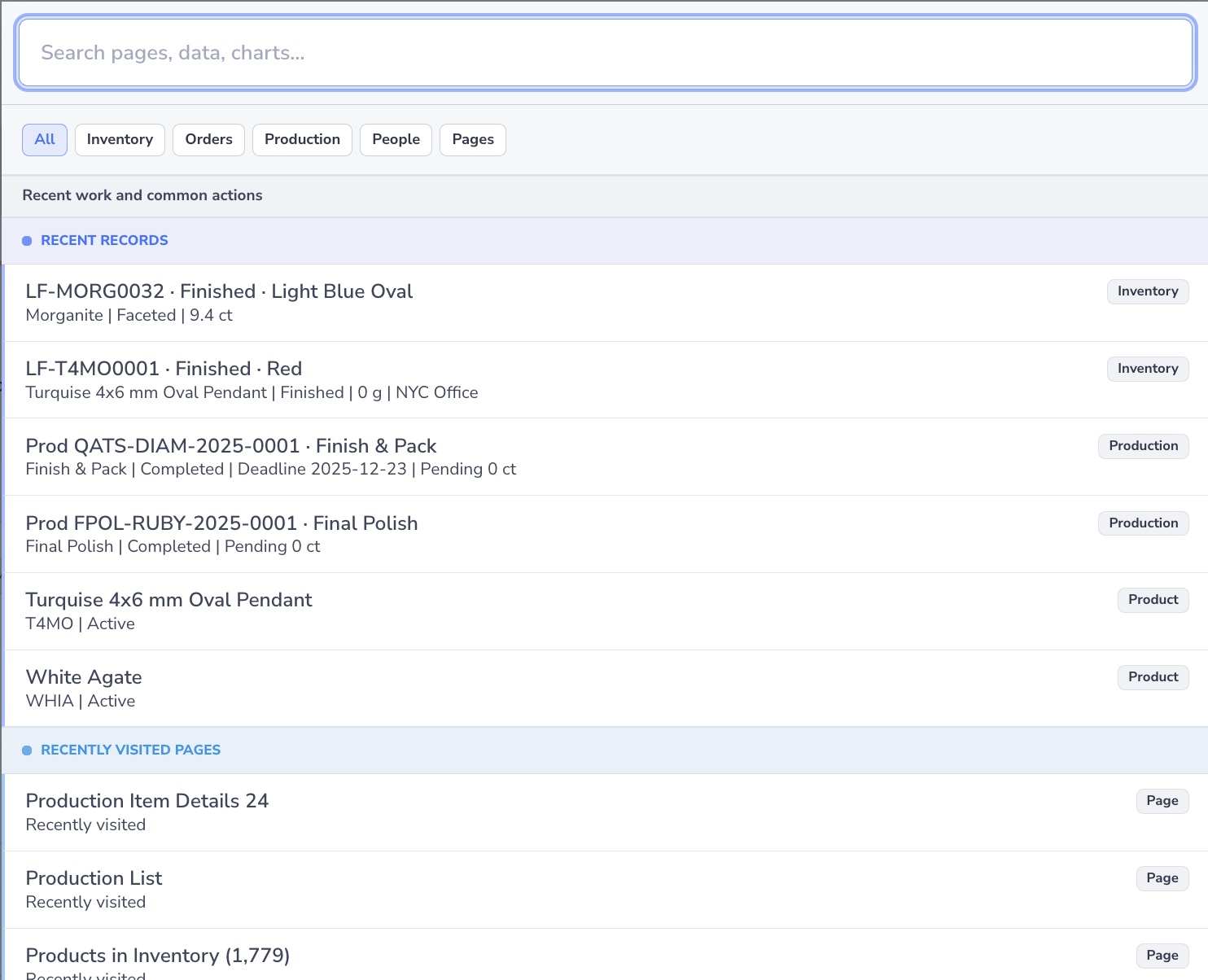
Universal search can help you:
- jump directly to inventory items, product records, orders, production jobs, customers, suppliers, staff, pages, dashboards, reports, and charts
- run quick actions, such as creating an inventory item or sales order
- review useful result details before opening a record, including customer, status, due date, product, weight, location, stage, deadline, or pending weight
- resume work from recent records, recently visited pages, and quick actions when you open search without typing
Search results respect your role permissions, so restricted customer, supplier, or admin-only information is only shown to users who have access.
For best results, search for exact order numbers, inventory tags, production job IDs, customer or supplier emails, staff emails, product names, workflow stages, page names, or report names.
Loupe Copilot
Loupe Copilot lets you ask your business a question from the Home dashboard and get an answer from the Loupe Factory records you are allowed to see. Use it when you need a direct answer instead of opening several reports or filtering through multiple modules.
Good starting questions include:
- "Which orders are ready to ship?"
- "Who are my top customers this year?"
- "Do we have this item in stock, and where?"
- "Which production jobs are running late?"
- "How do I create a sales order?"
Copilot can return links to the records behind its answer, so you can move from the summary to the exact order, inventory item, production job, shipment, or invoice that needs attention.
Search and Copilot work differently
Use Universal Search when you know the record, page, or action you want to open. Use Loupe Copilot when you want an answer, explanation, or step-by-step guidance from your business data.
See Loupe Copilot for examples, data protection rules, and billing details.
Questions and Feedback
Use the Feedback button in the top navigation bar when you have a question, want to report something confusing, or want to send feedback without leaving Loupe Factory. The button opens the Questions or feedback form.
In the form, you can choose a topic, write your message, and submit it directly from the app. If you want help making the message clearer before sending it, use the AI sparkle button to polish your message.
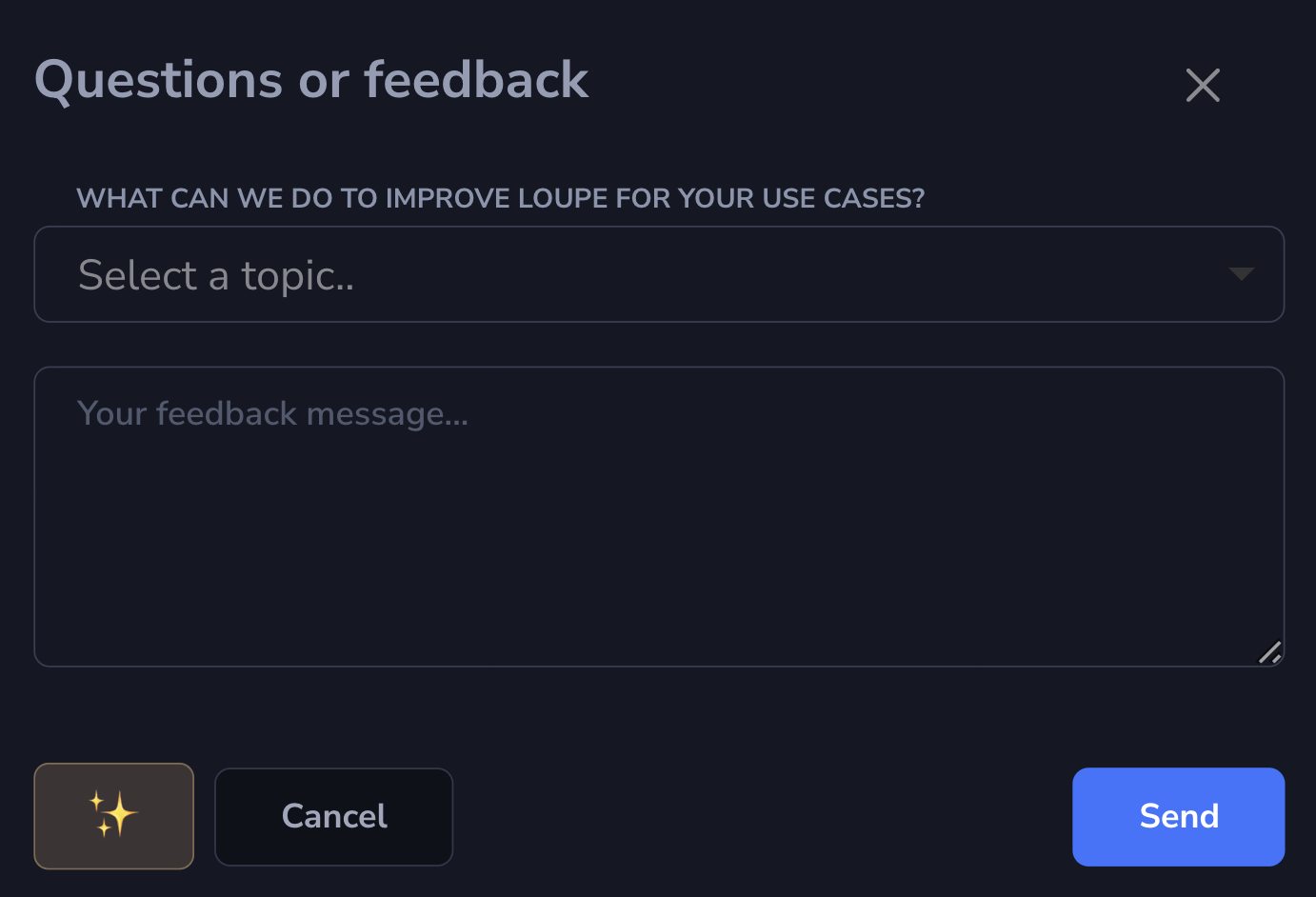
This is a useful way to ask for help, share product feedback, or send context while you are still looking at the page or record you want to discuss.
Notification Bell
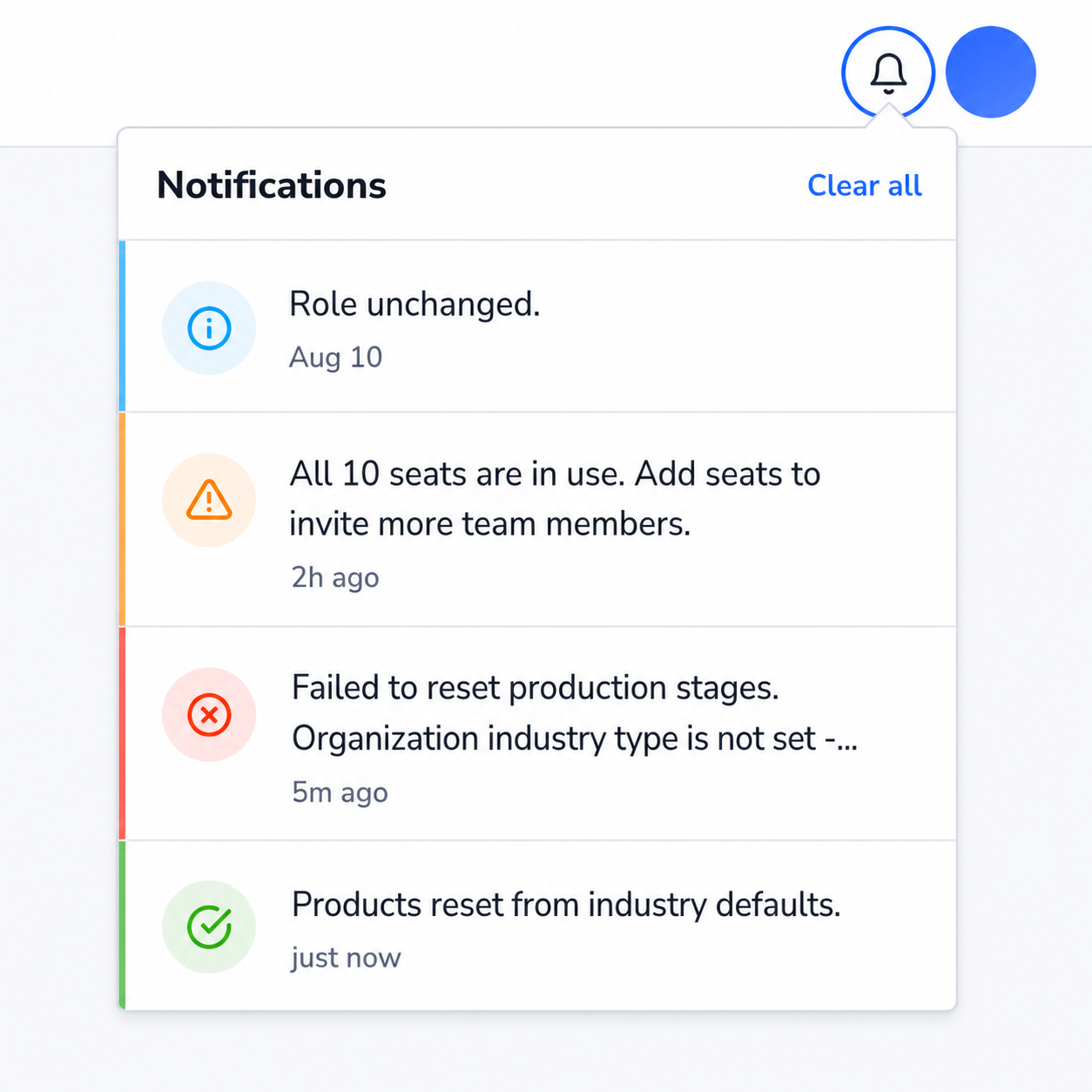
There is a bell at the top of every page. Every action outcome Loupe Factory announces appears briefly in the corner of the screen and lands in the bell at the same time. That covers daily work: creating customers, suppliers, staff, and inventory items, raising sales and purchase orders, editing production jobs, acting on an order, syncing an integration, saving settings, and export failures.
A notice that only flashed in the corner was easy to miss. The bell keeps it while that tab is open.
- A count on the bell shows what you have not seen. Open it and the messages are marked read. Dismiss them one at a time, or use Clear all.
- Each message carries the time it arrived: just now, 8m ago, 2h ago, then the date.
- Four kinds, told apart at a glance: green for done, red for failed, amber for a warning, blue for information, each with its own icon, in light mode and dark.
- The bell keeps your last 20 messages in your browser tab, not on Loupe Factory servers. Close the tab and it is gone. On a shared computer, a different sign-in never sees the previous person's messages.
This is an in-app panel. It is not email, push notifications, or a log stored on the server.
The notice waits in the bell while that tab is open. It does not follow you to another device.
Form-field validation hints and the in-modal AI text-polish notice stay on their form. They do not enter the bell.
A message used to be able to arrive late, on the wrong page. Every page now shows its own messages at the moment they happen.
Key Metrics
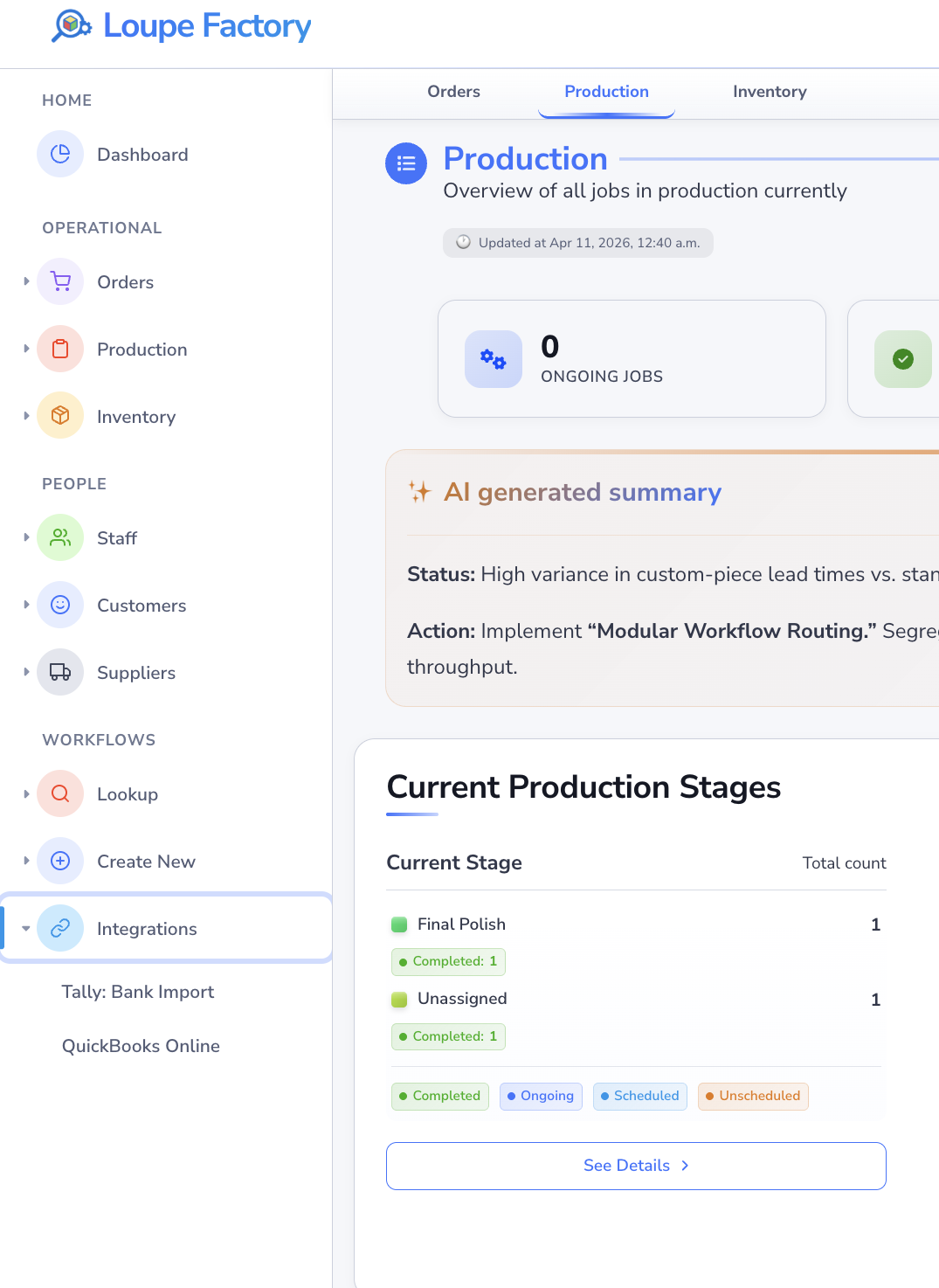
The main content area surfaces the most important operational numbers for your business. Each metric card is clickable and takes you directly to the relevant module for more detail.
Inventory
- Total SKUs: the number of distinct inventory items currently tracked.
- Low Stock Alerts: items that have fallen below their reorder threshold.
Production
- Active Production Runs: processes currently in progress across all stages.
- Completed Today: production runs finished in the current day.
Orders
- Open Orders: customer orders that have not yet been fulfilled.
- Orders Due Today: orders with a fulfillment deadline of today.
Shipments
- In Transit: shipments currently on their way to customers.
- Delivered Today: shipments confirmed as delivered in the current day.
Recent Activity Feed
Below the metrics cards, the Recent Activity feed shows a chronological log of events across your organization: new orders placed, production stage completions, shipment status updates, and inventory adjustments. Each entry links directly to the relevant record.
Screenshot: Recent Activity Feed
A screenshot will be added here showing the recent activity feed with several example log entries and their timestamps.
Suggested image: assets/dashboard-overview-activity-feed.png
Navigating to Platform Modules
Use the left sidebar to move between modules. Each section corresponds to a core area of the platform:
| Sidebar Item | Module | Description |
|---|---|---|
| Inventory | Inventory Management | Add, edit, and categorize stock items |
| Production | Production Tracking | Define and track multi-stage production processes |
| Orders | Order Management | Create and fulfill customer orders |
| Invoicing | Invoicing | Generate and manage invoices linked to orders |
| Shipments | Shipment Tracking | Track packages and view delivery status |
| Customers & Suppliers | Customer & Supplier Management | Manage contacts and their transactions |
| Staff | Staff Management | Add and manage staff records |
| Security & Access | Security and Access | Review roles and access rules |
| Reports | Reporting & Analytics | View reports and export data |
Next Steps
- Quick Start Guide: follow a step-by-step walkthrough to add inventory, create a production process, and place your first order.
- Loupe Copilot: ask plain-language questions from the Home dashboard and open the records behind the answer.
- Inventory Management: start building your inventory catalog.
- Profile: update your personal profile and password.