Customer & Supplier Management
Loupe Factory keeps customers and suppliers in one shared people area so your sales, purchasing, operations, and finance teams can work from the same records.
Use Customers for the companies and contacts that buy from you. Use Suppliers for the companies and contacts you buy from, such as material vendors, packaging providers, outsourced production partners, freight partners, and service providers.
For B2B manufacturers and wholesalers, these records become the starting point for orders, purchasing, invoicing, shipments, reporting, and internal follow-up.
Before You Start
Decide which team member owns contact quality for your workspace. Clean records are easier to use when everyone follows the same naming and data entry rules.
Before adding records, collect the information your team uses most often:
- legal or trading company name
- primary contact name
- email address
- phone number
- billing or business address
- country and city
- website, if available
- internal notes your team needs during sales, sourcing, or fulfillment
If your company works across countries, keep country names, postal codes, phone numbers, and company names consistent. This makes filtering, exports, and reporting easier later.
Customer vs Supplier Records
| Record type | Use it for | Common examples |
|---|---|---|
| Customer | A company or contact that buys from your business | Retailer, distributor, brand, marketplace buyer, wholesale account |
| Supplier | A company or contact your business buys from | Raw material vendor, packaging supplier, component vendor, contract manufacturer, logistics provider |
Some companies may be both a customer and a supplier. Create the record on each side you need. Each page counts only its own side. Purchase orders do not appear as sales on the customer page.
What You Can Do on These Pages
Both the Customers and Suppliers pages give you a searchable directory. From each page, you can:
- review summary totals (All, New, Active, Inactive) (see Understanding the summary counts)
- search by person, company, or contact details
- filter by country
- filter by ordered, invoiced, or paid value
- sort the table by key columns
- open a detail page for Lifetime value and the orders table
- edit or remove records, depending on your role
- export the current list to CSV, after a one-time email code. See Verified list exports.
If AI features are enabled for your workspace, Loupe Factory may also show an AI-generated summary above the list. Use it as a quick overview, then review the actual table before making decisions.
Understanding the summary counts
On the Customers and Suppliers pages, the totals for All, New, Active, and Inactive describe your directory using the same rules for both sides. For customers, Last order reflects their latest sales activity; for suppliers, it reflects the latest order your team has with that vendor.
All of these labels use a rolling window of the last 30 days, counted back from today (using the dates stored on each record).
| Count | Meaning |
|---|---|
| All | The full list: every customer or supplier record in your workspace. |
| New | The Customer Since or Supplier Since date is within the last 30 days (on or after the day that was 30 days ago). These are relationships you have marked as starting recently on the record. |
| Active | Last order is within the last 30 days (on or after the day that was 30 days ago). There has been recent order activity. |
| Inactive | Last order is older than 30 days, or there is no last order date yet. That usually means no recent activity on file, or the record has not been tied to an order yet. |
Last order is written automatically when an order is placed, and cleared if a return reopens a completed order. You do not type it.
New looks at when the relationship starts (since date). Active and Inactive look only at Last order. A contact can be New and still show as Inactive if they have no orders yet. Those labels measure different things.
Completion rate ignores cancelled orders. Cancelling an order does not lower the customer's completion rate.
Lifetime value
Open a customer or supplier and you will see a Lifetime value panel instead of a Total Sales field you type. The panel answers three different questions:
| Figure | What it means |
|---|---|
| Ordered | What they have committed to buy |
| Invoiced | What you have billed them |
| Paid | What has actually arrived |
One block per currency. Figures are never blended and never converted behind your back. If you want a combined estimate, there is a button for it. That estimate shows the rate, the source, and the time it was taken.
A single sales total cannot tell you whether a quiet quarter is a demand problem, a billing backlog, or a collections problem. Three figures side by side make that obvious.
The customer page's orders table shows order value and paid, with a totals row. Budget is still available. It is no longer the leading money column.
Screenshot space
Lifetime value panel
Add a screenshot of the customer Lifetime value panel showing Ordered, Invoiced, and Paid in one currency, plus the orders table with order value and paid.
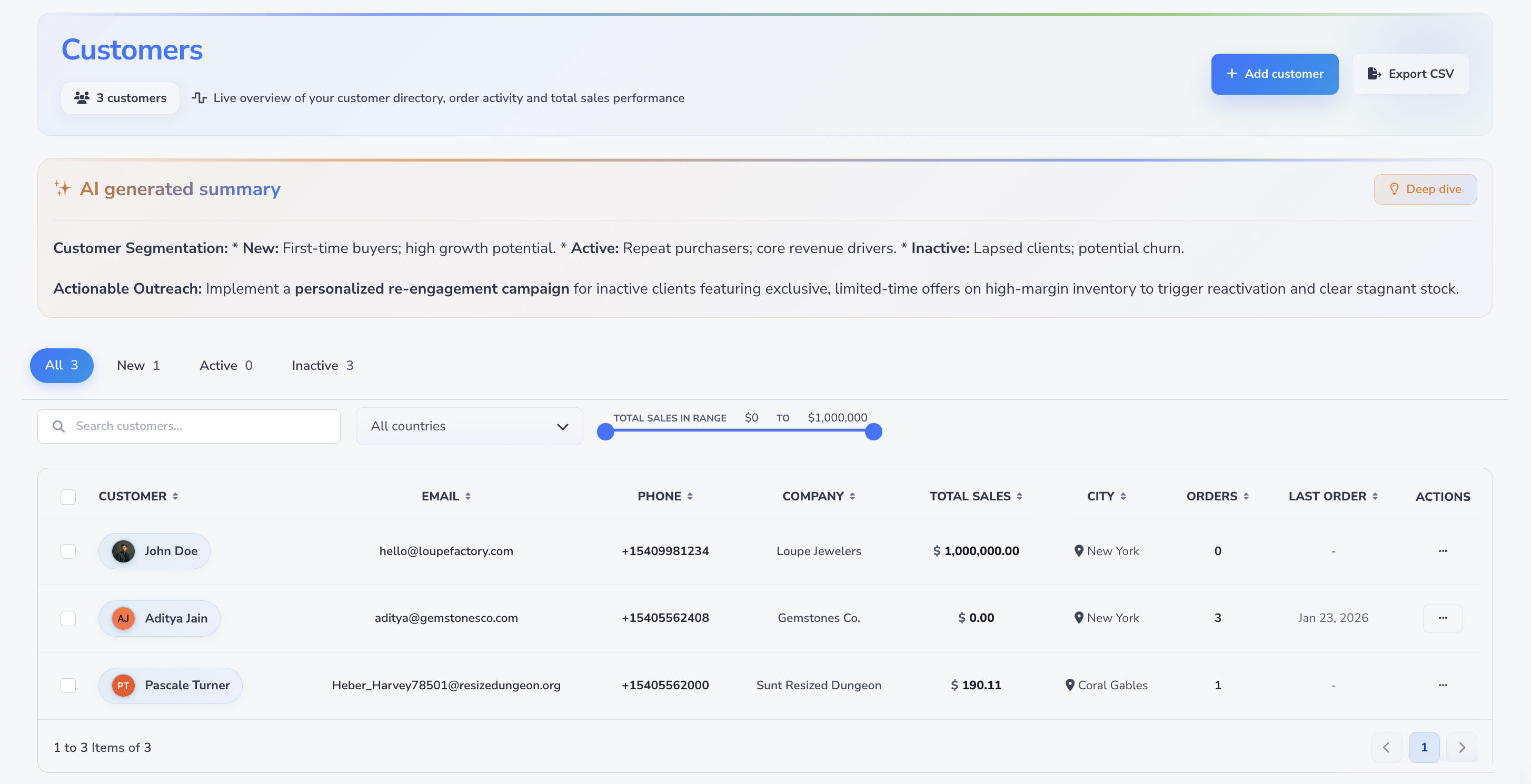
Open the Customer List
Use the Customers page when you need to create, review, or update records for buyers.
- In Loupe Factory, go to People > Customers > Customer List.
- Review the summary counts for All, New, Active, and Inactive customers. See Understanding the summary counts for what each total means.
- Use the search bar or filters if you need to narrow the list.
- Select a customer row to review the record, or open the Actions menu for row-level options.
The customer table includes:
- Customer
- Phone
- Company
- Lifetime value
- City
- Orders
- Last Order
- Actions
Use this page to answer practical questions such as:
- Which customers are active?
- Which country or region does this account belong to?
- When did this customer last order?
- What has this customer ordered, been billed, and actually paid?
- Which customer record should be linked to a new sales order?
Open the Supplier List
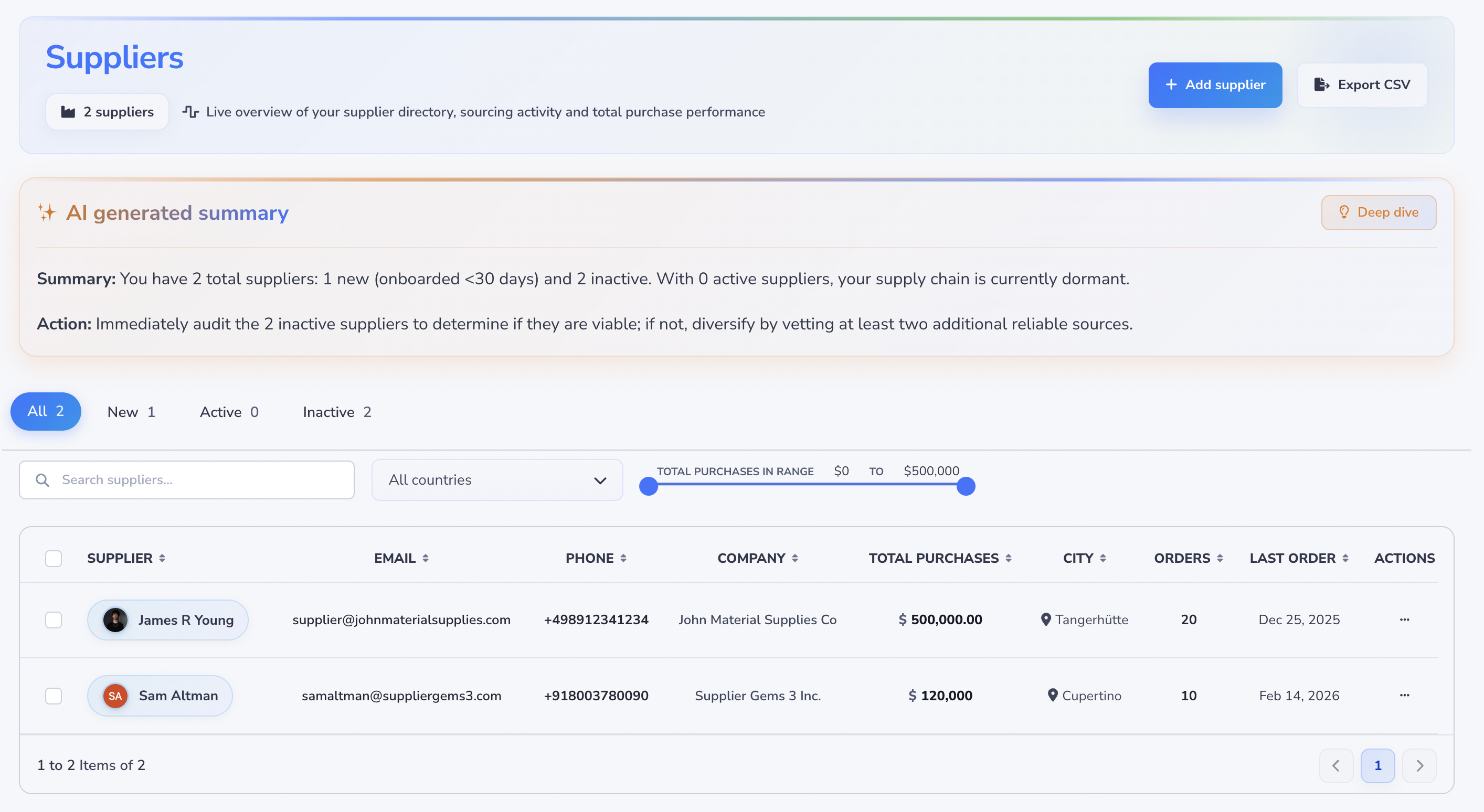
Use the Suppliers page when you need to create, review, or update records for vendors and purchasing partners.
- In Loupe Factory, go to People > Suppliers > Supplier List.
- Review the summary counts for All, New, Active, and Inactive suppliers. See Understanding the summary counts for what each total means.
- Use the search bar or filters if you need to narrow the list.
- Select a supplier row to review the record, or open the Actions menu for row-level options.
The supplier table includes:
- Supplier
- Phone
- Company
- Lifetime value
- City
- Orders
- Last Order
- Actions
Use this page to answer practical questions such as:
- Which suppliers are active?
- Which vendors are used most often?
- Which country or city does this supplier operate from?
- When did your team last place or receive an order from this supplier?
- What have you ordered, been billed, and actually paid this supplier?
Search, Filter, Sort, and Export
Use the same list tools on both directories.
Search Records
Use the search bar when you know the person, company, email, or phone number you want to find. This is the fastest way to locate a record as your directory grows.
Filter by Country
Use the Country filter to focus on one or more countries. This is useful for teams that sell, source, or ship across multiple regions.
Filter by Sales or Purchase Value
Use the value range filter to focus on important commercial relationships. The filter uses the Lifetime value figures on each record, not a number somebody typed into the form.
Sort the Table
Select a column heading to sort the list. Sorting helps you review largest accounts, recent order activity, or location groups without exporting the data.
Export to CSV
Use Export CSV when you need to review the list offline. Customer and supplier list CSVs are admin-only and use the same in-app one-time email code as the other protected lists. Your current search and filters stay. See Verified list exports.

Add a Customer
Create a customer before you create sales orders, invoices, or shipments for a new buyer.
- Go to People > Customers > Customer List.
- Select Add customer.
- Complete the form step by step.
- Review the information before saving.
- Close the form or add another customer from the result screen.
Required fields are First name and Email. Phone number is optional, but is validated if provided. You do not type a sales total. Lifetime value is calculated from orders, invoices, and payments after you save.
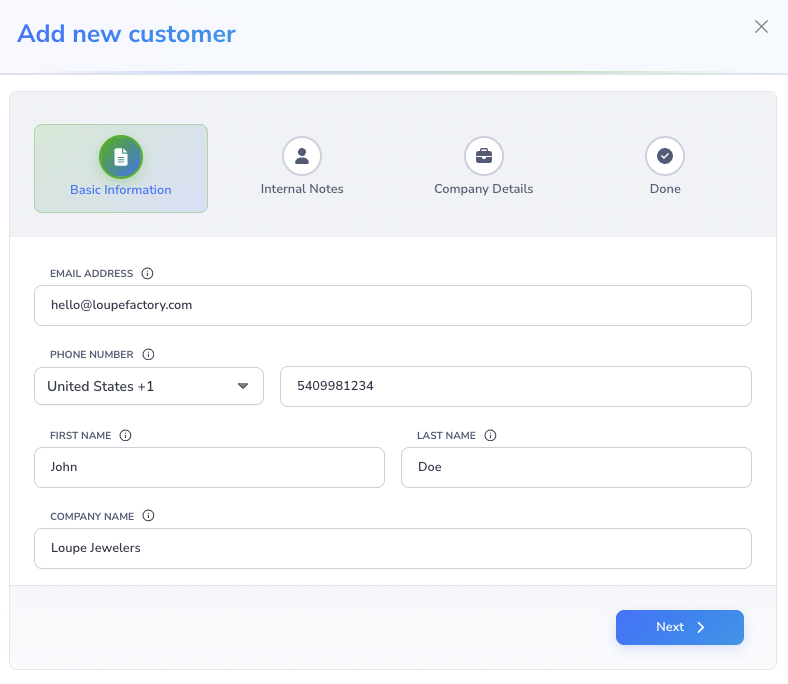
Step 1: Basic Information
Enter the primary contact details:
- phone number
- first name
- last name
- company name
Use the company name your team will recognize on orders and invoices. If the legal name and trading name are different, choose the name that helps users find the record quickly, then add the extra context in notes.
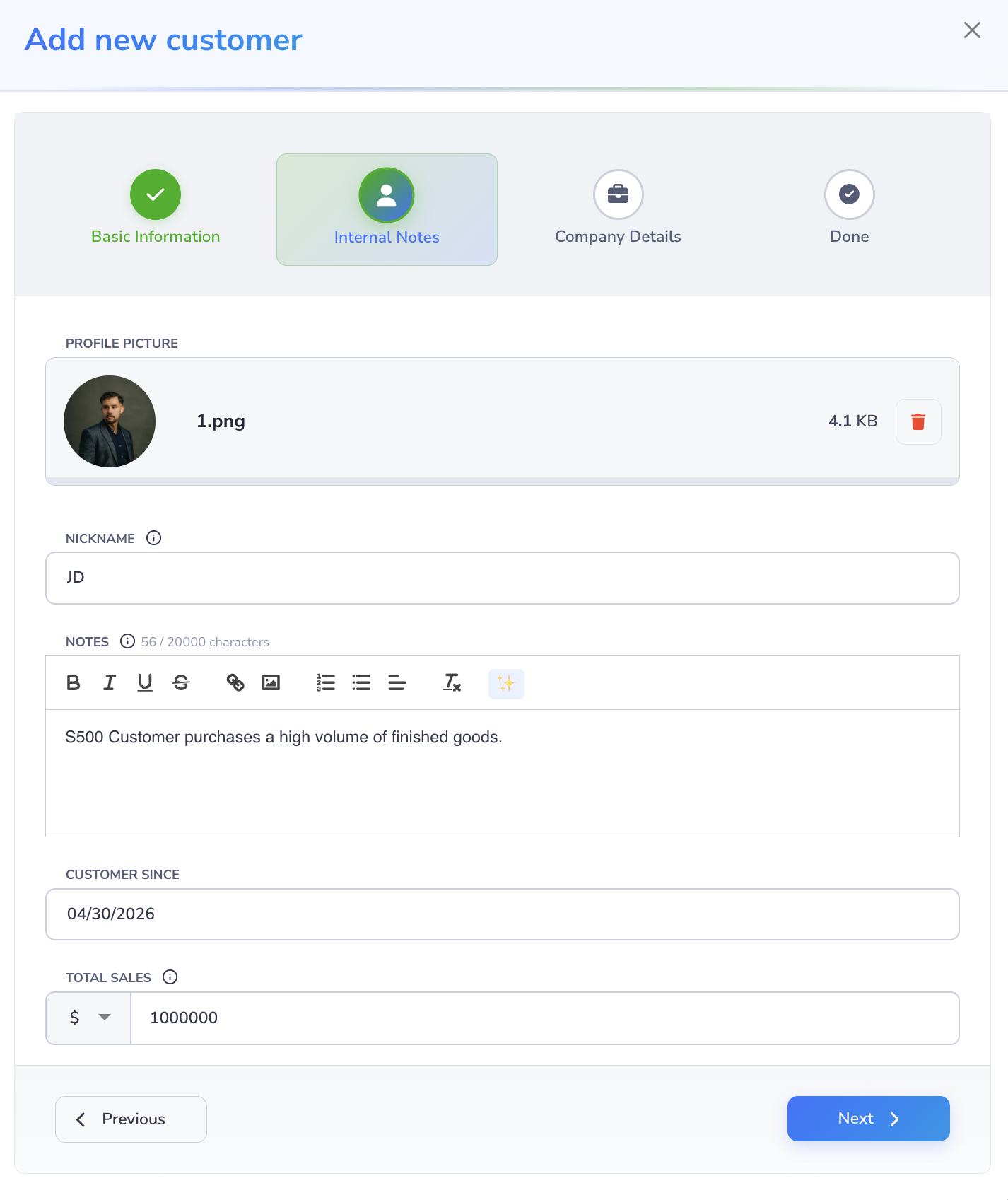
Step 2: Internal Notes
Add information that helps your team work with the customer:
- profile picture, if useful. The file must be less than 4 MB and must be a JPG, JPEG, PNG, or GIF file. Images marked as locked will not be uploaded to the customer record.
- nickname or display name
- internal notes
- Customer Since date
Use internal notes for details your team needs, such as account preferences, approved buying contacts, service concerns, or follow-up reminders. Do not use this field for customer-facing messages.
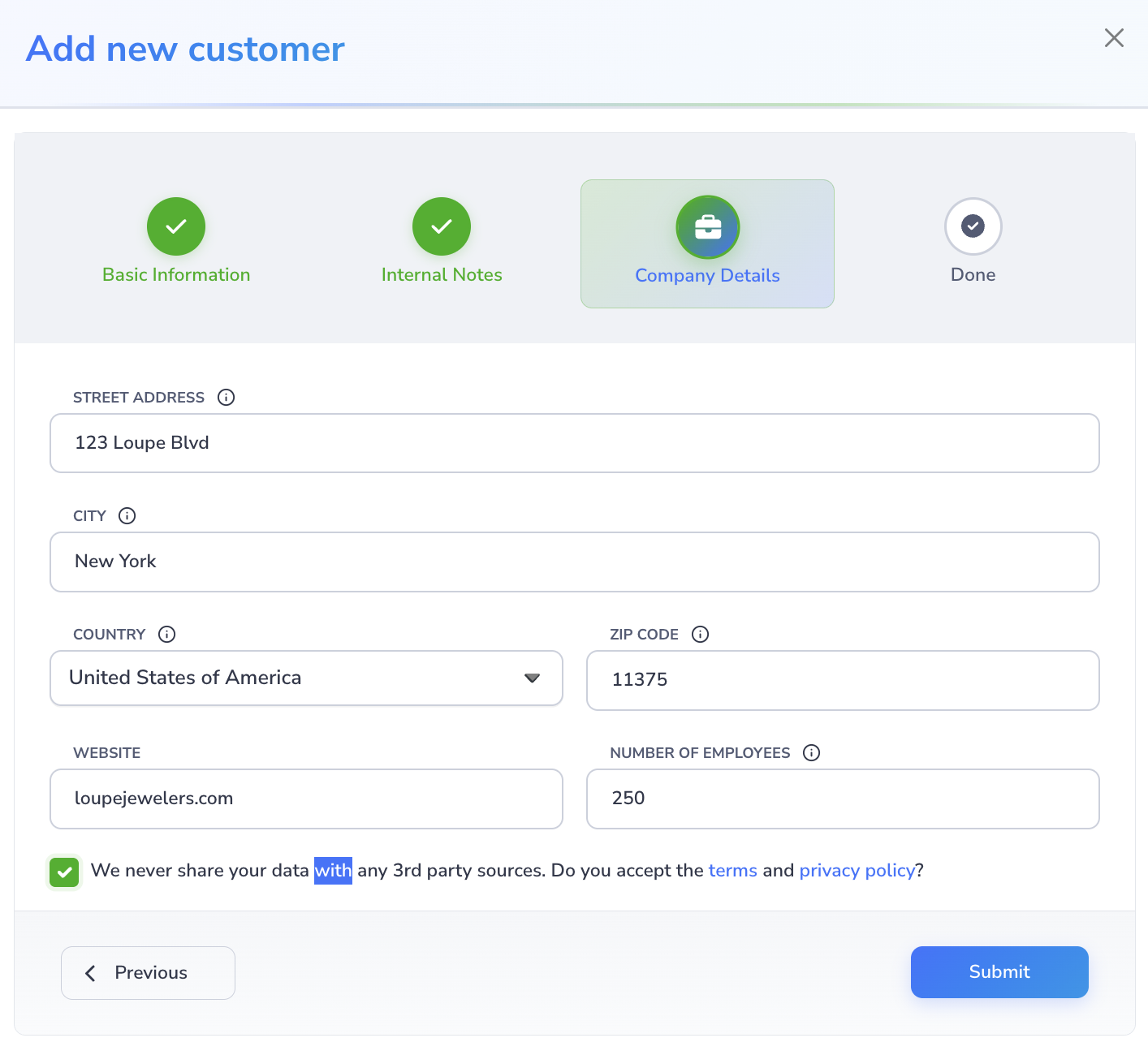
Step 3: Company Details
Enter the company details:
- street address
- city
- country
- ZIP or postal code
- website
- number of employees
Check country, city, and postal code values carefully. These details are useful for shipping, reporting, regional review, and account planning.
You must also accept the terms and privacy confirmation shown in the form.
Step 4: Done
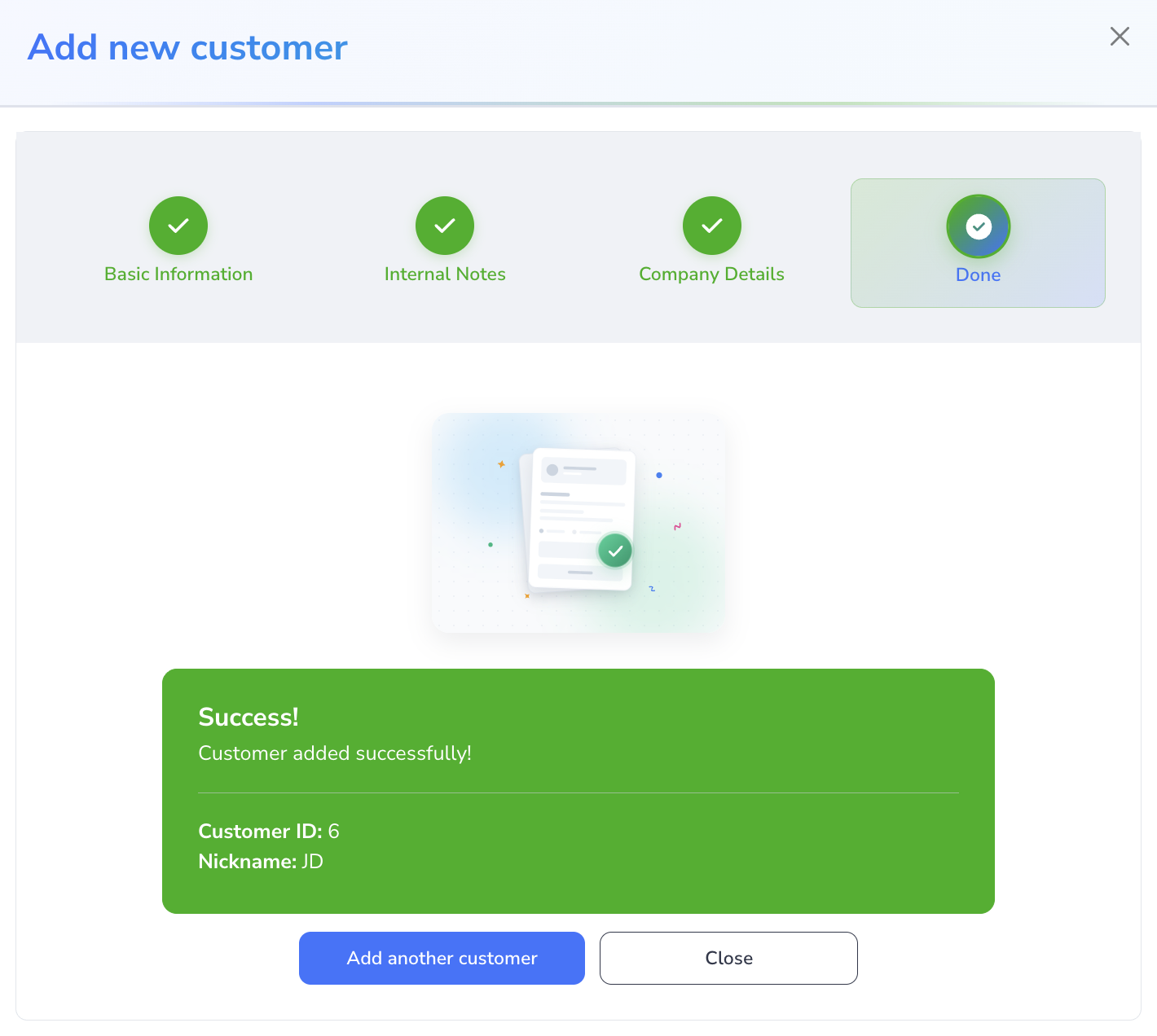
After submission, Loupe Factory shows the result screen. From here, you can:
- add another customer
- fix errors if something needs attention
- close the window
Edit a Customer
Update customer records when contacts, addresses, account names, or internal notes change.
- Go to People > Customers > Customer List.
- Find the customer in the table.
-
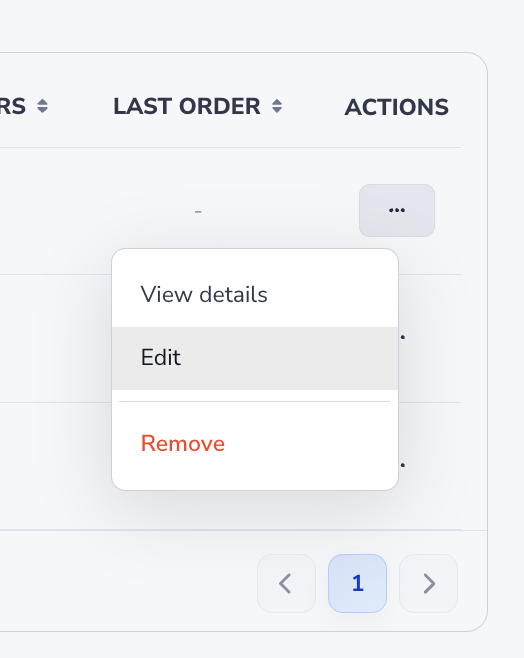
Open the Actions menu.
-
Select Edit.
- Update the fields that changed.
- Save the record.
Loupe Factory uses the same step-based form for editing, so the layout matches the add customer flow.
Add a Supplier
Create a supplier before your team uses that vendor for purchasing, sourcing, production, or materials planning.
- Go to People > Suppliers > Supplier List.
- Select Add supplier.
- Complete the form step by step.
- Review the information before saving.
- Close the form or add another supplier from the result screen.
Required fields are First name and Email. Phone number is optional, but is validated if provided. You do not type a purchase total. Lifetime value is calculated from purchase orders, invoices, and payments after you save.
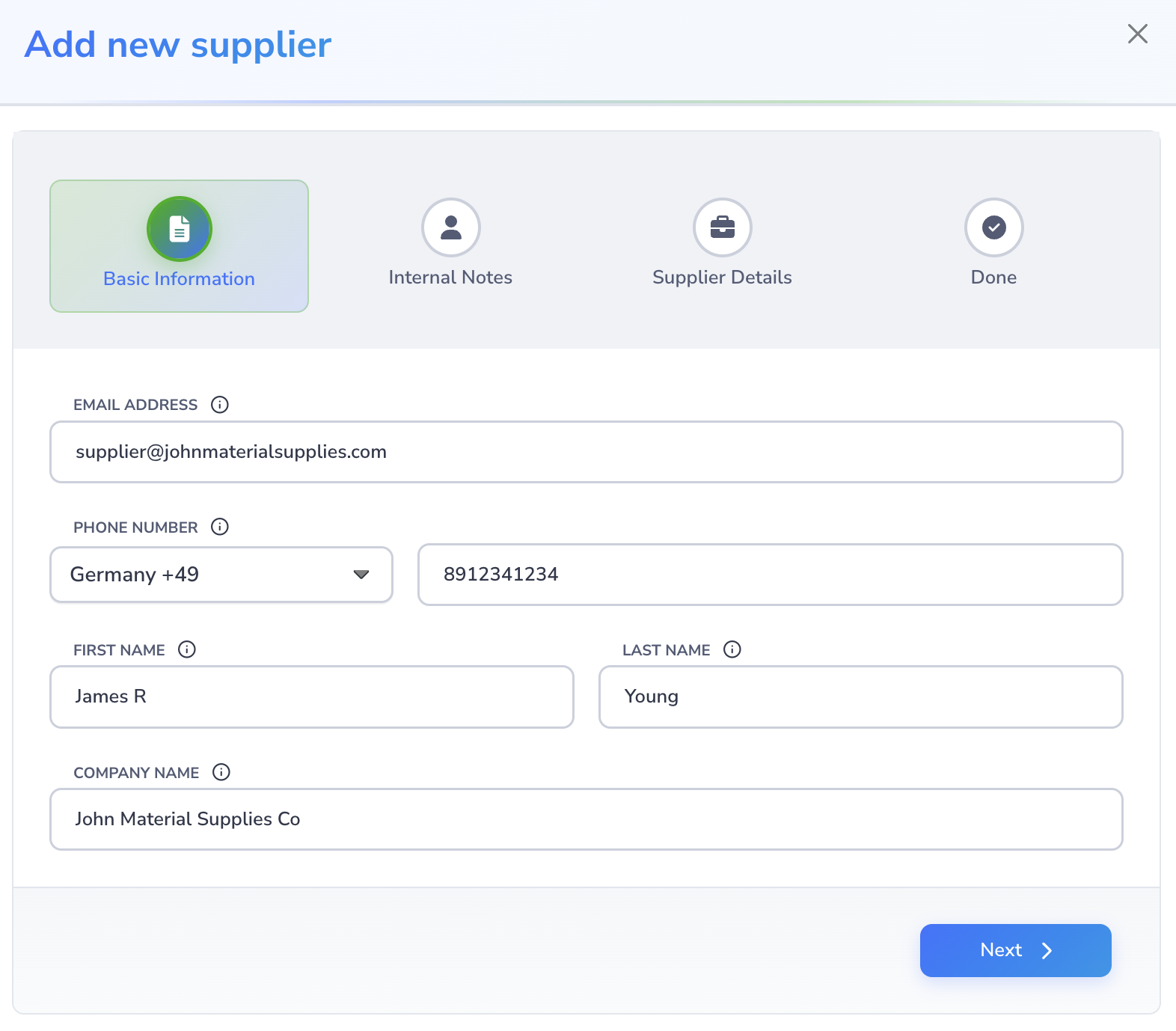
Step 1: Basic Information
Enter the primary contact details:
- email address
- phone number
- first name
- last name
- company name
Use the supplier name your purchasing and operations teams will recognize. If a supplier has different branch names or regional offices, keep the naming format consistent.
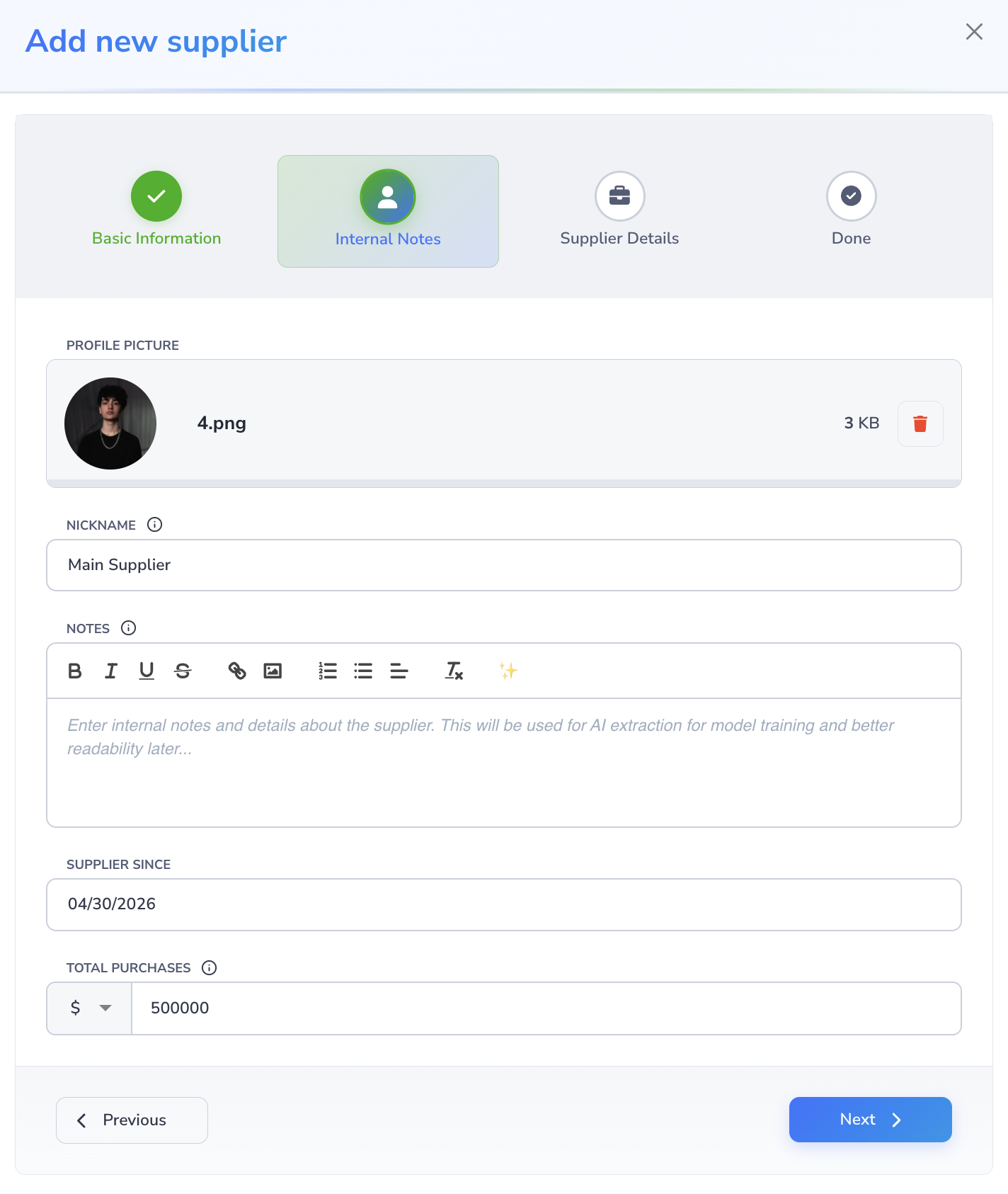
Step 2: Internal Notes
Add information that helps your team work with the supplier:
- profile picture, if useful. The file must be less than 4 MB and must be a JPG, JPEG, PNG, or GIF file. Images marked as locked will not be uploaded to the supplier record.
- nickname or display name
- internal notes
- Supplier Since date
Useful supplier notes include sourcing terms, material categories, service concerns, lead time context, preferred contact method, and payment or follow-up reminders.
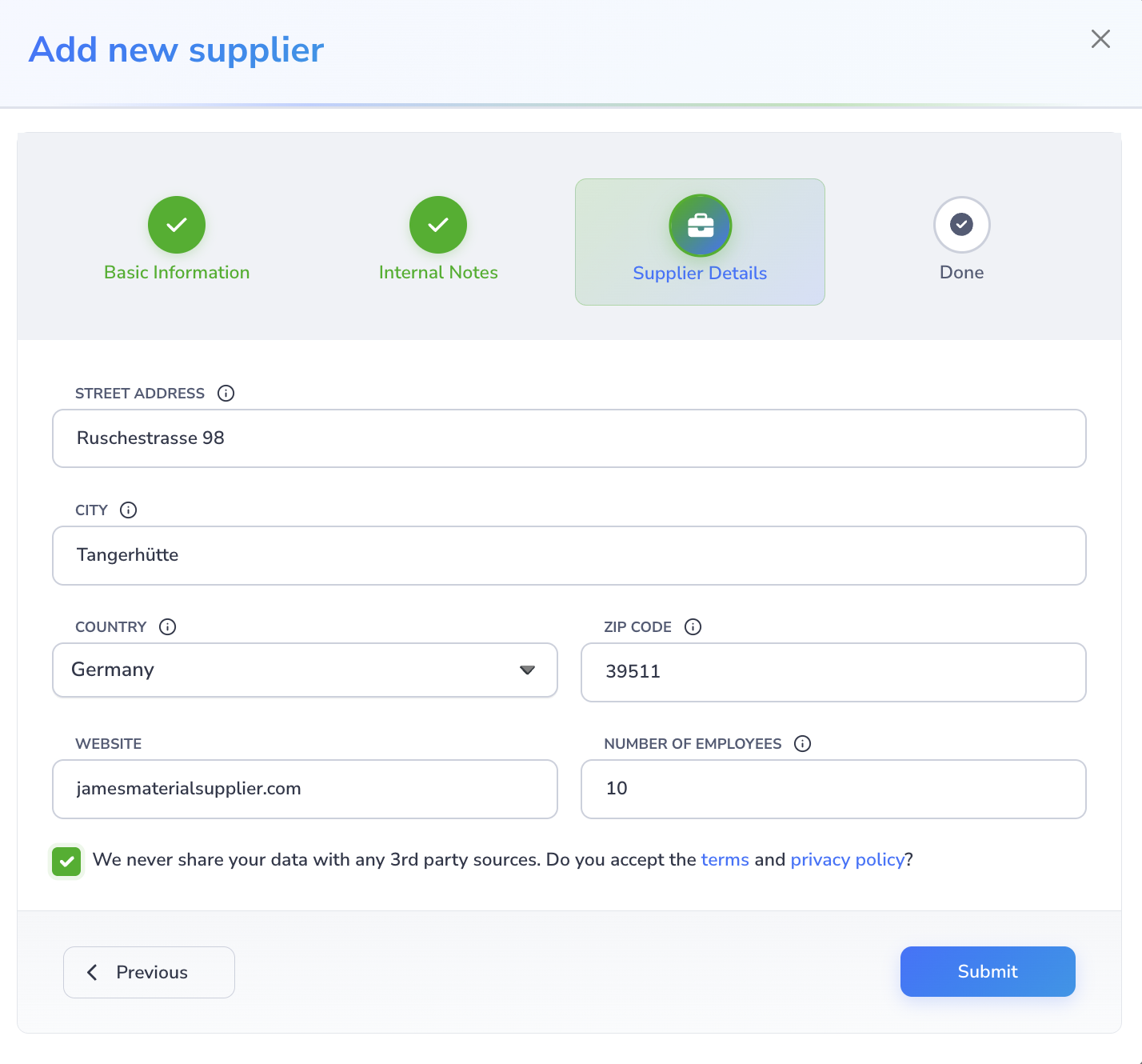
Step 3: Supplier Details
Enter the supplier details:
- street address
- city
- country
- ZIP or postal code
- website
- number of employees
You must also accept the terms and privacy confirmation shown in the form.
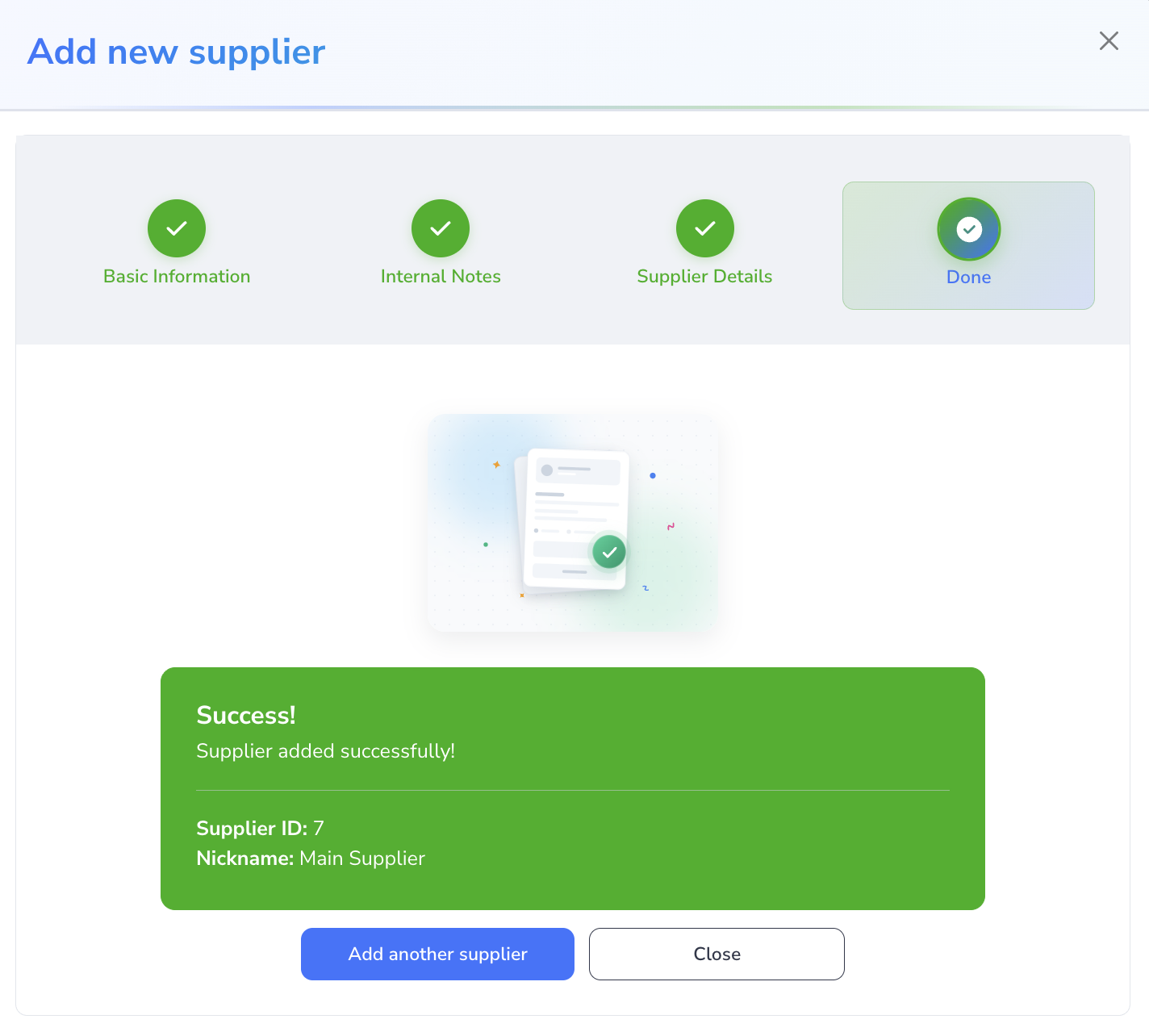
Step 4: Done
After submission, Loupe Factory shows the result screen. From here, you can:
- add another supplier
- fix errors if something needs attention
- close the window
Edit a Supplier
Update supplier records when contact details, addresses, company names, or internal sourcing notes change.
- Go to People > Suppliers > Supplier List.
- Find the supplier in the table.
- Open the Actions menu.
- Select Edit.
- Update the fields that changed.
- Save the record.
Loupe Factory uses the same step-based form for editing, so the layout matches the add supplier flow.
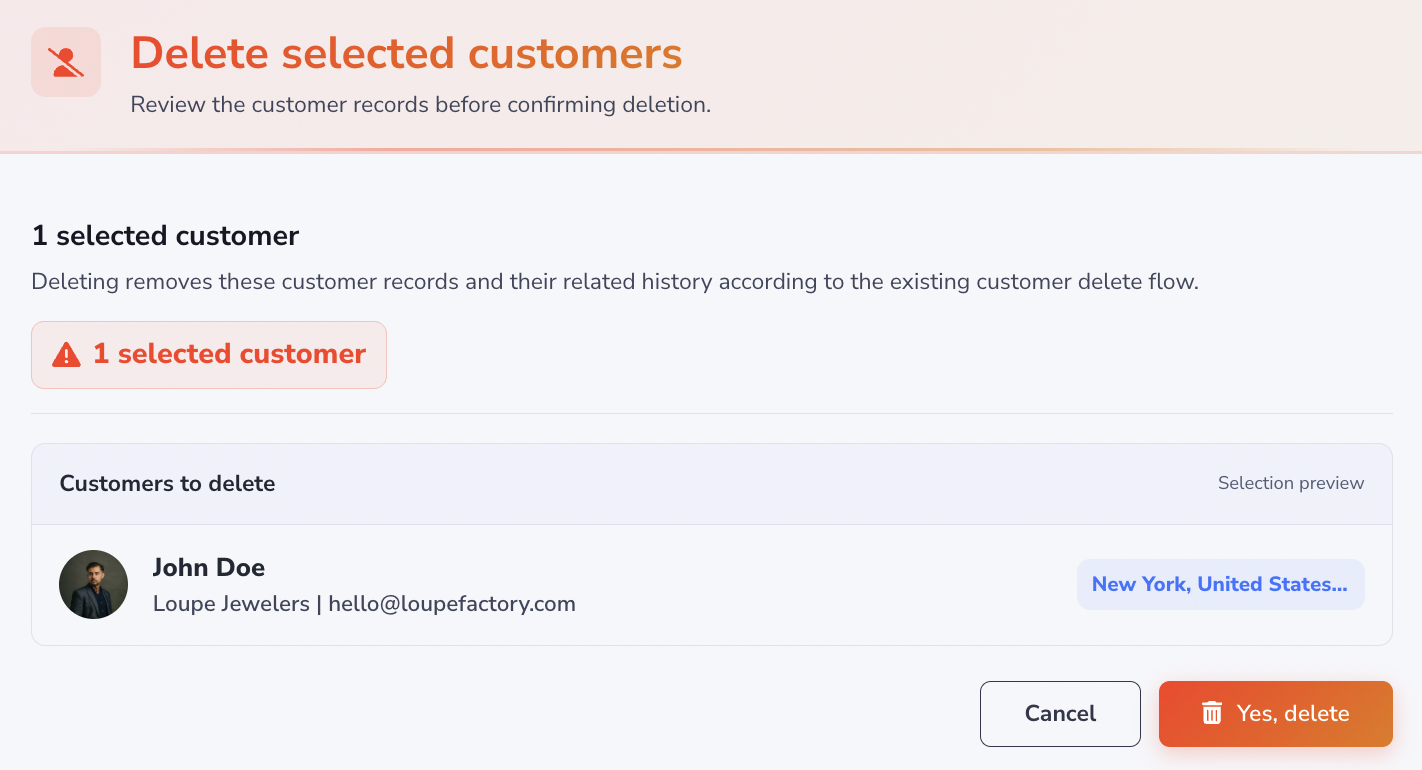
Remove a Customer or Supplier
Remove a record only when your team no longer needs it in the directory.
- Go to People > Customers > Customer List or People > Suppliers > Supplier List.
- Find the record in the table.
- Select the customer or supplier row you want to delete.
- Select the ⋯ menu on the row and select Remove
-
Review the confirmation message.
-
Confirm the removal.
Before removing a record, check whether it is still needed for order history, invoices, supplier history, reporting, or follow-up. If your team is unsure, consider keeping the record and updating its status instead.
Internal Notes Best Practices
Internal notes should help your team make better decisions without exposing unnecessary information externally.
Good internal notes include:
- preferred communication style
- account history
- buying or sourcing preferences
- service concerns
- follow-up reminders
- relationship context for sales, purchasing, operations, or finance
Avoid storing sensitive personal data unless your company policy allows it and your team has a clear reason to keep it.
Data Quality Checklist
Use this checklist when adding or reviewing records:
- company name is recognizable and spelled consistently
- email address and phone number are current
- country, city, and ZIP or postal code are complete
- website is included when available
- customer or supplier since date is accurate
- Lifetime value looks right against recent orders and payments
- internal notes are helpful, current, and appropriate
Small cleanup habits prevent duplicate records and make reporting more useful.
Why Accurate Records Matter
Clean customer and supplier records make other Loupe Factory workflows easier to manage:
- Order Management: Link the right customer to sales orders and keep order history easier to review.
- Invoicing: Use accurate customer records when creating and sending invoices.
- Inventory Management: Keep supplier and customer context connected to stock movements.
- Production Tracking: Give operations teams better context when production work is tied to a buyer or sourcing partner.
- Shipment Tracking: Use cleaner contact and location details when shipments are created and reviewed.