Link Cost Components from a Spreadsheet
Use Bulk link from spreadsheets in Loupe Factory to add metal, gemstones, labor, packaging, and other cost components to existing inventory items in one upload. Enter each item's tag ID, rate profile names, and quantities per piece, then review the matches before saving. Only Admins can use this action.
Open Inventory > Component Rate Center > Bulk link from spreadsheets. The window is titled Bulk link cost components and has three stages: Upload, Review, and Link.
This is useful when your costing is already in a spreadsheet, a workshop sends weights for a new collection, or you want to set rate behavior across a product line. To link a single profile by selecting items in the app, use Link Inventory to a Rate Profile.
Before You Start
- Check your inventory. Each item must already exist. Copy its tag ID from Inventory or an inventory export.
- Check your rate profiles. Create any missing profiles in the Component Rate Center. Bulk linking uses saved profiles; it does not create them.
- Check piece counts. The sheet holds quantities for one piece. Loupe Factory uses the item's piece count to calculate the total for the lot.
1. Prepare Your Spreadsheet
Click Download template in the upload window. The template includes a header row, one example row, and a Reference sheet with your rate profiles, component types, and price behaviors. Copy profile names from Reference to avoid AI matching charges.
Use one row per inventory item. For the first component, fill these columns:
| Column | What to enter | Example |
|---|---|---|
| Tag ID | Required. The item's tag ID. Upper and lower case both match. | RNG-0142 |
| Component Type 1 | Optional. Helps distinguish profiles with the same name. | Metal |
| Component Name 1 | Required. The rate profile's name. | Gold 18K |
| Component Quantity/Weight Per Piece 1 | Required. How much one piece uses, as a number or a number with a unit. | 8.5 g |
| Rate Price Behaviour 1 | Live, Locked, or Manual apply. Leave blank for Manual apply. | Locked |
For another component on the same item, repeat the four component columns with the number 2, then 3, up to 20. Keep the same Tag ID column.
For example, a ring can have Gold 18K in Component Name 1 and its gemstone profile in Component Name 2, each with its own quantity and behavior.
Header spellings are flexible. Profile 1, Qty/pc 1, and behaviour-1 are also understood, but the template gives you a ready-to-use set of headings.
2. Upload and Read the Sheet
Drop your .xlsx, .xls, or .csv file into the upload area, or click choose a file. Then click Read sheet. Loupe Factory matches the tag IDs to inventory and the component names to your rate profiles before opening the review table.
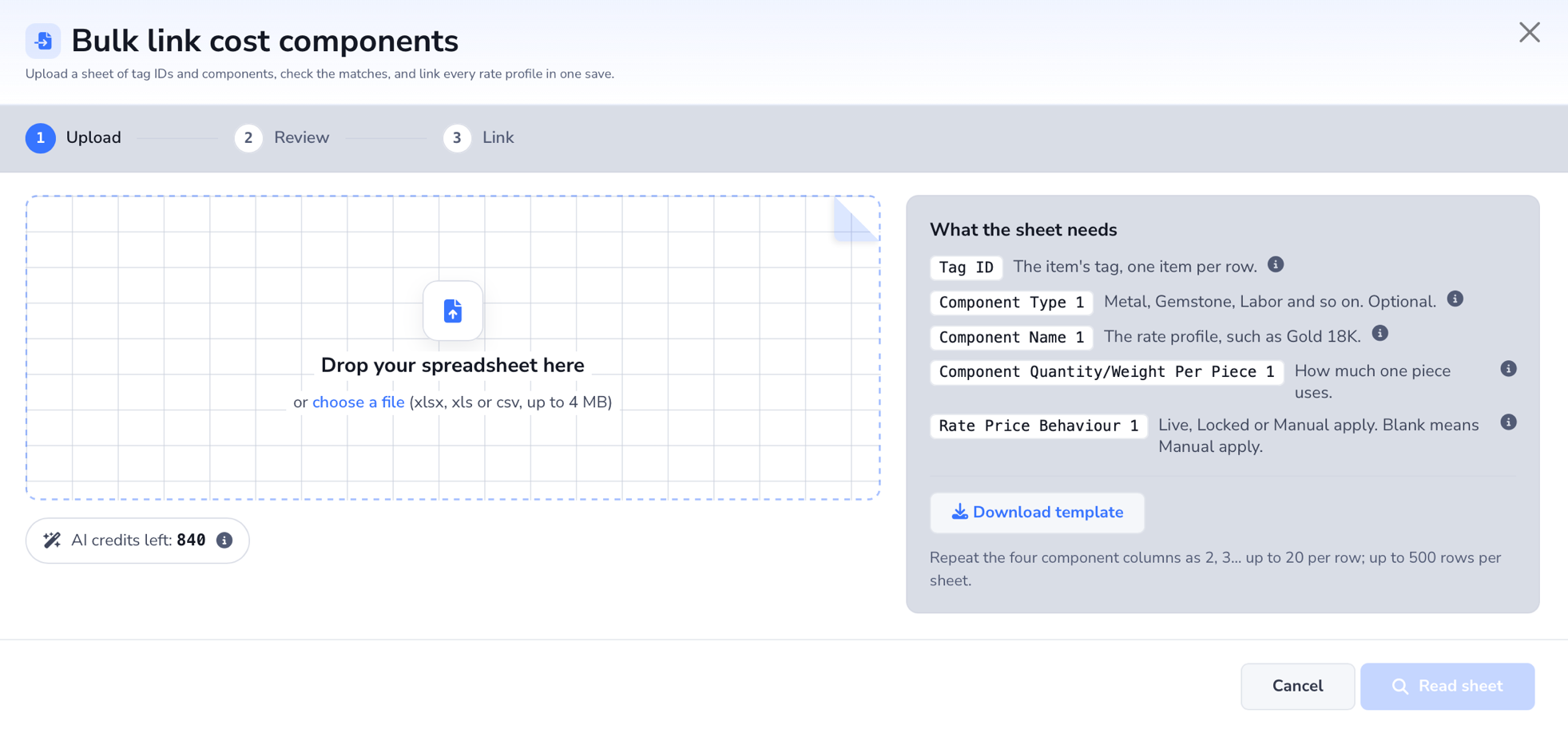
Reading the sheet prepares a preview. Inventory costs change only when you confirm the links in the final step. AI name matching can use credits during this read step; see AI Matching and Credits.
3. Review the Matches
The review table shows one row per component, so an item with gold and gemstones appears twice. Check the tag ID, product, piece count, rate profile, quantity per piece, lot quantity, price behavior, and rate in the item's currency. If an item has a photo, hover over it for a larger view.
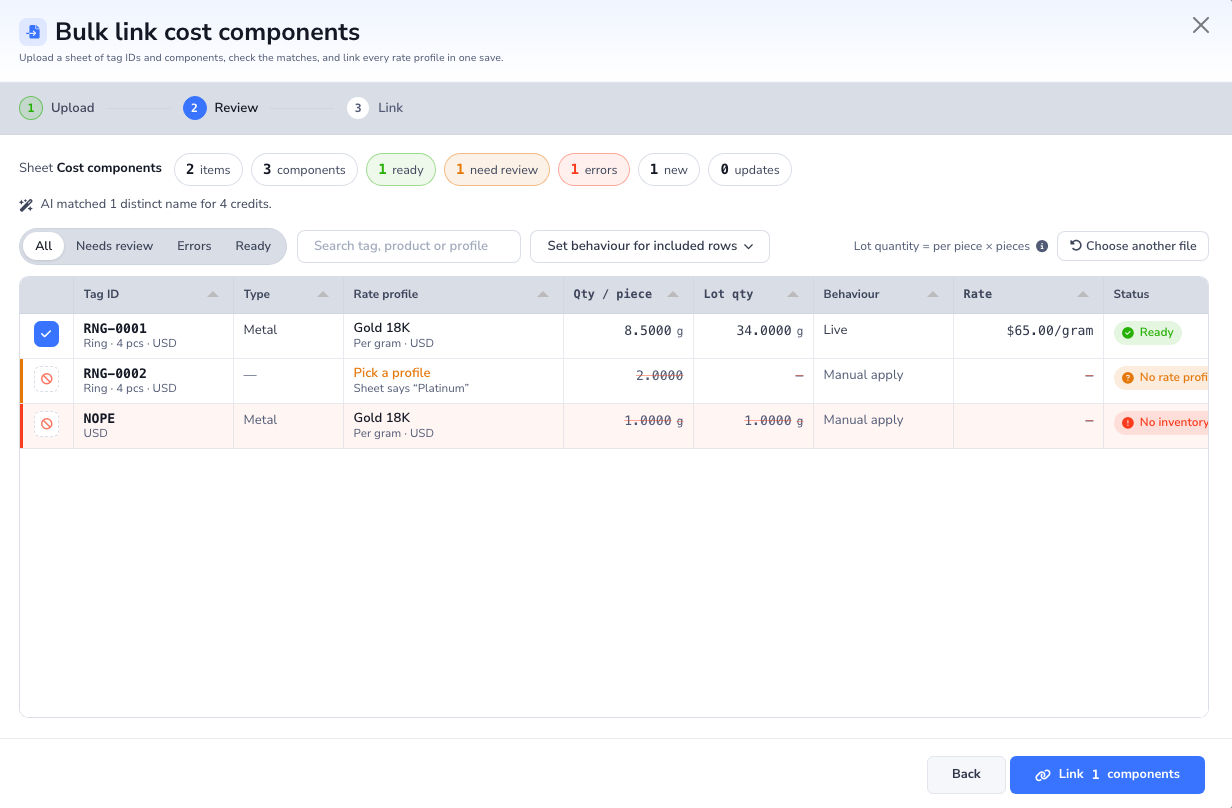
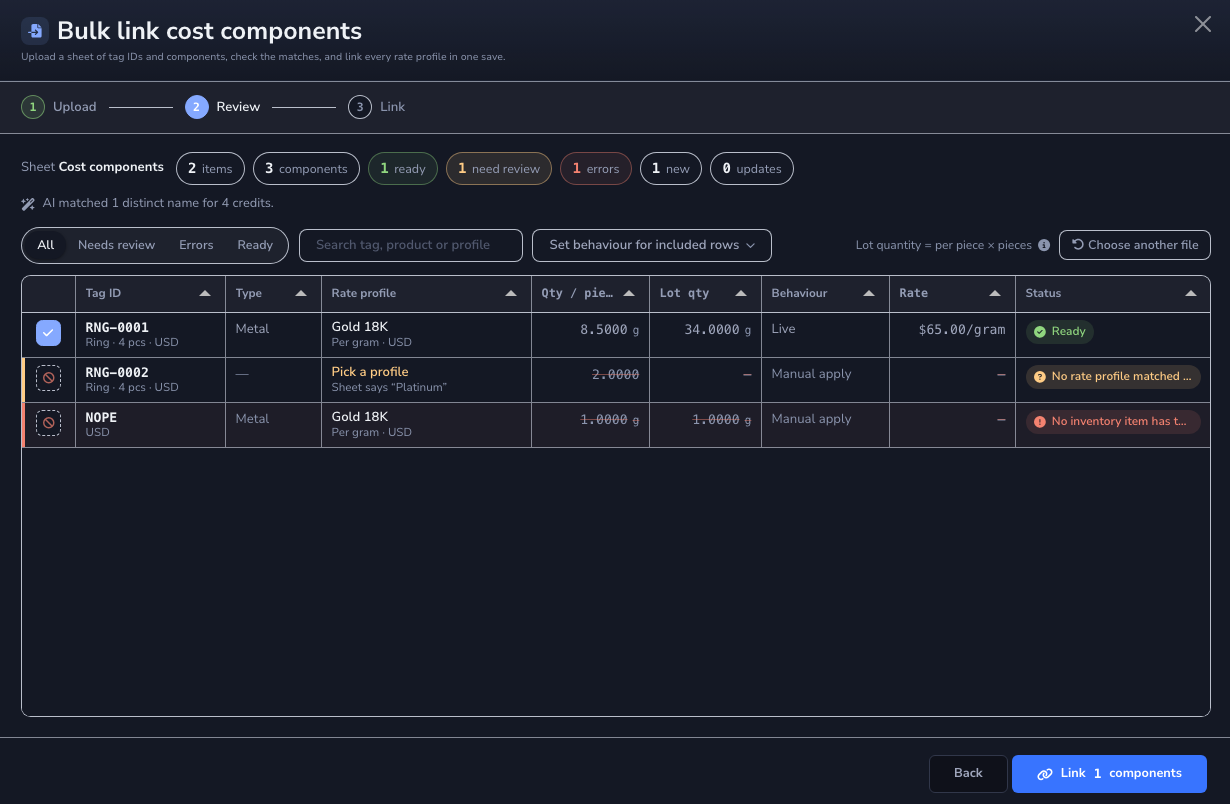
| Status | What to do |
|---|---|
| Ready | Check the values and keep the row selected if you want to save it. |
| Needs review | Resolve the flagged detail. For an unmatched name, click Pick a profile and choose the correct rate profile. |
| Error | Read the row's message and correct the problem, such as a tag ID that is not in Inventory. A row that cannot be saved cannot be selected. |
Use Needs review, Errors, or Ready to filter the table. You can also search by tag ID, product, or profile.
You can pick a different profile, edit a quantity, or change a behavior in the table. To change behavior for every selected row, use Set behaviour for included rows. Clear the checkbox on any ready row you want to leave out.
The counters show new components and updates separately. For an existing link, check the previous quantity shown in the table before saving its replacement.
4. Link the Selected Components
Click Link components when the selected rows are ready. The button shows how many components you are about to save.
Loupe Factory creates a cost component for each new item and profile pair. Where that profile is already linked to the item, it updates the existing component's quantity and behavior. Components not included in the sheet stay as they are, and bulk linking never deletes components.
All selected rows save together. If one fails during saving, Loupe Factory marks it in the table and saves none of the selected changes. Fix or exclude that row, then try again.
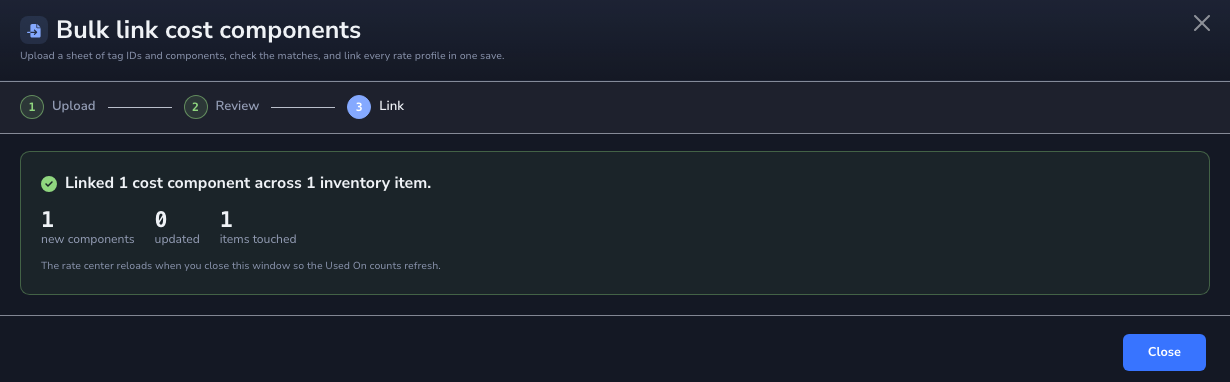
The completion screen confirms how many components were created or updated and how many inventory items changed. Each changed item gets a history note listing the linked profiles. Click Close to refresh the Component Rate Center's Used On counts.
Review before linking
Bulk linking has no undo button. To correct a saved link, open the item's Cost Components and change or remove it there. Start with a small sheet to check your names and quantities before uploading a full collection.
How Per-Piece Quantities Become Lot Totals
For a profile that supports per-piece quantities, Loupe Factory multiplies the sheet value by the inventory item's piece count and stores the total for the lot. For example, 12 rings × 8.5 g per ring = 102 g of Gold 18K.
| Situation | How the quantity is saved |
|---|---|
| The item has a piece count and the rate basis supports per-piece quantities | Quantity per piece × pieces in the lot. |
| The profile is priced per lot | The value stays as entered, without multiplication. The review row explains this. |
| The item has no piece count | The value stays as entered. The review row explains this. |
| The cell uses a different compatible unit from the profile | Loupe Factory converts it to the profile's unit. For example, 2 ct can be converted for a profile priced per gram. |
If Lot qty looks wrong, check the item's piece count and the unit in your sheet before linking.
Choose a Price Behavior
Price behavior controls what happens after a rate is copied to the component. You can set it in the sheet or change it in the review table.
| Behavior | What happens |
|---|---|
| Manual apply | Keeps the copied rate until you apply the profile's latest rate from the Component Rate Center. This is the default when the cell is blank. |
| Locked | Keeps the rate copied at save time fixed, even when you later apply the profile's latest rate. |
| Live | Follows the profile's current rate automatically. Available for metal profiles only. |
For gemstones, labor, and other non-metal profiles, Live becomes Manual apply, and the review row tells you so.
The sheet also accepts auto or market for Live, fixed for Locked, and apply for Manual apply.
AI Matching and Credits
Names that match your rate profiles use no AI credits. If a name differs, such as 18kt gold or Au 750 for a profile named Gold 18K, Loupe Factory can use AI to find a match. Review AI suggestions before linking; a wand icon marks each AI match.
Each distinct spelling is looked up once per upload. If 300 rows use 18kt gold, that spelling needs one lookup. The review table shows the credits used for the upload.
If no profile matches, the row is marked Needs review so you can pick one. If AI is unavailable or you have no credits left, the upload still works: choose unmatched profiles by hand. See AI Credits & Billing for more about credit usage.
File and Save Limits
| Limit | Maximum or supported value |
|---|---|
| File types | .xlsx, .xls, .csv |
| File size | 4 MB |
| Item rows per sheet | 500 |
| Components per item | 20 |
| Component links per save | 2,500 |
| Access | Admins only |
Each component counts as one link. A sheet with 500 items and five components per item reaches 2,500 links. Use smaller batches if you need to link more.
Common Questions
Can I save the ready rows while other rows have errors?
Yes. Select only the rows you want to save. Rows that cannot be saved cannot be selected. If a selected row fails at save time, nothing is saved until you fix or exclude it and try again.
Why does the Rate column say No rate?
Loupe Factory cannot convert the profile's rate into the item's currency. That row cannot be saved until a rate for the currency is available.
Can I link an inactive rate profile?
You can update an item's existing link to an inactive profile. New links require an active profile. Activate the profile in the Component Rate Center before linking it to new items.
Next Steps
- Cost Components: Review or change an individual item's costing after linking.
- Component Rate Profiles: Manage the reusable rates behind your components.
- Inventory Item Details: Open the item to review its stock, costing, and history.