Shopify
Integrations
Shopify integration
Connect supported Shopify customers, orders, products, and inventory to Loupe Factory. Learn what you can pull or push, how automatic updates work, and what to verify after each sync.
Professional, Business, and Enterprise plan teams that sell on Shopify and run day-to-day operations in Loupe Factory.
Less duplicate entry between e-commerce, inventory, fulfillment, and operational follow-up.
Manual Pull and Push actions, optional automatic Shopify-to-Loupe updates, and the Shopify stock location, import location, and publishing channel.
Connect your Shopify store to Loupe Factory so your team can bring online sales into daily operations and send finished stock back to your storefront. Reuse customer details, keep each lot connected to its Shopify variant, and review the results of every manual sync.
Open Workflows > Integrations > Shopify to connect your store and manage syncing. You need a Loupe Factory admin account on Professional, Business, or Enterprise.
Start here: Connect your store and run your first sync.
Field reference: Customers, products and inventory, photos, metafields, and orders.
Need help? See sync results, recovery, troubleshooting, or FAQs.
Plan requirement: the Shopify integration is available only on Loupe Factory Professional, Business, and Enterprise plans. If your account is on the Starter plan, upgrade before you begin setup.
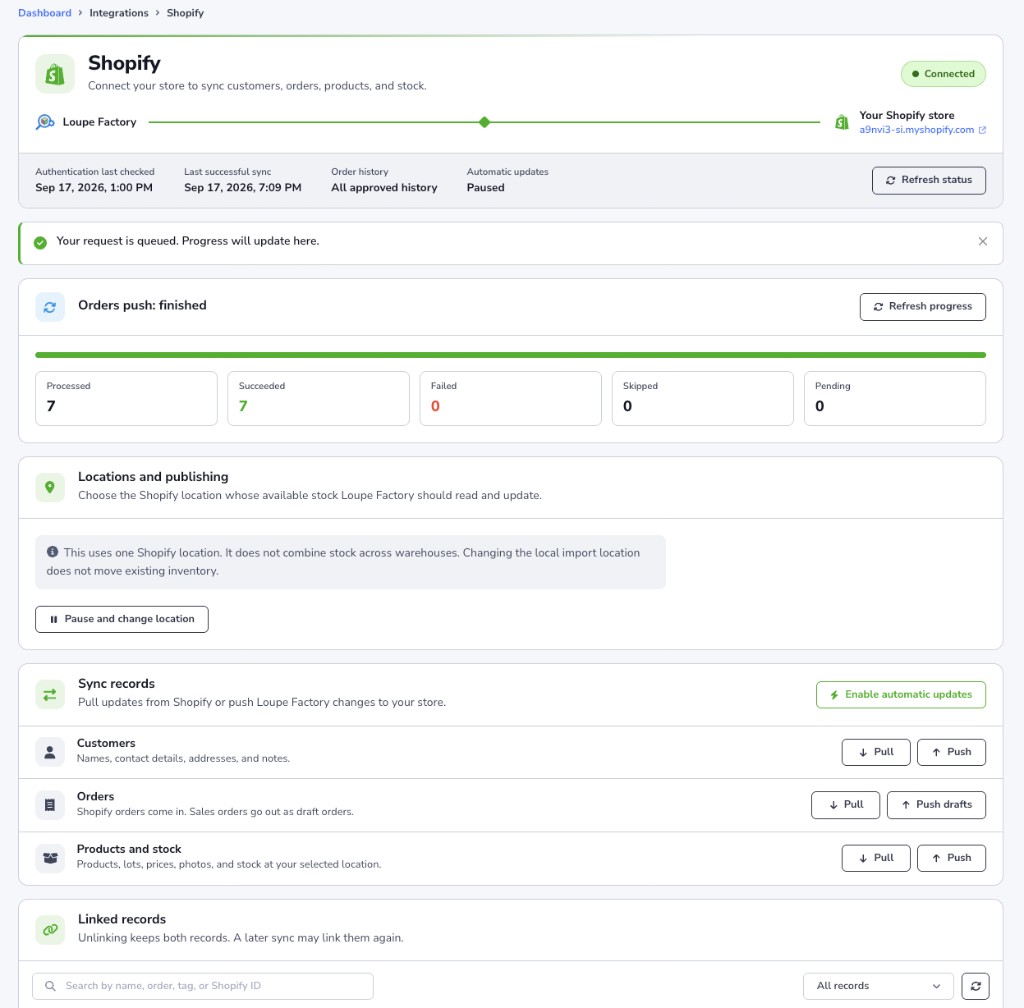
What you can sync
Pull brings supported Shopify information into Loupe Factory. Push sends supported Loupe Factory information to Shopify. In this guide, a lot is an individual inventory record with its own Tag ID, quantity, weight, prices, and attributes.
| Records | Pull from Shopify | Push to Shopify |
|---|---|---|
| Customers | Names, contact details, default address, notes, and the customer's original creation date | Customer details, default address, and notes |
| Products and stock | Products and their variants, available stock at one selected location, prices, weights, photos, extra lot images, Color, lot descriptions, and global HS codes | Products with Finished inventory, with one variant per lot, prices, stock, weights, photos, extra lot images, descriptions, global HS codes, and supported attributes |
| Orders | Shopify orders, customers, line items, prices, historical line weights, and supported payment and fulfillment statuses | Loupe Factory Sales orders as Shopify draft orders, with custom physical items |
Optional automatic updates bring Shopify changes into Loupe Factory. Pushes always remain manual. This lets your team review operational changes before sending them to the store.
Operational boundary: Shopify remains the storefront and checkout system. Production jobs, shipment records, tracking activity, invoices, and internal fulfillment work are not sent to Shopify by this integration.
Know before your first sync
- Each manual button processes the whole eligible category. The page does not offer a sample or a record picker for syncing. Checkboxes in Linked records select links to remove.
- One Shopify store connects to one Loupe Factory workspace. Create the Shopify app in the same Shopify organization that owns that store.
- Inventory syncing uses one selected Shopify stock location. It does not combine warehouses or allocate stock across locations.
- Local import location applies to newly imported inventory. Existing Loupe Factory inventory keeps its location.
- Prices must already use the Shopify store's currency. Syncing does not convert currencies.
- Unchanged supported data can be skipped. Syncing is not a backup restore or an automatic merge of competing edits.
- A queued request is not a completed sync. Check Sync progress, Activity and recovery, and the affected records before relying on the result.
Before you connect
Have the following ready:
- Loupe Factory access: an admin account and an eligible plan.
- Shopify access: the store owner account, or a staff account with App development > Develop and the permissions needed to install and manage the app. Shopify collaborators cannot access the Dev Dashboard. Shopify's custom app requirements
- Customer-data access: Shopify requires Grow or higher for custom apps that access Level 2 customer information, including names, email addresses, phone numbers, and addresses. Check the store's Shopify plan before relying on customer and order imports. Shopify's customer-data requirements
- Store domain: the store's
your-store.myshopify.comaddress, available in Shopify's domain settings. Use this instead of a custom storefront domain or anadmin.shopify.comlink. - Location choices: the Shopify location whose available stock you want to sync, and the Loupe Factory location for new imports.
Shopify app permissions
Shopify calls app permissions scopes. All core permissions below are required to finish setup, even if you plan to use only some sync categories initially.
| Core access | Scopes to select | Used for |
|---|---|---|
| Customers | write_customers | Read and update customer records |
| Products | write_products | Read and update products, variants, supported images, and metafields |
| Inventory | write_inventory | Read and update stock and supported inventory details |
| Locations | read_locations | Choose and validate the Shopify stock location |
| Orders | read_orders | Import Shopify orders |
| Draft orders | write_draft_orders | Create and update drafts and follow their completion |
Shopify write permissions include the corresponding read permission. If Shopify lists both separately, selecting both is fine. Read-only access is insufficient for the core connection. Shopify's access-scope reference
Add these permissions when using the related features:
| Optional feature | Additional scopes | What to expect |
|---|---|---|
| Publish products to a sales channel | read_publications, write_publications | Makes publishing-channel choices available and allows publication. The Shopify user also needs the relevant product or catalog permissions. |
| Standard Shopify Color entries and linked Color options | read_metaobjects, write_metaobjects, read_metaobject_definitions, write_metaobject_definitions | Allows Loupe Factory to reuse or create the standard color entries used by mapped colors. |
| Additional fulfillment updates | read_fulfillments | Enables supported fulfillment notifications to refresh their related orders. It does not export Loupe Factory shipments. |
| Orders older than 60 days | read_all_orders, alongside read_orders | Requires Shopify's approval. Without it, order access is limited to Shopify's usual 60-day window. |
Request historical-order access through Shopify before adding read_all_orders. The Order history indicator on the Loupe Factory integration page shows the access currently available. Shopify's order-access requirements
Connect your store
1. Create and install your Shopify app
-
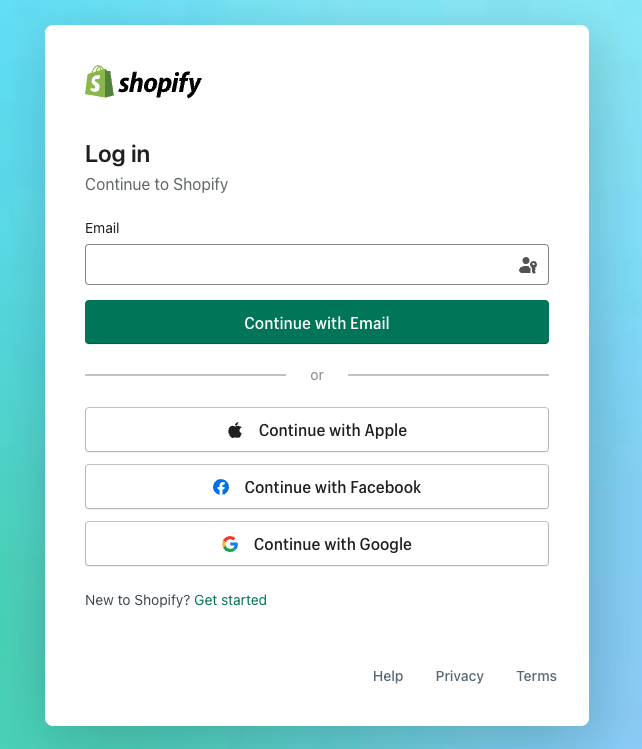
Sign in to your Shopify admin.
-
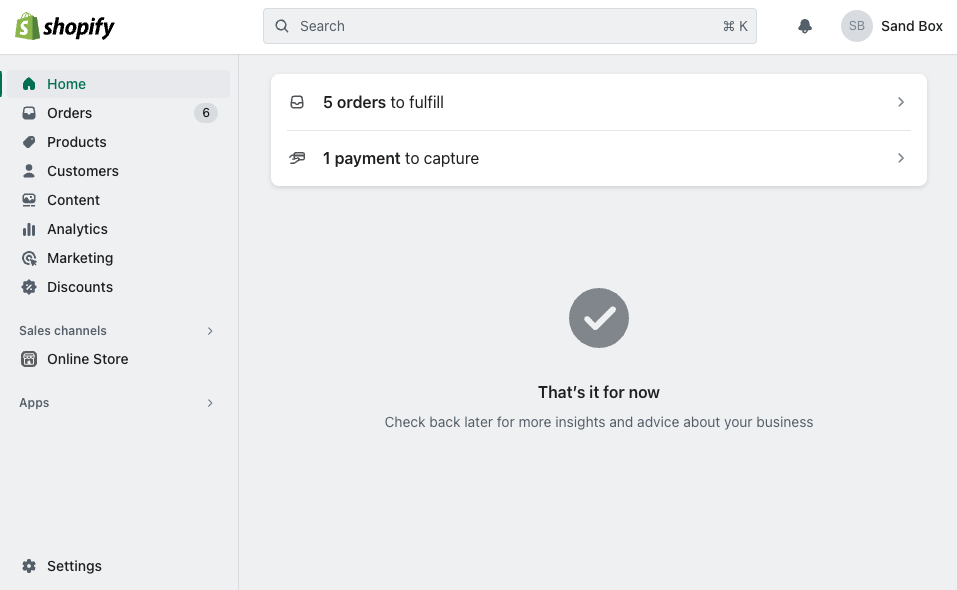
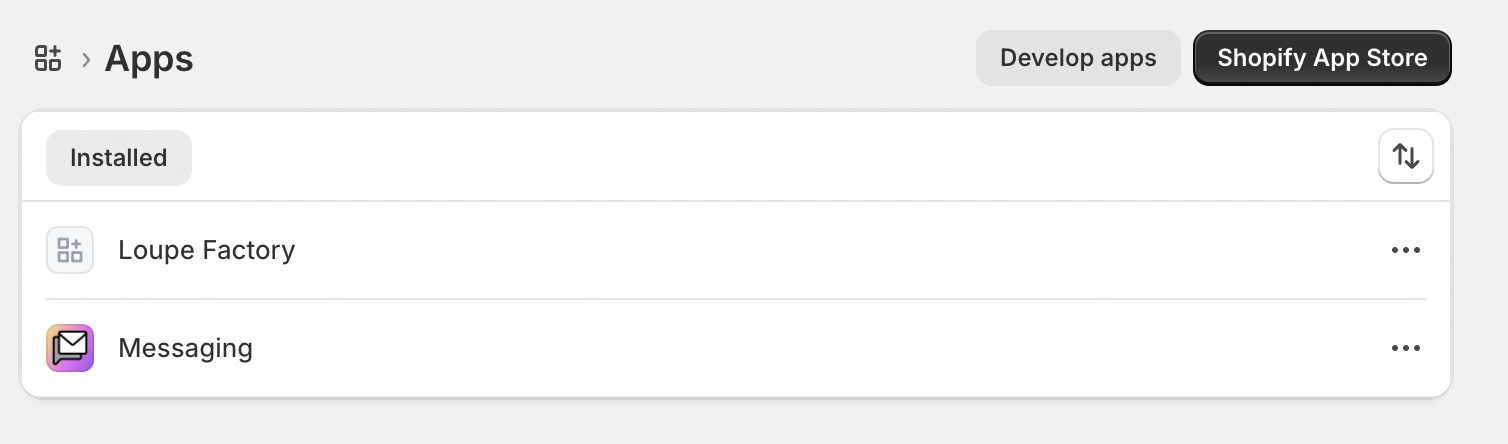
In Shopify admin, go to Settings > Apps.
-
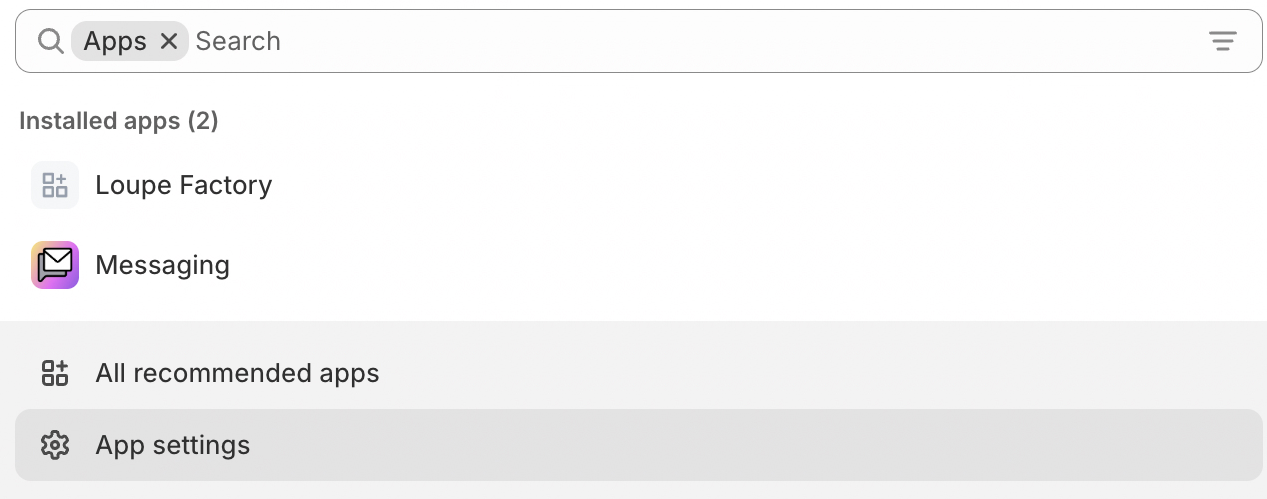
Open App settings if Shopify shows that option, then choose Develop apps.
-
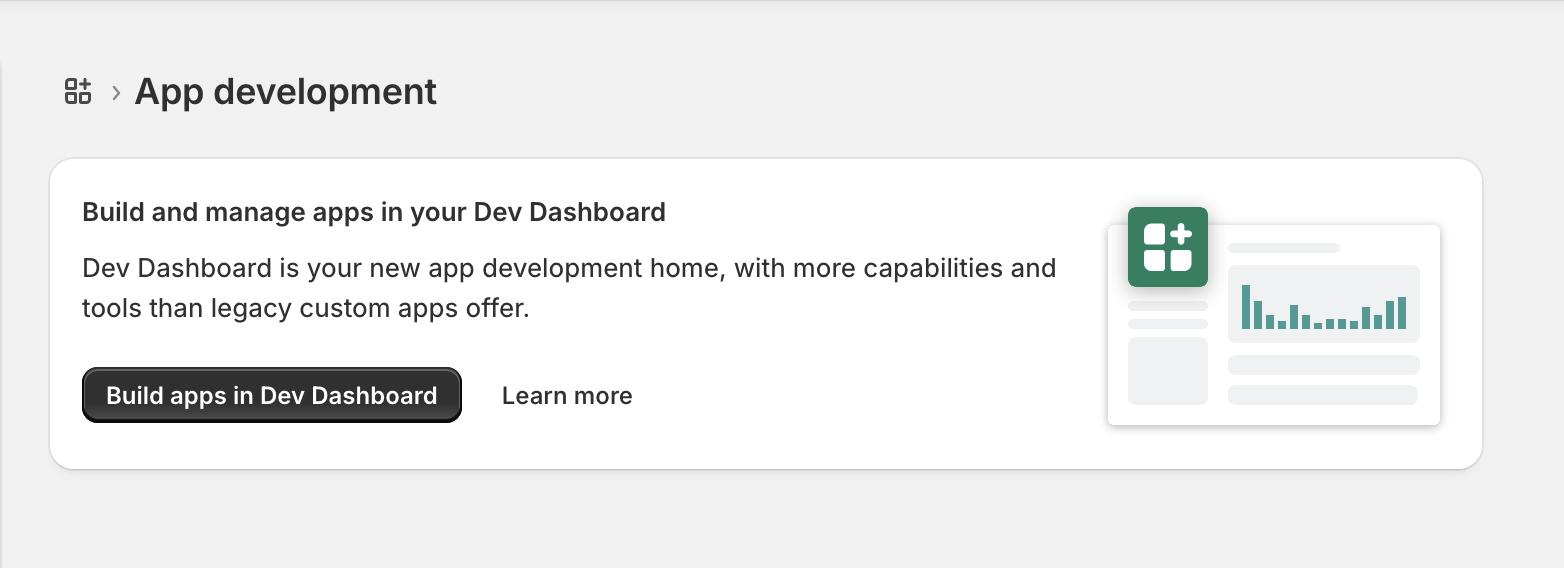
If Shopify shows the app development landing page, select Build apps in Dev Dashboard.
-
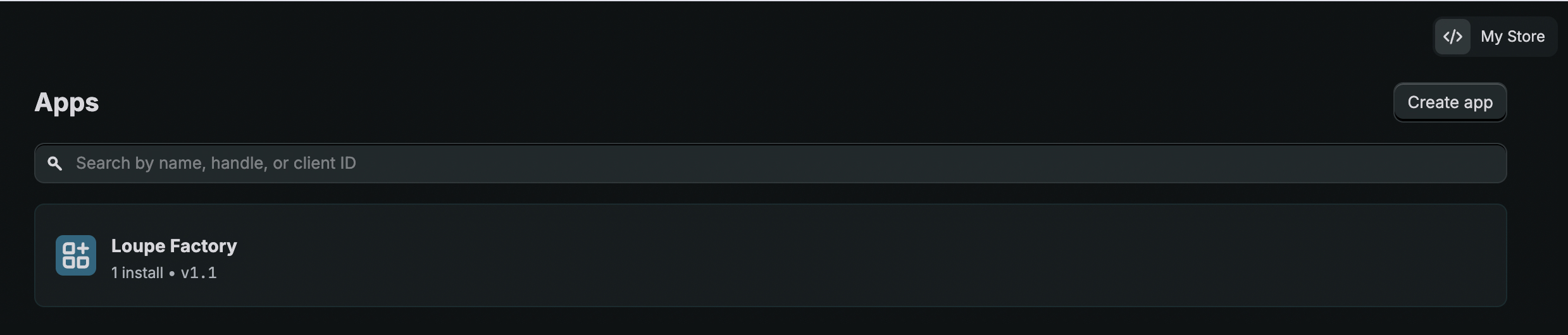
Select Create app, choose Start from Dev Dashboard, and name the app Loupe Factory. Use the same Shopify organization as your store.
-
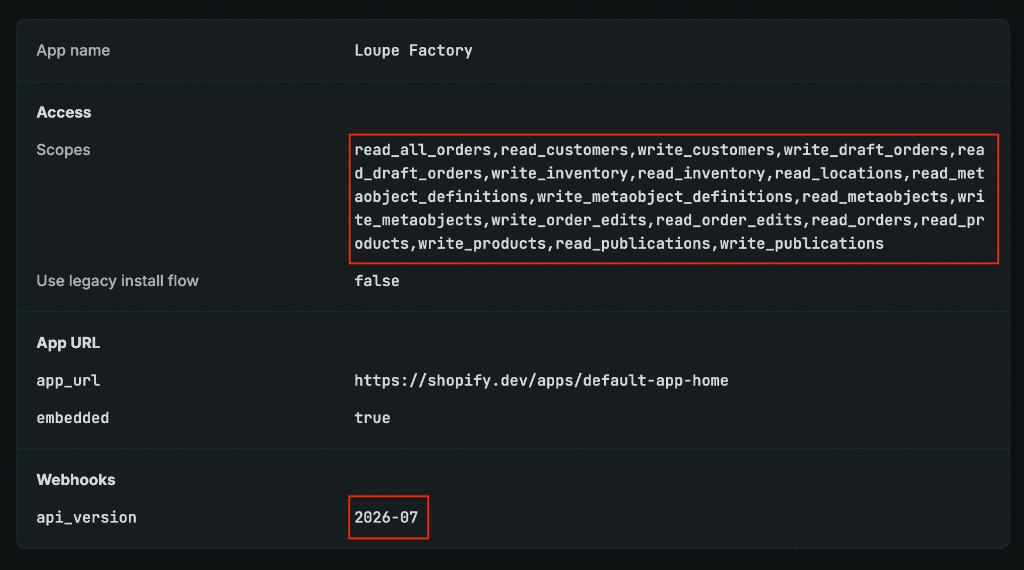
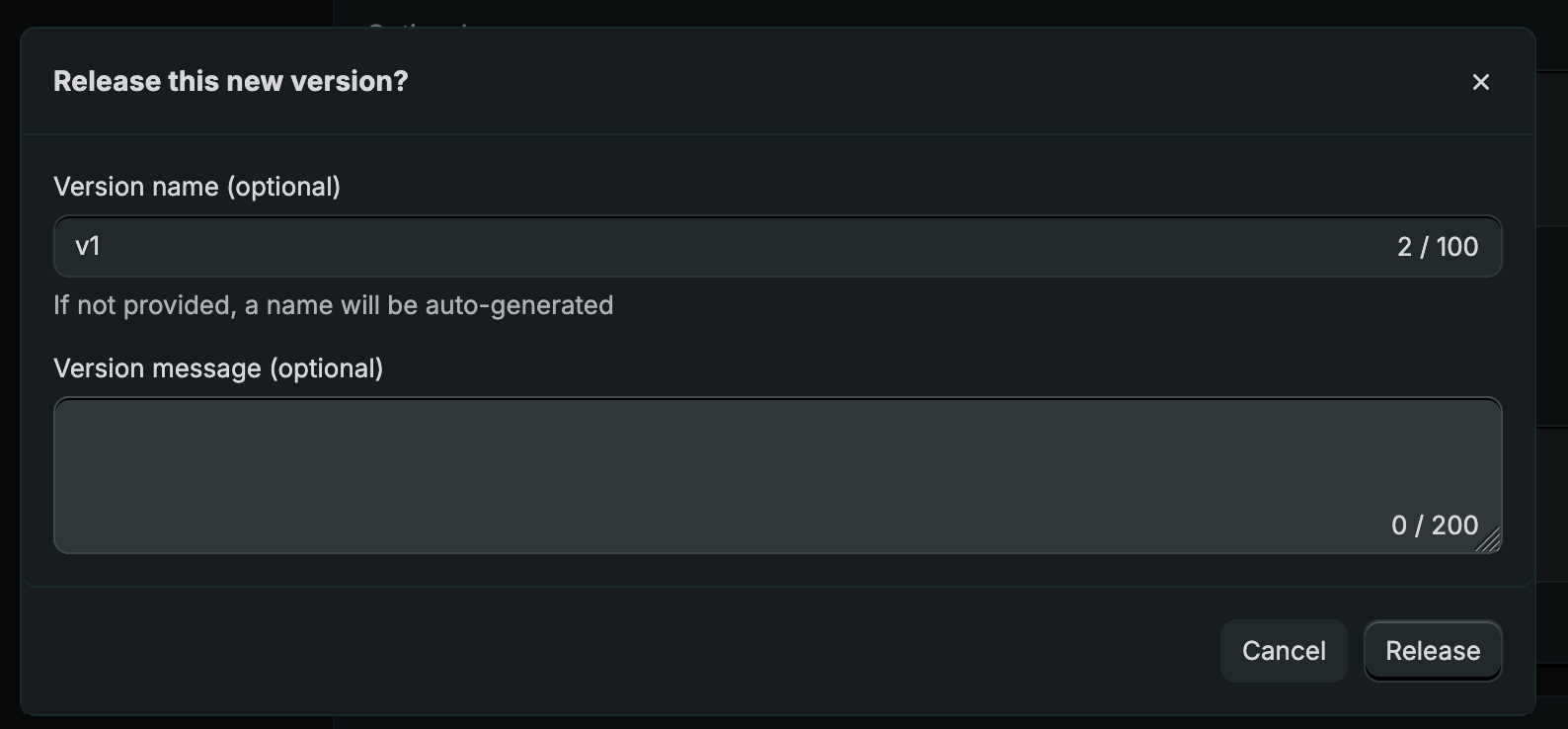
Create an app version. For an app that does not open inside Shopify admin, Shopify provides
https://shopify.dev/apps/default-app-homeas the App URL. - Set Webhooks API version to 2026-07.
-
Under Access, add the core scopes and any optional Color, publishing, or historical-order scopes you need.
-
Select Release and confirm.
-
From the app's overview, select Install app, choose the intended store, and approve its permissions.
- Open the app's Settings in the Dev Dashboard and copy its Client ID and Client secret.
See Shopify's app setup guide and where to find your app credentials.
Protect the Client secret
Treat the Client secret like a password. Enter it only in the connection form; do not include it in screenshots, email, or support messages. You do not need to generate an access token yourself.
2. Check the connection in Loupe Factory
- Open Workflows > Integrations > Shopify.
- Under Connect your merchant app, enter the Store domain, Client ID, and Client secret.
- Select Check connection.
- Wait for validation to finish. Review any message about credentials or missing permissions before continuing.
Credentials are encrypted when saved and are not displayed again. Loupe Factory renews access automatically during normal use. Connecting alone does not import records or publish products.
3. Choose locations and publishing
Under Locations and publishing:
| Setting | Choose | Effect |
|---|---|---|
| Shopify stock location | The active Shopify location you want to sync | Pulls read its available quantity; pushes update quantity there. Other Shopify locations are unaffected. |
| Local import location | A Loupe Factory location, or Leave unassigned | Sets the location of newly imported lots. It does not move existing inventory or limit which lots a push includes. |
| Publish products to | The intended channel, or Do not publish automatically | Controls automatic publication of eligible products created by this connection. |
- Use Load Shopify choices if choices have not loaded. Use Load more locations or Load more channels if needed.
- Check the selected location, even if Shopify has only one.
- For the first sync, keep Do not publish automatically selected unless you are ready for new products to become available on that channel.
- Select Save and verify choices.
- Wait until the connection shows Connected.
Keep Enable automatic updates off until you have reviewed your initial imports.
Run your first sync
Start by connecting records that already exist in Shopify. This reduces the chance of creating a second product or customer when you later push.
- Keep automatic updates off.
- Confirm the connected store, Shopify stock location, local import location, and store currency.
- In Sync records, select Pull beside Customers. Wait for completion and review the results.
- Select Pull beside Products and stock. Check product and inventory links, quantities, prices, descriptions, photos, and extra lot images.
- Select Pull beside Orders. Check customer links, line quantities, prices, weights, and statuses.
- Resolve reported issues before sending changes in the other direction.
- When ready to send Loupe Factory changes, Push customers first, then Push products and stock or Push drafts for orders.
Before a product push: review every eligible Finished lot, not just the record you most recently edited. Confirm its Tag ID, Product Label, Sell Price, Retail Price, currency, quantity, total weight, photos, extra lot images, descriptions, category, Color, and HS code where used. Then decide whether this push should turn on Continue selling when out of stock before you select Push.
Choose where your team will maintain each field. An unchanged Shopify record can leave a local edit untouched; a later Shopify change can cause supported fields to be imported again. Avoid editing the same details in both systems before syncing.
Manual and automatic updates
Manual sync
Use the buttons in Sync records:
| Row | Pull | Push |
|---|---|---|
| Customers | Import supported Shopify customer profiles | Create or update Loupe Factory customers in Shopify |
| Products and stock | Import Shopify products and their variants | Send products that have eligible Finished lots, with one variant for each lot |
| Orders | Import Shopify orders, including orders completed from linked drafts | Push drafts creates or updates eligible Loupe Factory Sales orders as drafts |
Products without Finished inventory are excluded from product pushes, including products already linked to Shopify. Materials and supplies are not pushed. Review rejected or scrap lots whose inventory type is still Finished, because they can be included.
Continue selling when out of stock
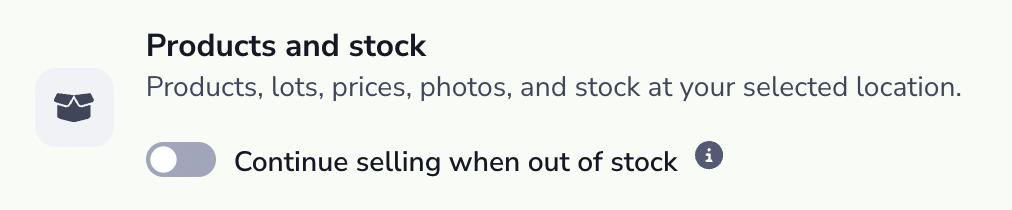
Turn on Continue selling when out of stock to keep taking Shopify orders for items you will make or restock later. The switch is off by default.
- In Sync records, find Products and stock.
-
Turn on Continue selling when out of stock, then select Push in that row. The switch alone does not change Shopify.
-
When the push finishes, review any errors. Then check the Continue selling when out of stock setting on the affected variants in Shopify.
| Switch | What the product push does |
|---|---|
| On | Turns on the Shopify setting for every new and existing variant in the push. Customers can order those variants after stock runs out. |
| Off | Leaves each existing Shopify variant's setting as it is, including a setting turned on by an earlier push. |
The switch covers every eligible variant in the push, including variants that still have stock. Quantities sync as usual, and the switch does not add stock. If a linked lot has no other changes, turning the switch on updates only the Shopify selling setting.
The switch applies to one push. It is not a saved, store-wide preference, so check it before each new push. A retry keeps the original push's choice, and you cannot change the switch while that push is active. Pulls, automatic imports, customer pushes, and draft-order pushes ignore the switch.
Automatic Shopify imports
After verifying your first sync:
- Select Enable automatic updates.
- Wait for the page to confirm the change.
- Make a small, identifiable edit in Shopify and check the corresponding Loupe Factory record and activity.
Automatic updates import supported customer, order, product, and inventory changes received from Shopify. A nightly check also looks for supported changes that need to be brought in. Stock updates use only the selected Shopify location.
Automatic updates do not push Loupe Factory edits. They also do not guarantee that a change appears immediately. For an urgent update, or after editing only a variant metafield in Shopify, such as Additional images or the lot description, run the appropriate manual Pull.
Select Pause automatic updates to stop automatic business imports while you review data. Manual sync remains available when the connection is ready. App removal and permission changes can still affect connection health while automatic updates are off.
Check the results
Sync progress
You can leave the page and return to review progress. Once a sync is queued, it runs on Loupe Factory's cloud workers, so you can close your laptop. Refresh progress loads the progress already saved. It does not start the job again, and it does not make the job finish sooner. Use Refresh status for the connection.
| Status | Meaning | Next step |
|---|---|---|
| Queued or In progress | Work is still underway | Let the current run continue. |
| Waiting to retry | A temporary problem is delaying progress | Check the message and any next-attempt time. Do not keep submitting the same push. |
| Finished | The run completed | Review the counts and spot-check the records. |
| Finished with items to review | Some work completed, but one or more records need attention | Review the affected records and correct the reported problems before retrying. |
| Review needed | Loupe Factory needs a verified decision before another change | Follow Review an uncertain change. |
| Needs attention | The run could not finish successfully | Read the error and use the troubleshooting steps below. |
| Skipped | No eligible change was applied | Check the reason. Unchanged records are a normal reason to skip. |
Processed, Succeeded, Failed, Skipped, and Pending describe progress. Product and inventory results can be reported separately. A zero pending count or a recent Last successful sync timestamp does not mean there were no errors.
Activity, links, and email
- Linked records shows which Loupe Factory and Shopify records are associated. Search or filter by record type, and review each link's status.
- Activity and recovery > Sync runs shows past runs and their results.
- Activity and recovery > Operations helps identify a failed change or a change needing review.
- Webhook receipts shows incoming Shopify notifications when investigating automatic updates.
- Manual sync summary emails report created, updated, skipped, and errored results, with record details and a link back to the integration page. Longer summaries can show a limited selection of details. Emails go to workspace admins, with the billing email used when no admin recipient is available.
Use the page to check status if an email has not arrived. A missing email does not prove that a run failed or that it is still running.
For products, check Shopify admin and the storefront where relevant. Having a photo, metafield, or price in Shopify does not necessarily make it visible in your theme.
Customer field mapping
| Field | Pull into Loupe Factory | Push to Shopify |
|---|---|---|
| First and last name | Imports the available names | Sends populated names |
| Imports the available email. A new customer without one receives a local placeholder so the record can be saved. | Sends a real email. Loupe Factory's generated placeholder is never sent. | |
| Phone | Imports the customer's available phone number | Sends a populated phone number |
| Company | Uses the company on Shopify's default customer address | Sends Company name on the default address |
| Address | Uses the default address's first address line, city, state or province code, country, and postal code | Updates the default address, or creates one if needed, using populated corresponding fields |
| State or province | Imports the province code when available | Sends a two- or three-letter code with a valid country. A full province name is not sent as a code. If Shopify rejects that code, other valid address details can still sync. |
| Customer since | Uses the date the Shopify customer was created, in your organization's time zone | Does not change Shopify's customer creation date |
| Notes | Adds the paragraphs of a nonblank Shopify note that are not already present, preserving existing Loupe Factory notes | Sends Notes as plain text, excluding old generated customer-sync audit blocks. Shopify notes are limited to the first 5,000 characters sent. |
Only the default address is mapped. Additional customer addresses and a separate second address line are not transferred.
An existing link takes priority. When there is no link, Loupe Factory can reuse an unambiguous customer with a matching email and matching first and last names. A conflicting name, duplicate match, or customer already linked elsewhere needs review. Correct the records only after confirming that they represent the same customer.
Missing or redacted Shopify customer data preserves the corresponding existing local values. Empty customer fields on a push are generally omitted, so use Shopify directly when you intend to clear them. A push can skip an unchanged customer, or a customer whose last imported Shopify change is newer than the local edit.
Product and inventory field mapping
A Product is the catalog style or name. A lot is an individual inventory record with its own Tag ID, quantity, weight, prices, and attributes. A product push creates or updates one Shopify product with one variant for each eligible Finished lot.
Product fields
| Field | Pull into Loupe Factory | Push to Shopify |
|---|---|---|
| Product identity | Reuses the existing link. On first import, an unlinked Product with the same name can be reused. Separate Shopify products keep separate identities; a name collision can add a Shopify identifier to the local name. | Creates a product when no link exists. A matching title in Shopify alone does not establish a link. |
| Product name | Updates the linked Product name when Shopify's supported product information changes. A missing usable name falls back to a name based on the Shopify product identifier. | Uses the Loupe Factory Product name as Shopify's title |
| Product's Storefront Description | Fills a new Product, or a blank description when first linking an existing Product. Later pulls preserve that product copy. | Uses the Product's description. If blank, uses the newest Finished lot with a populated description. If neither has copy, leaves Shopify's description unchanged. |
| Product photo | Uses Shopify's featured product image. Refreshes a previously imported photo when its source changes; preserves a photo chosen locally. | Sends a locally chosen Product photo as the featured image. A photo imported from Shopify is not uploaded back. |
| Product category | Does not change the lot's Finished Type or its saved category mapping | Uses the Shopify category mapped to the Finished Type. Populated mappings on lots under the same Product must agree. |
Inventory lot and variant fields
| Field | Pull into Loupe Factory | Push to Shopify |
|---|---|---|
| Variant identity | Updates the linked lot. Without a link, a unique, unlinked lot whose Tag ID matches the SKU can be reused; otherwise creates a new Finished lot when stock is available. | Updates the linked variant. Under a linked product, an unambiguous matching SKU can be reused if it is not claimed by another lot. Otherwise creates a variant. |
| Inventory type | New lots are Finished. A reused lot keeps its existing inventory type. | Only Finished lots are eligible. |
| Tag ID and SKU | A usable, unique SKU becomes a new lot's Tag ID. Otherwise Loupe Factory generates a Tag ID. Later pulls preserve the lot's Tag ID. | Tag ID becomes the variant SKU, including a Tag ID generated during an earlier pull. |
| Product Label and variant title | A new lot uses the Shopify variant title unless it is Default Title or equals the SKU. Later pulls preserve Product Label. | Product Label supplies the Title option. A blank label falls back to Tag ID. Duplicate or occupied titles receive a Tag ID suffix. A populated label also goes to loupe_factory.product_label. |
| Quantity | Uses available stock at the selected Shopify location | Sets available stock at that location to the lot's quantity. It replaces the count rather than adding to it. |
| Continue selling when out of stock | Not imported. The Shopify setting does not change the Loupe Factory switch. | Turns on the Shopify variant setting when the switch is on for that push. With the switch off, the push keeps the existing Shopify setting. See how the switch works. |
| Location | New lots use Local import location, or stay unassigned. Existing inventory does not move. | The selected Shopify stock location receives the update, regardless of the lot's Loupe Factory location. |
| Sell Price | Imports Shopify Price as a per-piece price | Requires a saved Sell Price and converts it to a per-piece amount. A saved zero is valid; blank is an error. |
| Retail Price (MSRP) | Imports Compare-at price as a per-piece price. An explicitly cleared Compare-at price clears local Retail Price. | Sends a populated Retail Price per piece. See the clearing rules below. |
| Currency | Records Shopify's store currency. A conflicting existing local currency requires review. | Prices must use the store currency. Values are not converted or relabeled into another currency. |
| Weight and unit | Multiplies Shopify's per-item weight by the imported quantity to rebuild total lot weight, using Shopify's weight unit | Divides total lot weight by a positive piece count. Sends grams, kilograms, ounces, or pounds; converts other supported local units, such as carats, to grams. |
| HSN / HS code | Imports the variant's nonblank global HS code | Sends a nonblank HSN code to the variant's global HS code. See HS codes. |
| Color | Imports the variant's Color option when populated | Uses mapped standard Shopify colors when available, or a plain-text option where compatible. Also sends populated Color to loupe_factory.color. |
| Quality, Size, Shape | These variant metafields do not update the local fields | Sends populated values to their corresponding Loupe Factory variant metafields. Size and Shape do not create Shopify options. |
| Lot's Storefront Description | Imports a populated, supported loupe_factory.variant_description | Sends the lot's description to that metafield, creating its definition when needed. |
| Lot photo | Uses the variant image, falling back to the product image when the variant has none. Refreshes imported photos while preserving locally chosen photos. | Sends the locally chosen lot photo as its variant image. Imported Shopify photos are not uploaded back. |
| Media Gallery images | Imports the images listed in loupe_factory.additional_images into that lot's Media Gallery. Other images in the product gallery stay on the product. | Adds the lot's extra Media Gallery images to the Shopify product gallery and lists them on the variant's Additional images field, in the lot's gallery order. Reuses images already on the product. |
| Industry Item attributes | These custom metafields are not imported | Sends populated default attributes for your organization's industry. Other custom attribute keys are excluded. |
A usable Tag ID is nonblank, is not the - placeholder, has no slashes or control characters, and is at most 50 characters. The same Tag ID cannot identify two local lots.
Shopify combines option values in its displayed variant title. For example, a Product Label of Small enamel hoops and a Color of Blue may display as Small enamel hoops / Blue. The SKU remains the Tag ID.
One Product, two lots, two Shopify variants
You have a Product called Enamel Hoop Earrings with two Finished lots. Both use USD, matching the Shopify store currency, and a Price Basis of per piece. Their Finished Types share the same saved Shopify Category mapping, and their catalog colors map to Red and Blue.
| Tag ID | Mapped Color | Quantity | Total lot weight | Sell Price per piece | Retail Price per piece |
|---|---|---|---|---|---|
HOOP0001 | Red | 3 pieces | 15 g | USD 120 | USD 180 |
HOOP0002 | Blue | 2 pieces | 10 g | USD 130 | Blank |
A push creates one Shopify product titled Enamel Hoop Earrings with two variants. HOOP0001 has a quantity of 3, a Price of USD 120, and a Compare-at price of USD 180. HOOP0002 has a quantity of 2, a Price of USD 130, and no Compare-at price. Both variants have a weight of 5 g per item. If quantities stay the same, a pull rebuilds lot weights of 15 g and 10 g.
The SKUs are HOOP0001 and HOOP0002. Title falls back to those Tag IDs when Product Label is blank. With Title followed by Color, Shopify displays HOOP0001 / Red and HOOP0002 / Blue. The push does not create a Blue version of HOOP0001 or a Red version of HOOP0002. There are two variants, one for each lot, under one category.
Stock availability and missing variants
- Shopify's available quantity is the stock value used for syncing. It is not the combined quantity across Shopify locations.
- If an item is untracked or has no stock level at the selected Shopify location, existing local stock and weight are preserved. Other supported fields can still update.
- A new variant without usable stock at that location is skipped. Enable tracking and stock it at the selected location in Shopify, then pull again.
- An explicit push can enable tracking or stock the item at the selected location where Shopify permits it.
- Negative Shopify availability is retained as a negative local quantity and reported for review. It does not create negative material weight.
- If Shopify stock changes during a push, Loupe Factory reports a conflict. Review both counts before trying again.
- If several variants share one Shopify stock item, competing stock updates and shared details such as HS code and weight are withheld for review. Independent variant fields may still sync.
Deleting a variant in Shopify does not delete its Loupe Factory inventory. A missing linked variant is reported so you can review the remaining lot and its history. A replacement variant is a separate identity, even when its name looks familiar.
Prices and per-item weight
Shopify prices and weights describe one item. Loupe Factory can hold a price by piece, weight, or whole lot.
| Loupe Factory Price Basis | Amount sent per Shopify item |
|---|---|
| Per piece or per set | The saved price |
| Per weight unit | Price multiplied by total lot weight in that unit, divided by the piece count |
| Per lot | The saved lot price divided by the piece count |
For example, a lot with 2 pieces, 10 g total weight, and a Sell Price of USD 20 per gram sends USD 100 per item and 5 g per item. The Shopify store must use USD. The same calculation applies separately to Retail Price.
If there is no positive piece count, price conversion uses the whole weight-based or lot amount as a single-item amount; pushed per-item weight is zero. Check quantity and Price Basis before pushing such lots. Zero stock is sent as zero stock.
A push does not change the local price basis. A later changed Shopify variant can pull back per-piece prices and set the local basis to Per piece. Imported inventory weight uses Shopify's unit, so a weight pushed in carats can return in grams. Inventory Cost Price is not synced.
Retail Price: blank, cleared, and zero
- Blank in Loupe Factory before Loupe Factory has sent a Retail Price for that variant: preserves Shopify's existing Compare-at price.
- Blank after Loupe Factory has sent Retail Price for that variant: clears Compare-at price on the next applicable push.
- Explicitly cleared in Shopify: clears local Retail Price on the next applicable pull.
- Saved zero: is a price, not a request to clear the field.
- Compare-at price could not be read during a pull: Loupe Factory can withhold that price on a subsequent push until a complete pull resolves it. Other unrelated sync errors do not automatically withhold Retail Price.
If you remove Compare-at price in Shopify but retain Retail Price in Loupe Factory, a later changed push can send the local value again. For sale pricing, check both prices and your Shopify theme; syncing Retail Price alone does not configure storefront sale badges.
HS codes
Keep the inventory item's HSN code populated to sync it with Shopify's variant HS code in either direction.
- Use 6 to 13 digits, with periods where your customs schedule uses them, such as
7113.19.00. Periods are sent as typed. Spaces and hyphens are removed before sending, and leading zeros are preserved. - A code with fewer than 6 digits, such as a 4-digit chapter code, is not sent. The sync results report it, and the lot's other details still sync.
- Blank values do not erase an existing code in either system.
- Only the global HS code syncs. Country-specific HS codes and country of origin are unchanged.
- Loupe Factory stores up to 12 characters, including periods. A longer Shopify code is not shortened. The sync results report it, the local value is kept, and the rest of the item still syncs.
This transfers the code you supply; it does not select or validate the customs classification for your goods.
Set up categories and colors
Product categories
- Open Admin Settings > Inventory Settings > Finished Inventory Types.
- Add or edit the relevant Finished Type.
- In Shopify category, search for and select the appropriate category, then save.
- Check that the intended Finished Type is selected on each lot.
- Run a Products and stock > Push and review Shopify's product category.
Shopify has one category per product. If the lots under one Product have conflicting populated mappings, the category is left unchanged and the issue is reported. A blank mapping does not clear Shopify's category. Pulls do not change these mappings or a lot's Finished Type.
Color mappings and options
- Open Admin Settings > Product Settings > Colors.
- Add or edit the catalog color.
- Choose its standard Shopify color, then save. This keeps your local name and swatch.
- Select that catalog Color on the relevant inventory lots.
- Confirm that the app has the optional Color permissions, then push products and stock.
Loupe Factory reuses or creates the standard Shopify color entries needed for mapped colors and connects them to the product and its variants. Each lot still produces one variant; the integration does not create every possible combination of Title and Color.
If a nonblank color has no standard mapping, Loupe Factory can use its exact text in a regular Color option when the product's options allow it. The populated local Color is also sent to loupe_factory.color. An existing Color option linked to Shopify's standard entries needs valid mappings; it is not silently changed to a text option.
Before adding or changing Color, review the whole product:
- Every pushed lot needs a usable color for the proposed option structure.
- Existing Shopify variants must be linked before an option change that affects them.
- Existing Color values must be compatible with their mappings.
- The product must have room within Shopify's three-option limit.
- Existing options such as Size are preserved. Loupe Factory cannot guess missing option values for a new variant.
Loupe Factory's hex swatch is not copied automatically. Check the color entry and your Shopify theme if shoppers should see a particular swatch.
Descriptions and variant metafields
Shopify metafields are extra fields attached to a product or variant. Loupe Factory uses them to keep each lot's details with the corresponding variant.
Product description versus lot description
The Product's Storefront Description supplies Shopify's main product description, with the newest populated Finished lot description as a fallback. Shopify's main description seeds the local Product only when it is new or first linked with blank copy.
Each lot's Storefront Description uses a separate variant field:
| Setting | Value |
|---|---|
| Owner | Variants |
| Name | Variant Description |
| Namespace and key | loupe_factory.variant_description |
| New definition type | Rich text |
| Existing supported types | Rich text, Multi-line text, or Single line text |
When you push a populated lot description, Loupe Factory creates this definition if it is missing. You do not need to recreate an existing supported definition.
- Rich text: supports paragraphs, headings, lists, links, bold, and italics. Other formatting can be simplified while retaining its text.
- Multi-line text: receives the formatted description as HTML; how it renders depends on the theme.
- Single line text: receives plain text flattened onto one line.
On pull, a populated supported value updates the lot description. Blank values preserve existing copy. Invalid or oversized lot descriptions preserve local copy and are reported for correction. Loupe Factory descriptions support up to 8,000 characters of text.
To inspect a definition, open Shopify Settings > Metafields and metaobjects > Variants. Check the exact namespace, key, and type if a description is missing. After editing a variant description in Shopify, run Products and stock > Pull.
Standard variant fields
Loupe Factory creates the following definitions as needed and sends populated values as Single line text:
| Loupe Factory field | Shopify namespace and key |
|---|---|
| Color | loupe_factory.color |
| Quality | loupe_factory.quality |
| Size | loupe_factory.size |
| Shape | loupe_factory.shape |
| Product Label | loupe_factory.product_label |
These metafields are push-only. Editing them in Shopify does not update the corresponding Loupe Factory fields. The Color option and the variant title on a new import have their own pull rules described above.
Extra lot images use the file field loupe_factory.additional_images, which syncs in both directions. See Additional inventory images.
New custom definitions include Created by Loupe Factory in their description. Existing merchant definitions keep their descriptions and supported types. These custom fields are separate from Shopify's standard category attributes.
Industry Item attributes
Only populated default Item attributes for your organization's industry are exported. Each uses Single line text. Custom keys outside these lists are not exported, and a pull does not import these metafields.
An item attribute named No of Stones arrives as loupe_factory.no_of_stones. Each attribute uses the Single line text type and the loupe_factory namespace, which groups these fields in Shopify.
Shopify variant metafield reference
Open your industry's list to match each attribute with its Shopify field. The tables show the full namespace and key to look for in Shopify.
Confirm the keys in Shopify
After a Products and stock push, Loupe Factory creates missing variant definitions as needed. You do not need to add them by hand. If you pushed and cannot find a field in Shopify, open Settings > Metafields and metaobjects > Variants and match the name, namespace, and key to the tables above.
This Jewelry example shows the six industry fields alongside Product Label, Size, Shape, Quality, and the lot Description. The Description row is the variant-description field Loupe Factory creates as Rich text.
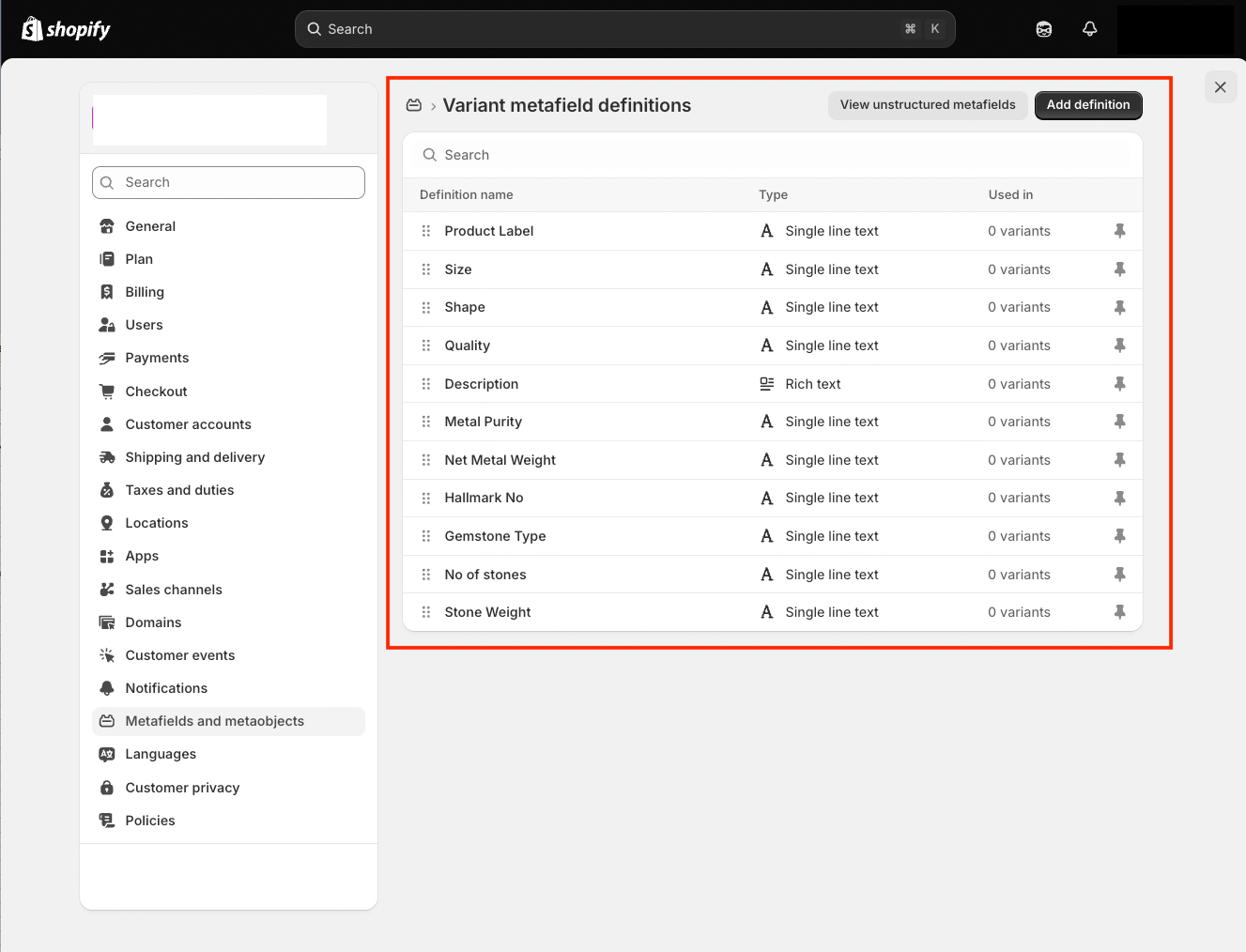
Open a definition to confirm the exact namespace and key. No of stones should read loupe_factory.no_of_stones, with type Single line text. Definitions Loupe Factory creates include Created by Loupe Factory in their description. An existing merchant definition keeps the description already on it.
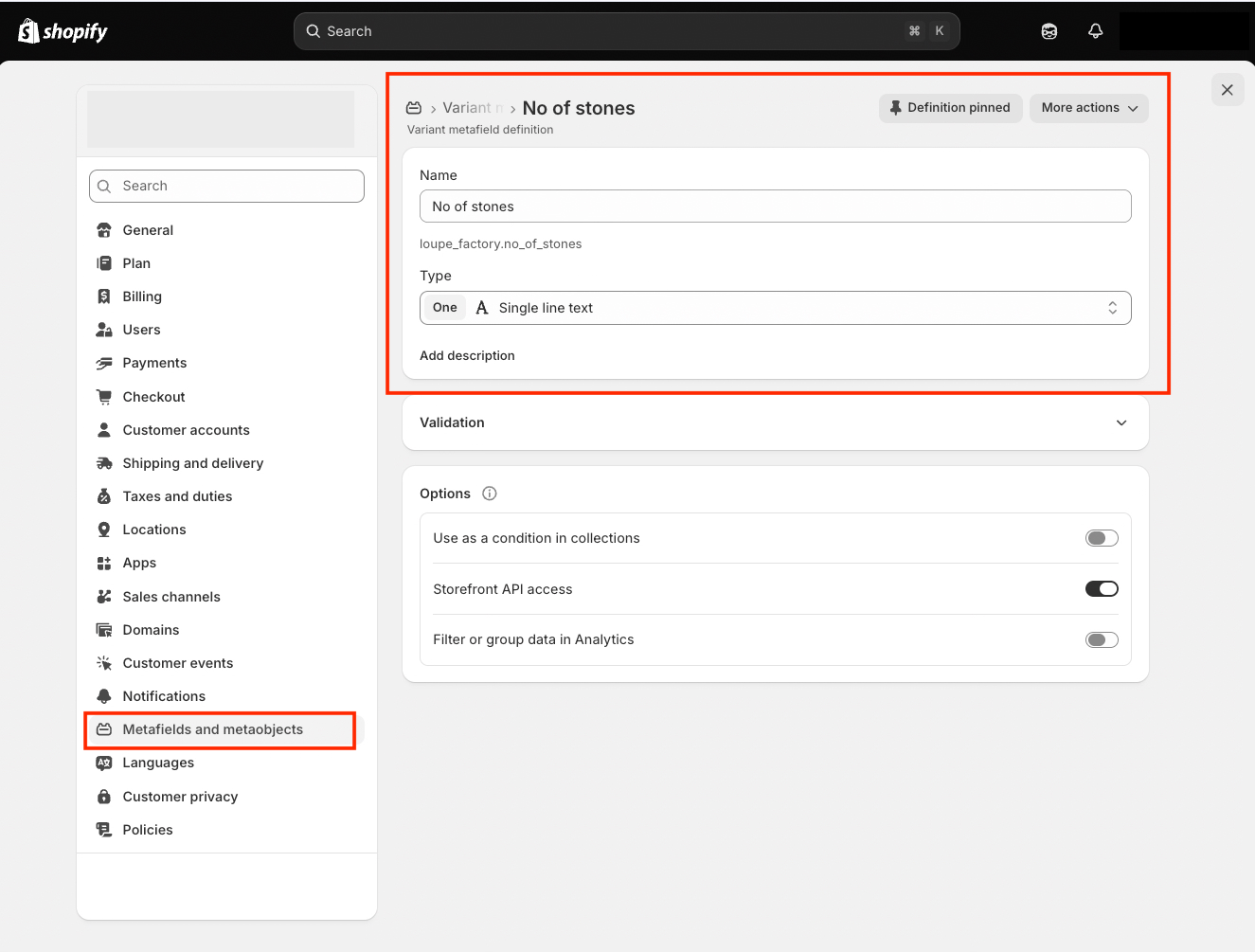
Each variant carries its own lot's values. Empty default rows are skipped, and clearing an attribute in Loupe Factory does not clear its Shopify value. Delete the value in Shopify to remove it there. Review the blank-value rules before clearing attributes.
A pull does not copy these metafields into Item attributes. Edit the values in Loupe Factory. To show them to shoppers, configure a compatible Shopify theme.
A custom-field problem does not stop the rest of the push
If Shopify rejects the custom fields, the variant still syncs with its title, SKU, Price, any supplied Compare-at price, weight, and quantity. The next push tries the custom fields again.
Show these details to shoppers
First check the variant's values in Shopify admin. Then configure a compatible theme to display the fields you want shoppers to see. Variant-specific content needs to follow the selected variant. Syncing the value does not add a storefront block or customize your theme. See Shopify's metafield display guide.
Keep customer-facing copy in Storefront Description and exported attribute fields. Inventory Notes stay in Loupe Factory.
Product and lot photos
Loupe Factory keeps the catalog Product photo separate from each lot's photo, so you can show a general style image alongside the specific item being sold. Extra photos in a lot's Media Gallery can sync as additional images for that variant.
Pulling photos
- The Shopify featured product image supplies the Product photo.
- A variant's own image supplies its lot photo. When the variant has no image, the product image is the fallback.
- A previously imported photo can refresh when its Shopify source changes.
- A locally chosen photo is preserved. A missing Shopify image does not clear an existing local photo.
Pushing photos
- A locally chosen Product photo becomes the Shopify featured image.
- A locally chosen lot photo becomes that variant's image in the product gallery.
- Extra photos in the item's Media Gallery sync with the lot. See Additional inventory images. Videos, PDFs, 3D CAD files, and the product type gallery stay in Loupe Factory.
- Photos imported from Shopify are not uploaded back, avoiding repeated copies.
- Loupe Factory replaces only images it previously sent and still manages. Other merchant images remain in Shopify.
- A replacement waits for Shopify to finish processing it before the previous managed image is removed. An image still processing can delay completion; a failed replacement keeps the previous image and is reported.
- Removing a local photo does not delete its Shopify image. Remove unwanted images in Shopify too.
When no Product photo is sent, the gallery's existing order determines the featured image. If a new gallery starts with a lot photo, that photo can become featured. Review the gallery after the first push.
Additional inventory images
Use Media Gallery for side views, close-ups, and detail photos that belong to one lot. Those images sync with the lot's main photo. Product shots you generate with AI are gallery photos too, so they sync the same way.
Shopify gives each variant one image of its own. Loupe Factory adds the extra images to the product gallery and records which ones belong to each variant in Additional images. Shoppers see only that variant's extra images after your theme is set up to use Additional images for the selected variant. Syncing leaves your theme unchanged. See Shopify's variant image guide.
Send extra images to Shopify
- Open the inventory item in Loupe Factory and select More Actions > Media Gallery.
- Add the extra images and put them in the order you want. Keep the main photo in the item's photo field.
- Run Products and stock > Push on the Shopify integration page.
- In Shopify, open the product and check its media. Then open the variant and check Additional images under its metafields. Select View all if the field is hidden.
Loupe Factory creates the field when it is missing.
| Setting | Value |
|---|---|
| Owner | Variants |
| Name | Additional images |
| Namespace and key | loupe_factory.additional_images |
| Type | File, as a List of values, limited to images |
| Storefront access | On for definitions Loupe Factory creates |
Each variant can include up to 128 extra images. Shopify's own limit on product media still applies.
Loupe Factory leaves out videos, PDFs, 3D CAD files, and images in the product type's Media Gallery. Loupe Factory sends a repeated image link once, including a link that matches the main photo. The caption becomes the image's first alt text. Editing the caption later leaves the uploaded image as it is. Product shots arrive captioned with their style name, so change that caption before the first push if you want different alt text.
When the local gallery changes, the next push replaces the Additional images list. Removing an extra image in Loupe Factory removes it from that list on the next push. The file stays in the Shopify product gallery. Other product media and the variant's own image stay in place.
If the local gallery has not changed, the push skips it. Pushing again does not undo edits you made to the list in Shopify. If you change the list in Shopify, pull before you edit the gallery in Loupe Factory.
After you reconnect the store or relink a lot, Loupe Factory checks whether the images it already synced are still in that store. If they are, it lists those same files in Additional images and does not upload a second copy.
Bring extra images into Loupe Factory
- In Shopify, open the variant's Additional images field.
- Select the images that belong to that variant, put them in order, and save.
- Run Products and stock > Pull.
- Open the linked inventory item's Media Gallery and check the images.
A pull assigns images to a lot from that variant's Additional images field. Photos elsewhere in the product gallery stay on the product. Imported images point at the Shopify file, so deleting the file in Shopify can make the gallery image unavailable in Loupe Factory.
If the Shopify list is unchanged, the pull keeps your local gallery edits. If the list changed, the pull updates imported images you have not edited locally.
New images from Shopify are added after the media already on the lot. If you changed an image's position in Loupe Factory, a reorder in Shopify leaves that position alone.
Clearing Additional images in Shopify removes those imported entries on the next pull if you have not edited them locally. Images you uploaded in Loupe Factory stay. Imports you have edited stay too.
If an extra image is missing or still processing, Loupe Factory names it in the sync details and leaves the local gallery as it is. The rest of that product and stock pull still finishes.
If an extra image does not sync
- The image is still processing. Loupe Factory names it in the sync details and leaves the local gallery as it is. The rest of the product and stock pull still finishes. Images already uploaded are reused. The variant's published list updates after every extra image for that variant is ready.
- Shopify could not process the image. Replace or remove that image in the local gallery, then push again. The previous published list stays available.
- The field has the wrong type. Open Settings > Metafields and metaobjects > Variants in Shopify.
loupe_factory.additional_imagesmust be a list of image files. - A pull reports a missing image. The local gallery stays as it is, and the rest of the pull still finishes. Open the variant's selected files in Shopify. Remove or replace the unavailable files, save, and pull again.
- Images show in Shopify admin but not to shoppers. Check that your theme reads Additional images for the selected variant.
Product publishing
Use Publish products to to choose a channel, or leave Do not publish automatically selected.
Publication applies to eligible products created by this connection, after the required product and lot work completes. It does not automatically publish products that were pulled from Shopify. A successful publication is not repeated on every unchanged push, so later merchant decisions to unpublish are respected.
Product creation and publication have separate results. If a product exists in Shopify but is not visible to shoppers:
- Check the selected publishing channel in Loupe Factory.
- Check the product's status and channel availability in Shopify.
- Review Activity for a publication error and confirm the publication permissions.
- Correct the issue and retry if needed. Keep the existing product link.
Manage ongoing channel availability in Shopify. Changing the publishing selection does not automatically remove products from their previous channels.
Orders and draft orders
Pull Shopify orders into Loupe Factory
Use Orders > Pull to bring Shopify sales into your operations workflow.
| Shopify information | Loupe Factory result and fallback |
|---|---|
| Order identity and number | Updates the linked Sales order, or creates one using the Shopify order name. An unrelated local order with the same number requires review instead of being merged. |
| Customer | Links the Shopify customer, importing supported details as needed. If Shopify supplies no customer, an existing local customer is preserved; a new order can remain unassigned. |
| Order total and currency | Imports the order total as Budget and records the Shopify store currency |
| Required date on a new order | Uses the Shopify creation date plus your organization's default due-date offset |
| Order note | Seeds Notes on the first import. Later nonblank Shopify note differences are recorded with sync history without replacing the original local note. |
| Line title | Becomes Product Label; a missing usable title falls back to Shopify item |
| Line quantity | Imports the ordered quantity in pieces |
| Line price | Uses Shopify's original per-unit amount in the store currency. Missing prices are not silently replaced with zero. |
| Historical line weight | Creates missing ordered demand using the order's per-item weight multiplied by its quantity, in Shopify's weight unit. Existing ordered pieces, total weight, and weight unit are preserved, including zero values. Missing weight leaves demand unchanged. |
| Payment and fulfillment | Uses the supported status mappings below. Unmapped values preserve local progress. |
Unchanged order information is skipped, preserving local edits. A changed Shopify order can update supported fields. Importing an order does not itself create a Loupe Factory shipment, invoice, refund, or production job.
If a previously imported line is removed from Shopify, its local line is canceled with zero quantity when it has invoice, shipment, or task history. A line without that history can be removed. Other local lines are preserved.
Payment status mapping
| Shopify status | Loupe Factory payment status |
|---|---|
| Paid | Paid |
| Pending or Authorized | Pending |
| Partially paid or Partially refunded | Partial |
| Refunded | Refunded |
| Voided | Unpaid |
| Expired or an unsupported status | Keep the existing status. New orders start as Pending. |
If Shopify reports an expired authorization or a payment status Loupe Factory does not map, the sync email names the order and Shopify's status. Check that payment in Shopify before you change the status in Loupe Factory.
These are status updates, not payment collection or refund actions. An On memo status is not sent as Shopify payment terms or a payment transaction.
Fulfillment status mapping
| Shopify status | Loupe Factory order status |
|---|---|
| Canceled | Cancelled |
| Fulfilled | Shipped |
| Partially fulfilled | Partially shipped |
| Unfulfilled | Not started for a new order; does not rewind existing local work |
Shopify fulfillment means shipped, not delivered. Loupe Factory preserves its separate shipment, return, and production history; local completion or return progress is not automatically replaced by a less advanced fulfillment status.
Push Loupe Factory Sales orders as drafts
- Ensure the order's customer has a successful Shopify link. Push or pull Customers first if needed.
- Check the Sales order's active lines, unit prices, currency, ordered pieces, and total ordered weight.
- Select Orders > Push drafts.
- Review the result, then open Orders > Drafts in Shopify.
- Confirm the customer, custom items, quantities, prices, and weight before completing the draft in Shopify.
| Loupe Factory field | Shopify draft field and fallback |
|---|---|
| Linked customer | Draft customer. An order without a successfully linked customer is skipped. |
| Order number and Notes | Draft note, as plain text, starting with the Loupe Factory order number; limited to the first 5,000 characters sent |
| Line Product Label | Custom item title. A blank label uses Line followed by the local line number. |
| Ordered quantity | Positive whole-item quantity. Zero-quantity lines are omitted. Negative or fractional quantities need correction. |
| Line unit price | Custom item's unit price in its stated currency. A blank price is currently sent as zero, so enter the intended price before pushing. Currency falls back to the order's currency when the line has none. |
| Physical item | Every custom item is marked as a physical product requiring shipping |
| Total ordered weight and pieces | Per-item weight equals total ordered weight divided by ordered pieces. Pieces must match the line's quantity. |
| Weight unit | Uses grams, kilograms, ounces, or pounds; other supported units, such as carats, are converted to grams |
For example, 30 g ÷ 3 pieces = 10 g per Shopify item. When total ordered weight is absent, the draft omits the weight field. The item stays a physical product.
A later pull fills ordered weight only when that line has no ordered weight saved. A saved zero counts as a saved weight, so the pull leaves it alone. The amount comes from the weight on the Shopify order, multiplied by the ordered quantity. The pull does not copy the catalog variant's current weight.
Draft lines are custom items, not links to Shopify catalog variants. Do not rely on a draft push to deduct stock from a Shopify product variant.
Cancellations, returns, and completed drafts
- Canceled, fully returned, and zero-quantity local lines are omitted from the next draft update.
- Partially returned lines require review because the remaining sellable quantity cannot be inferred safely from the status alone.
- A draft with no active lines cannot be pushed. Review or remove the obsolete draft in Shopify if appropriate.
- A push does not charge the customer, complete the draft, issue a refund, or export payment and fulfillment actions.
- After completing a linked draft in Shopify, run Orders > Pull or let automatic updates bring in the resulting order. Loupe Factory follows that relationship to the existing Sales order. If the records cannot be matched safely, review the issue instead of creating another draft.
- Once linked to a Shopify order, the local Sales order is skipped by draft pushes. Manage the completed Shopify order in Shopify.
What happens when a field is blank?
| Field or condition | Behavior |
|---|---|
| Unavailable or redacted Shopify customer data | Preserves existing local values |
| Blank Customer fields on push | Generally leave the corresponding Shopify value unchanged |
| Blank Product Storefront description on push | Uses the newest populated Finished lot description; if none exists, preserves Shopify copy |
| Blank lot Storefront description in either direction | Preserves existing copy in the destination |
| Blank Color, Quality, Size, Shape, Product Label, or industry metafield value on push | Does not clear the existing Shopify metafield. A blank Product Label can still change the Title option to the Tag ID fallback. |
| Blank Finished Inventory Type | Does not clear Shopify's product category |
| Blank HSN / HS code | Does not clear either side |
| Removed local photo | Does not delete Shopify's image |
| Removed extra image in Media Gallery | Removes that image from the variant's Additional images list on the next push. The file stays in the Shopify product gallery. |
| Missing stock level or untracked inventory on pull | Preserves existing local stock; skips a new lot until stock is available |
| Retail Price | Follows its separate blank, clear, and zero rules |
To intentionally remove a value from both systems, check its rule above and clear it in both places where necessary. A later populated sync can restore it.
Review an uncertain change
A connection interruption can leave it unclear whether Shopify accepted a change. Loupe Factory may show Review needed, The Shopify change needs reconciliation before retrying, or Resolve the prior Shopify operation before sending another change.
Use this process to avoid creating duplicate records or sending the same stock change twice:
- Open Activity and recovery, select Operations, and find the affected record and attempted change.
- Open that record in Shopify and inspect the actual result. Check the relevant fields or stock location, not only whether a product with a similar name exists.
- Open Review outcome for the operation.
- If the intended record exists and Verify existing record is offered, select the verified Shopify record and use that action.
- Use Confirm no change was made only after confirming that the attempted creation or update did not take effect. An existing product does not by itself prove whether its stock, photo, or another field changed.
- Wait for the review to finish, refresh the page, and retry the affected category if required.
If no candidate is offered or you cannot determine what happened, contact support with the record reference and the message. Unlinking is not a substitute for resolving an uncertain operation.
Manage your connection
Add or update Shopify permissions
Permission changes do not require removing record links. Keep Webhooks API version at 2026-07.
-
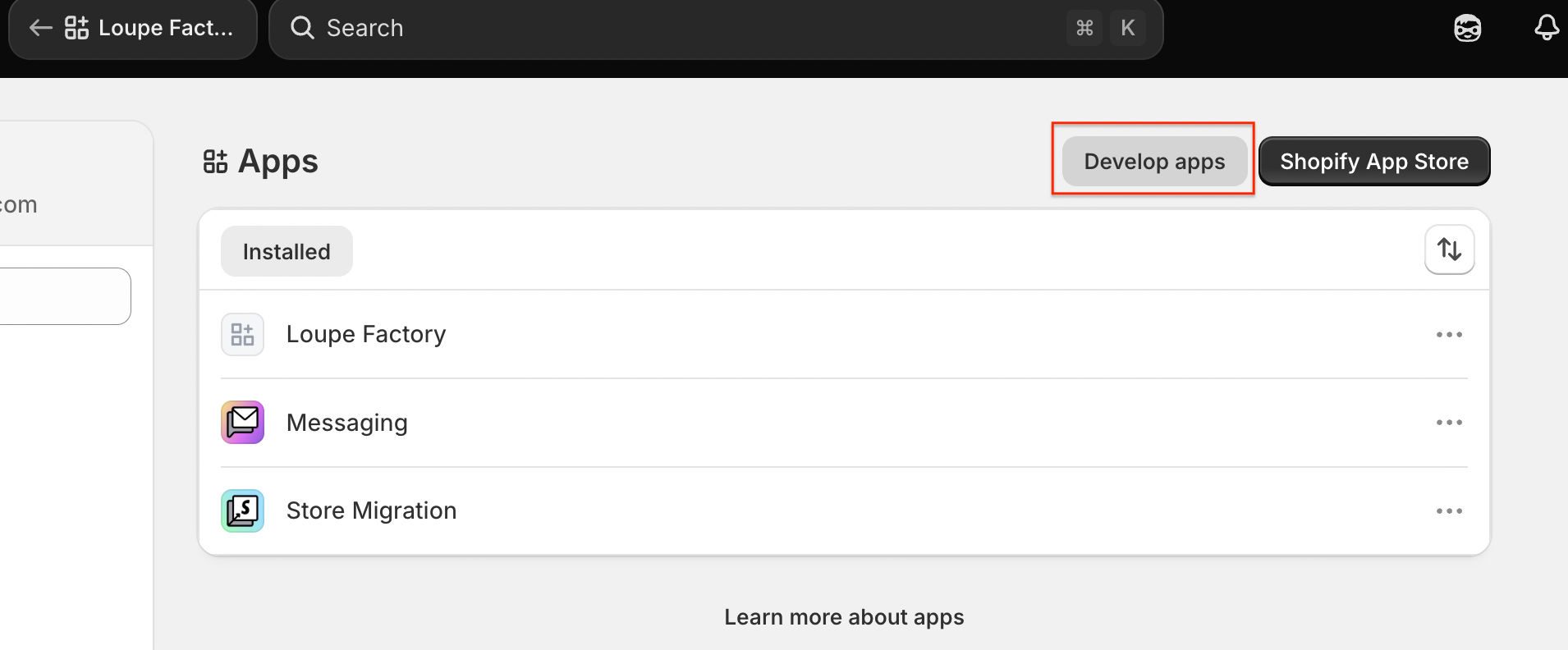
In your Shopify store admin, go to Settings > Apps. Select Develop apps to open App development.
-
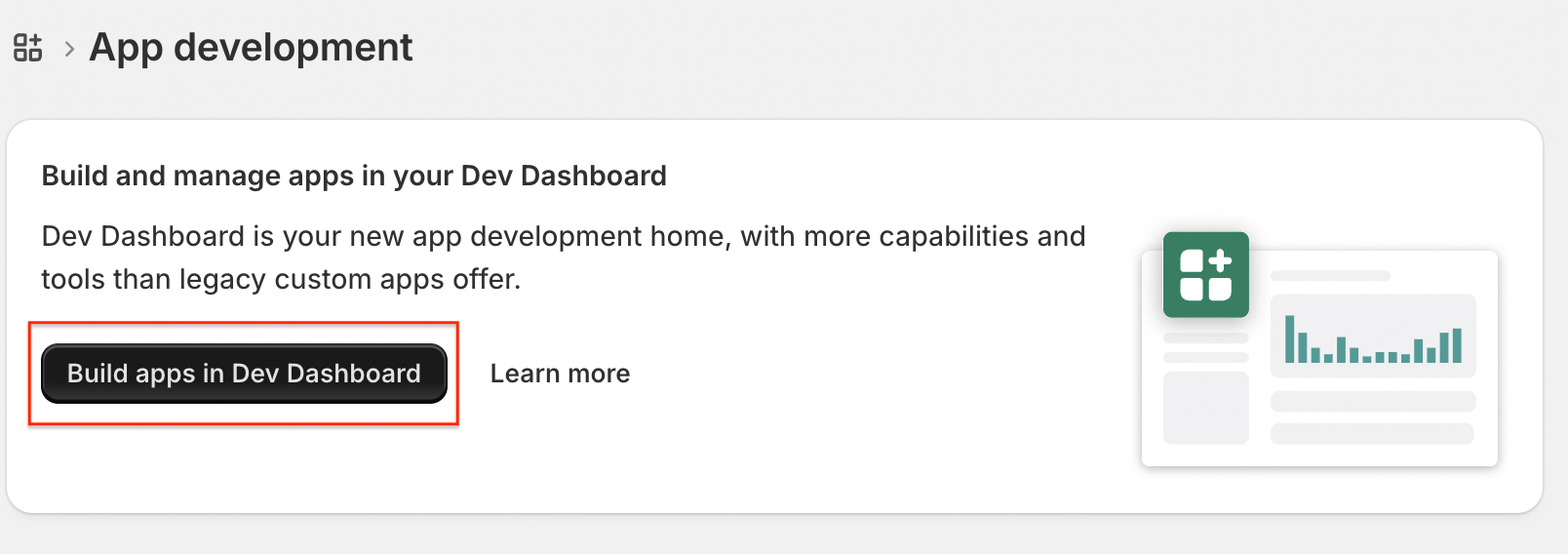
On App development, select Build apps in Dev Dashboard.
-
In the Dev Dashboard, open your existing Loupe Factory app. Select Versions in the sidebar, then select Create version.

-
Under Access, keep the existing permissions, add the scopes you need, then select Release and confirm.
-
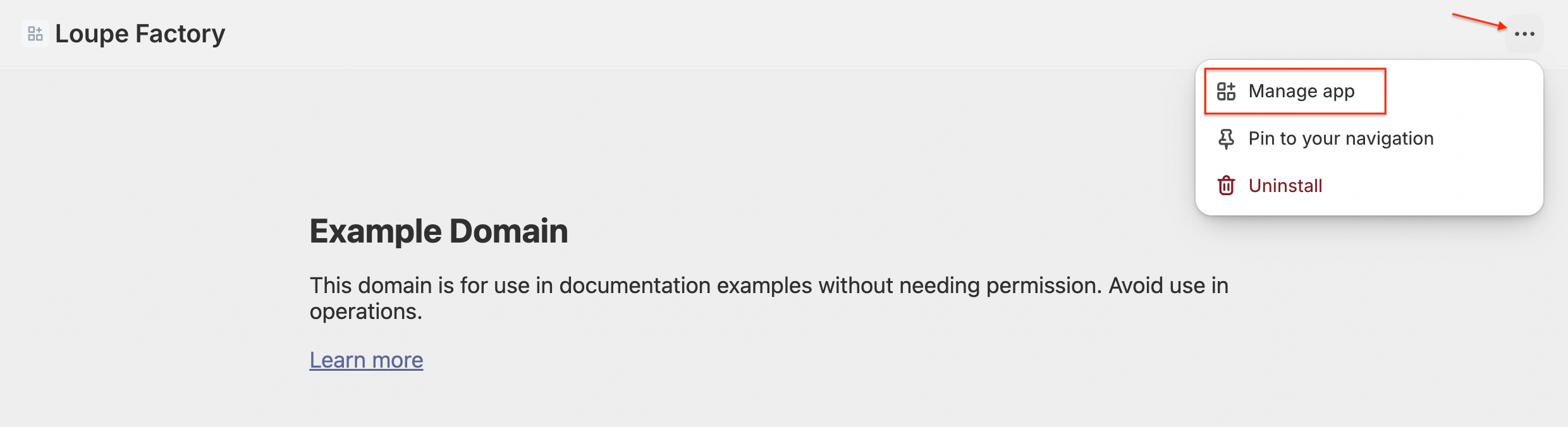
Return to your Shopify store admin, go to Settings > Apps, and open Loupe Factory. Open the three-dot menu in the top right and select Manage app.
-
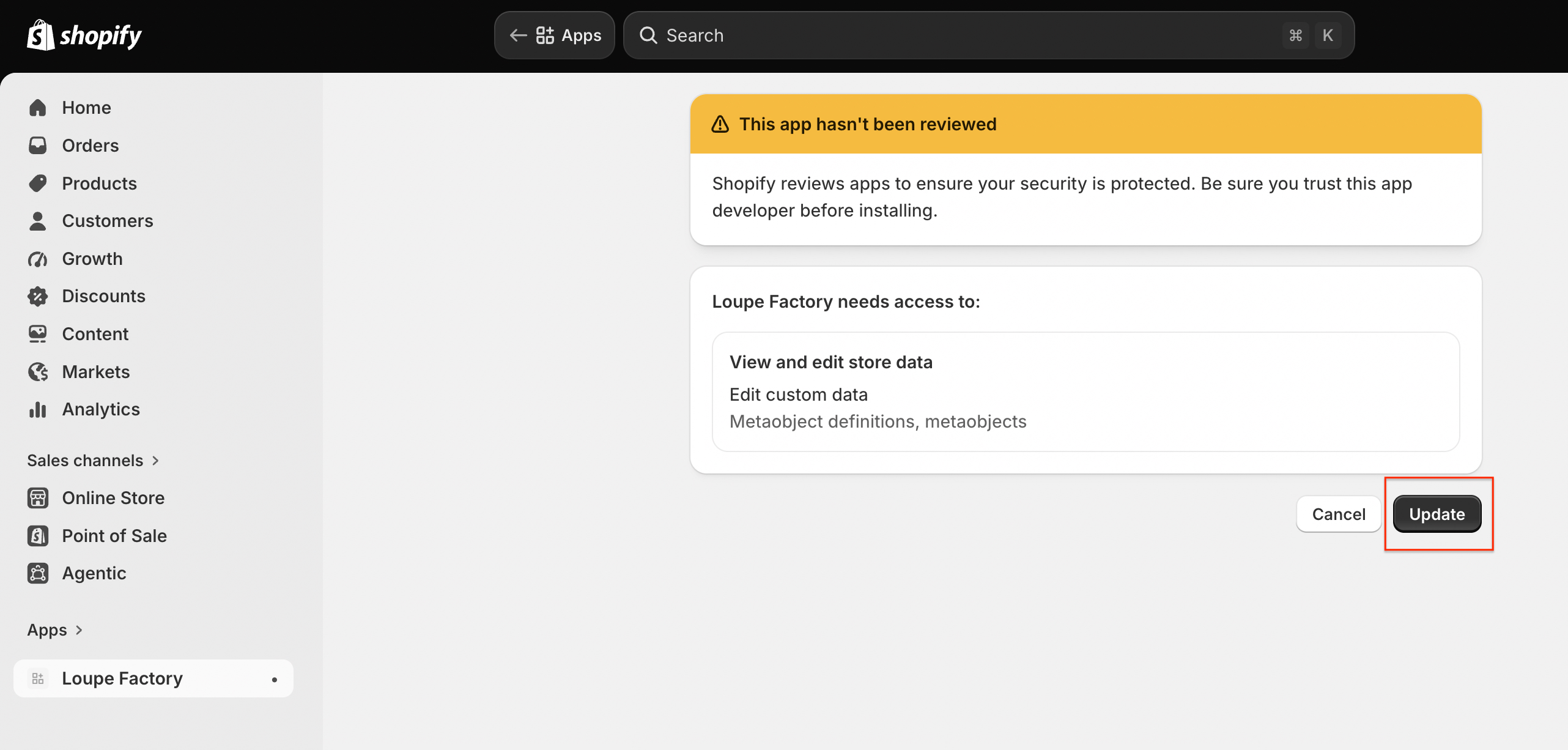
Review the new permissions, then select Update. Wait for the update to finish.
-
Return to Loupe Factory and select Refresh status. Confirm the connection's state and available choices.
- To select a newly available channel, choose Pause and change location, keep your intended stock and import locations, select the channel, and select Save and verify choices. Then retry the affected sync.
If the updated access still is not recognized, review Activity and contact support before resetting. Missing core permissions can pause syncing and disable automatic updates; turn automatic updates back on after access is restored and verified.
Change the Shopify stock location
- Wait for current sync work to finish and review the stock at both Shopify locations.
- Select Pause and change location.
- Choose the intended Shopify stock location and confirm the other settings.
- Select Save and verify choices and wait for Connected.
- Review the next pull or push carefully: it now uses the newly selected location.
This changes which Shopify location is read and updated. It does not transfer stock between Shopify locations. Changing only Local import location affects future new imports and does not move existing Loupe Factory inventory.
Update the app secret
After changing the same app's secret in Shopify:
- Open Update the app secret in Loupe Factory.
- Enter the New client secret.
- Select Verify new secret and wait for verification.
The saved credentials stay active until the replacement is verified. A blank field does not erase them. Changing to a different app or store requires cleanup and a new connection instead.
Unlink selected records
- Open Linked records and find the relevant records.
- Select their checkboxes.
- Select Unlink selected and wait for completion.
Unlinking removes the association, not the Loupe Factory or Shopify record. A later sync may link the records again or create a new record if it cannot establish a match. Review the remaining records before another push. Deleting a record in one system does not automatically delete its counterpart.
Unlink all and disconnect
- Open Unlink and disconnect.
- Select Review cleanup.
- Review what will be removed.
- Select Unlink all and disconnect.
- Wait for cleanup to finish. If it needs another attempt, use Resume cleanup and review the remaining issue.
Cleanup stops syncing, removes Shopify links and saved credentials, and cancels pending sync work. Customers, orders, invoices, shipments, inventory, images, and notes remain in place. Shopify business records are not deleted.
After cleanup, connecting the same store creates fresh links through subsequent syncing; it does not restore the old links automatically. Follow Run your first sync and review existing products before pushing. Removing the Shopify app itself is a separate action in Shopify.
Reconnect after an older connection was removed
If your workspace shows Reconnect your store, review and remove the old links through the page, then follow the new app setup steps. If cleanup has already finished and you see the connection form, start there. Your business records remain available, but the previous connection's links must be rebuilt and reviewed.
Troubleshooting
Find the heading that matches what you see. Connection problems come first, then customers, orders, products and stock, photos, and sync runs.
Check connection fails
Check connection fails when the store address, the app, or the credentials do not match.
Confirm each of these:
- The domain is this store's
myshopify.comaddress. - The app is installed on this store.
- The app and the store belong to the same Shopify organization.
- Both credentials come from that app.
- Every core permission is still selected.
The page stays at Finish setup
Choose an active Shopify stock location, then select Save and verify choices. If the page still says Finish setup, open progress or Activity and complete the step named there.
Connection says Update credentials
Confirm the app is still installed in Shopify. In Loupe Factory, open Update the app secret and verify the current replacement secret. Do not send the secret to support.
Permissions were added but a feature is unavailable
A new permission is available only after you release that app version and approve it on the store. Follow Add or update Shopify permissions, then select Refresh status in Loupe Factory. Read Activity before you reset the connection.
Customer names, contact details, or addresses are missing
Shopify hides those fields until the app has protected customer-data access, the store plan allows it, and the customer permissions are approved. Custom apps that read names, email, phone, and addresses need Shopify Grow or higher. See Before you connect.
A missing or redacted value leaves the customer already stored in Loupe Factory as it is.
A customer has a placeholder email
The Shopify customer had no email Loupe Factory could use, so the local record has a placeholder. Add a real email on the correct customer if you need one. That placeholder is not pushed to Shopify.
A customer match needs review
Compare the email, first name, and last name in Shopify and in Loupe Factory. Fix the duplicate customer, or the email and name that conflict, then run the sync again.
A draft is rejected because of its customer email
Correct the email on the linked Shopify customer. Or update the customer in Loupe Factory and push Customers first. Then retry Push drafts.
Orders older than 60 days are missing
Shopify shares orders older than 60 days only after it approves read_all_orders. Add that permission beside read_orders, approve the app update, and confirm Order history on the Loupe Factory page. Then pull orders again. See Shopify app permissions.
A Sales order was skipped
Check the reason in the sync result before you edit the order. A skip is normal when nothing on the order changed. A Sales order is also skipped when:
- The customer link did not succeed.
- The sales order is already linked to a Shopify order.
- Loupe Factory has detected a newer change in Shopify.
A payment status did not change after an order pull
Loupe Factory changes the payment status only for Shopify statuses it knows.
- Voided becomes Unpaid.
- An expired authorization stays on the current Loupe Factory status.
- A status Loupe Factory does not map also stays on the current status.
- A new order that arrives with an unmapped status starts as Pending.
The sync email names the order and the status Shopify sent. Check that payment in Shopify before you change it in Loupe Factory.
A draft has no lines, invalid quantity, partial returns, or invalid weight
Fix the sales order, then push the draft again.
- Give every active line a quantity and a price.
- Make the total ordered weight a valid number.
- Make sure the ordered pieces match the line quantity.
- Resolve any partial return before you retry.
A product or lot is missing from a push
Check that the product has Finished inventory and that the lot has a usable Tag ID. Open the errors for that run and read which record failed.
An inventory item needs a Sell Price
Save a Sell Price on the lot, then push again. Enter zero only when the price should be zero.
A price reports a currency mismatch
Compare the store currency with the lot, the order, and the line, for whichever of those this sync is using. Enter the amounts again in the currency you mean, then retry. Changing the currency label on its own leaves the number as it was. Loupe Factory does not convert the amount.
A variant was skipped on pull because stock is unavailable
In Shopify, turn on inventory tracking for that variant and make it available at the Shopify stock location you selected. Then pull again.
The quantity looks wrong
Compare available stock at the selected Shopify location with that one linked lot. An all-location total in Shopify will not match one lot. Local import location chooses where a new imported lot is stored. It does not choose which Finished lots a push sends.
Stock changed during a push
Read the latest quantity in Shopify and the latest quantity in Loupe Factory. Finish any operation that still needs review. Then start a new push.
The Continue selling when out of stock switch is unavailable
Check that the connection shows Connected and that your Loupe Factory plan includes the Shopify integration. If a product push, setup, or cleanup is still active, let it finish before you change Continue selling when out of stock.
Several variants share one stock item
Open the variant links in Shopify and in Loupe Factory. Decide which records should control that stock before you push. Leave independent lots as their own records.
A linked variant was deleted in Shopify
Confirm the variant is gone in Shopify. The Loupe Factory lot and its history stay. Unlink the old association if you no longer want it. A replacement variant created in Shopify needs its own link, and you review that link before it syncs.
A product was duplicated
Open Linked records and compare both products before you push again. A Product that is not linked can create a new Shopify product even when a product with the same title already exists.
A variant title differs from its Tag ID
This is expected when Product Label is filled in. Product Label becomes the variant Title. Color, or another option, can appear in that title too. The SKU stays the Tag ID.
Category did not update
Check the lot's Finished Type and the Shopify category mapping on that type. Every lot on the same Product that has a mapping filled in must use the same mapping.
Color is missing or incompatible
Check the lot's Color, the saved Shopify color mapping, the app permissions, and the options already on the Shopify product. Pull once if the variant link is still missing. Shopify allows three options on a product. Check that limit before you add Color.
Quality, Size, Shape, Product Label, Color, or an industry attribute is missing
Confirm the value is filled in on the lot, and that this integration supports that key. In Shopify, open Settings > Metafields and metaobjects > Variants and match the namespace and key. Standard attributes use the field type Single line text.
A lot description did not sync
Lot copy syncs through the variant metafield loupe_factory.variant_description. In Shopify, open that field on the variant. Rich text, Multi-line text, and Single line text all work. Confirm the description is filled in and within the length limit, then run the pull or the push for the direction you need.
A Shopify main description edit did not change the local Product
Shopify's main description is copied into the Loupe Factory Product only when that Product is created, or when it is linked for the first time and the description is still blank. Later edits to the main description stay in Shopify.
Lot descriptions are the copy that keeps moving both ways. They use the variant-description metafield. See Product description versus lot description.
A photo did not import
Check the product's featured image and the variant's own image in Shopify. A photo someone already chose in Loupe Factory stays in place. If the import failed, check that media in Shopify and pull again.
A replacement photo is processing or failed
Wait until Shopify finishes processing the file. If Shopify reports that the replacement failed, choose a corrected photo in Loupe Factory and push again. The previous photo stays until the replacement succeeds.
An extra image did not sync
The rest of the product and stock sync can still finish. The lot's Media Gallery stays as it is. Confirm the file is a photo in that gallery, then check loupe_factory.additional_images on the variant. See If an extra image does not sync.
Extra images show in Shopify admin but not to shoppers
Confirm the product is published on the sales channel, and that the theme reads Additional images for the selected variant. A sync does not change the theme.
A metafield or photo appears in Shopify admin but not on the storefront
The value is stored on the product. Shoppers see it when the product is on the sales channel and the theme is set up to show it. A sync does not change the theme.
An HS code was not sent or not imported
Use 6 to 13 digits. Periods are allowed. A code shorter than 6 digits is left out of the push. A Shopify code longer than 12 characters cannot be stored on the lot. The rest of the item still syncs. Country-specific HS overrides are outside this sync.
A run says Waiting to retry or reports a request deadline
Open progress and note any next-attempt time. A temporary delay can finish without starting that whole category again. If the run stays stalled, contact support with the run time and the affected record.
A run says Review needed
Follow Review an uncertain change. Pushing again, or unlinking the record, leaves that decision waiting.
The sync email shows fewer details than its error count
A long summary can leave some errors out of the email. Open Activity and the affected links for the rest.
Automatic updates are not arriving
Confirm the connection says Connected and that automatic updates are turned on. Confirm the app is still installed, the required permissions are approved, and the webhook version is 2026-07. Then open Webhook receipts. Try a manual pull while you check.
Cleanup needs another attempt
Select Resume cleanup. Cleanup that already finished stays finished. Your business records stay in Loupe Factory.
What to include when you ask for help
Include the sync direction and category, the approximate time, the affected record name or Tag ID, and the message on screen. Leave client secrets and customer personal details out of screenshots and messages unless support asks you to use a secure channel.
Frequently asked questions
Does enabling automatic updates sync both ways?
No. Automatic updates import Shopify changes. Use the manual Push buttons to send Loupe Factory changes.
Can I close my laptop after a sync is queued?
Yes. Once a sync is queued, it runs on Loupe Factory's cloud workers. You can close your laptop and come back later. Refresh progress loads the progress already saved. It does not start the job again, and it does not make the job finish sooner. See Sync progress.
Can I sync only a selected record from this page?
The page's sync buttons process the whole eligible category. Linked-record checkboxes are for unlinking, not choosing a sync subset.
Will a repeated sync overwrite every record?
Unchanged supported data can be skipped. When a source record changes, supported destination fields can update according to the mappings above. This does not provide an automatic merge of edits made in both places.
Does a skipped record mean something went wrong?
Often it means the record is already up to date. Other reasons include unavailable stock for a new import, a missing customer link for a draft, or a completed Shopify order that should no longer be pushed. Read the reason before taking action.
Does turning off Continue selling when out of stock undo an earlier push?
No. When Continue selling when out of stock is off, a product push leaves the Shopify setting as it is. To stop out-of-stock sales, turn off Continue selling when out of stock on the affected variants in Shopify. Keep the Loupe Factory switch off for later product pushes so they keep your choice.
Will pushing a draft order reserve my Shopify product stock?
The draft uses custom items, not catalog-linked variants. Do not use it as a variant stock-reservation workflow. Product-and-stock syncing is a separate action.
Can I use one connection for several stores or warehouses?
A workspace connects to one Shopify store and syncs stock at one selected Shopify location. It does not combine or transfer quantities between warehouses.
Does changing Local import location move my inventory?
No. The selection applies to new imported lots. Existing lots retain their Loupe Factory locations. It also does not limit which Finished lots are included in a push.
Do I have to create the variant-description metafield myself?
No. A push with a populated lot description creates a missing definition as Rich text. Existing Rich text, Multi-line text, and Single line text definitions are reused. Your theme still controls whether shoppers see it.
Do extra lot images sync?
Yes. Photos in a Finished lot's Media Gallery sync in both directions. A push adds them to the Shopify product gallery and lists them on the variant's Additional images field. A pull brings that list into the lot's Media Gallery. Videos, PDFs, 3D CAD files, and the product type gallery stay in Loupe Factory. Your theme controls whether shoppers see them. See Additional inventory images.
Does changing an app permission require unlinking everything?
No. Update and authorize the app's permissions in Shopify, then verify the connection in Loupe Factory. Cleanup is for removing the connection or changing the app or store, not a routine permissions update.
What happens if I uninstall the app in Shopify?
The connection stops and cannot sync until access is restored. Your business records remain. Review the connection state and any required cleanup before setting it up again.
What happens if my Loupe Factory plan no longer includes Shopify?
Business syncing is unavailable. Admins can still use cleanup to unlink records and disconnect while keeping business records.
Which information stays outside this integration?
The integration does not synchronize every Shopify or Loupe Factory field. In particular:
- Shopify vendors, tags, barcodes, collections, URL handles, free-text Product type, and cost per item.
- Inventory Cost Price, rack, internal Notes, and custom Item attributes outside the supported industry defaults.
- Additional customer addresses, a separate second address line, marketing consent, and full Shopify B2B company structures.
- Country-specific HS overrides and country of origin. The Gemstones Origin attribute is a separate custom field.
- General creation or management of variant options other than the supported Title and Color behavior.
- Shopify product photos that are not listed on a variant's Additional images field, images in the product type's Media Gallery, videos, 3D media, and storefront theme layouts. Extra images on an inventory lot sync through Additional inventory images.
- Purchase orders, invoices, payment collection, payment terms, tax and discount breakdowns, shipping charges, or refund transactions.
- Loupe Factory production jobs, shipments, carrier tracking, and internal fulfillment actions sent back to Shopify.
Keep these details in the system responsible for that work. Use the mapping tables to decide which fields your team maintains in Loupe Factory and which remain in Shopify.
Next steps
- Review Order Management to see how synced order data is used inside Loupe Factory.
- Review Inventory Management if your team will sync products and stock.
- Return to Integrations if you also plan to connect accounting or bank statement workflows.