QuickBooks Online
Integrations
QuickBooks Online integration
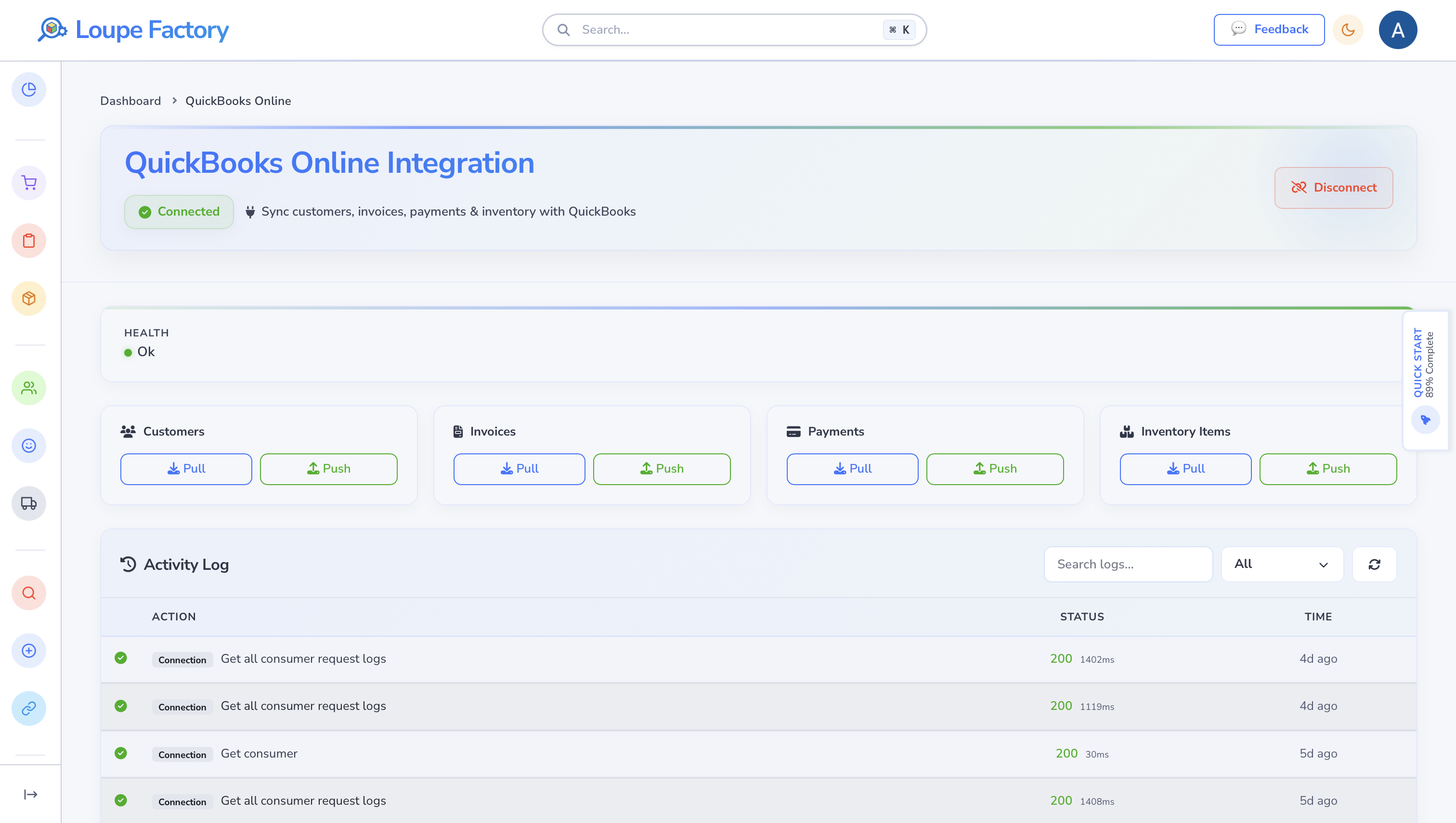
Connect QuickBooks Online to Loupe Factory so customers, invoices, payments, and inventory items stay easier to review across operations and accounting. This guide explains how to connect, what syncs, and what gets mapped.
Customers Invoices Payments Inventory items
Best for
Teams that run operations in Loupe Factory and keep accounting in QuickBooks Online.
Main outcome
Cleaner shared records with less copy and paste between systems.
How sync works
Each record type has its own pull and push controls, so your team can sync only what it needs.
Before you begin
- Sign in to Loupe Factory as an admin user.
- Make sure you can approve access to the QuickBooks company you want to use.
- Review your customer and invoice records in Loupe Factory before the first push.
Connect QuickBooks Online
- In Loupe Factory, go to Workflows > Integrations > QuickBooks Online.
- Select Connect QuickBooks.
- Sign in to QuickBooks and approve the connection.
- Return to Loupe Factory and confirm the company name and connection status.
After the connection is active, the page shows the available sync actions for Customers, Invoices, Payments, and Inventory Items.
Recommended first sync order
Use this order the first time you connect:
- Pull Customers to bring account records into Loupe Factory.
- Pull Invoices if you need existing invoice history in Loupe Factory.
- Push Customers before pushing invoices from Loupe Factory to QuickBooks.
- Push Invoices after the linked customers are already synced.
- Pull or Push Payments after invoice links are in place.
- Pull or Push Inventory Items when your team is ready to align item records.
What syncs between QuickBooks and Loupe Factory
| Record type | Pull | Push | What is mapped |
|---|---|---|---|
| Customers | Yes | Yes | Name, company, email, phone, and address |
| Invoices | Yes | Yes | Invoice number, linked customer, line items, totals, currency, due date, and payment status |
| Payments | Yes | Yes | Payment amount, linked invoice, and payment status |
| Inventory Items | Yes | Yes | Item name, description, code or SKU, prices, and quantity |
Field mapping
Customers
| QuickBooks Online | Loupe Factory |
|---|---|
| Display Name | Customer name |
| Company Name | Company name |
| Primary Email | |
| Primary Phone | Phone number |
| Billing Address | Address details |
Invoices
| QuickBooks Online | Loupe Factory |
|---|---|
| Invoice Number | Invoice number |
| Customer | Linked customer |
| Line items | Invoice line items |
| Total | Invoice total |
| Currency | Currency |
| Due Date | Payment due date |
| Status | Payment status |
Payments
| QuickBooks Online | Loupe Factory |
|---|---|
| Payment amount | Applied payment amount |
| Linked invoice | Linked invoice |
| Currency | Currency |
| Payment status | Invoice payment status |
Inventory Items
| QuickBooks Online | Loupe Factory |
|---|---|
| Item Name | Product or item name |
| Description | Notes or description |
| Item code or SKU | Tag ID |
| Sales Price | Sell price |
| Purchase Price | Cost price |
| Quantity on Hand | Quantity |
Day to day usage tips
- Pull customers first if your finance team creates records in QuickBooks before operations uses them in Loupe Factory.
- Push customers before pushing invoices from Loupe Factory.
- Review the activity log on the integration page after each sync.
- Re-authorize the connection if Loupe Factory shows that the connection needs attention.
What your team should expect
- Sync actions run in the background, so users can continue working while the sync finishes.
- Each record type can be synced on its own. You do not need to sync everything every time.
- Starting with a small test set is the safest way to confirm your field expectations.
Next steps
- Review Invoicing if your team will push or pull invoices regularly.
- Review Customer & Supplier Management if you need cleaner customer records before the first sync.
- Return to Integrations for the Shopify, Tally Prime, and JewelCloud guides.