JewelCloud
Integrations
JewelCloud integration
List your jewelry and loose stones for retail jewelers on JewelCloud. The listings use the inventory, prices, and photos you already keep in Loupe Factory.
Jewelry manufacturers and wholesalers offering finished pieces or loose stones to retailers.
JewelCloud listings come from inventory you already keep, so you do not type the same details in again.
Choose the items, listing details, pricing rules, and delivery method.

What the JewelCloud integration does
JewelCloud is GemFind's platform for the jewelry trade. Vendors share collections there. Retailers browse and source products, and product feeds can place those listings on retailer websites. A feed is a file of the items you want to offer through JewelCloud. Finished jewelry listings are called styles.
Loupe Factory builds that feed from your inventory:
- Choose what retailers see. List selected loose stones and finished jewelry from your inventory. Each inventory item is sent as a separate listing.
- Keep prices consistent. Choose one feed currency. Stone prices are quoted per carat and jewelry prices per piece.
- Check listings before delivery. Loupe Factory checks each listing and shows what needs fixing. Items with issues are left out of the file.
- Send updates when needed. Download files for manual delivery, or let Loupe Factory upload them using the FTP account GemFind provides. You can also turn on nightly updates after onboarding.
- Feed runs shows what was prepared and delivered. Email receipts help admins follow up on delivery problems and listing issues.
Listings go from Loupe Factory to JewelCloud. JewelCloud does not send changes back. Generating a feed does not change your Loupe Factory inventory, prices, or photos.
Know before you connect
- Every jewelry style needs a Product Label. JewelCloud shows it as the style number. A blank label leaves the style out of the feed, and the Tag ID cannot replace it. Each style also has a retailer stock number. That is the Tag ID unless you choose the Product Label in Configuration. Loose stones always use their Tag ID as the stock number.
- Each delivered file replaces that part of your JewelCloud catalog. Include every stone or jewelry style you want to keep. When JewelCloud processes the file, it removes items that were not in the file, including an item left out for a validation issue. See Remove items.
- Every item needs a main photo. Add one before selecting the item for listing. Finished jewelry can also include gallery photos and a video.
- Collections must already exist in JewelCloud. Choose a Collection for each jewelry style. If left blank, it is sent as General, which must also exist in your JewelCloud account. The feed does not create collections.
- Sell and retail prices are shared; cost prices are not sent. Your internal notes are not included. A jewelry item's storefront description supplies its public description.
- Sold-out stones and jewelry behave differently. Stones leave the next feed when sold out. Jewelry styles stay listed until you delist them.
- Delivery is followed by a JewelCloud review. A successful upload confirms delivery. Check JewelCloud's own error report to see whether it accepted your listings.
- GemFind handles vendor onboarding. Its data team reviews your sample files and provides the FTP account for automatic delivery. Use Manual delivery while preparing samples.
Requirements
| In Loupe Factory | With GemFind / JewelCloud |
|---|---|
| Workspace industry set to Jewelry or Gemstones | A vendor account. Apply at jewelcloud.com. |
| Professional, Business, or Enterprise plan | Complete the data form with data@gemfind.com. |
| Admin role | FTP login details from GemFind if you want Loupe Factory to deliver files for you. |
Set up JewelCloud
- Open Integrations > JewelCloud in the left menu. Follow the Getting listed checklist as GemFind confirms each onboarding step.
- In Configuration, choose your feed currency and jewelry listing settings. Under Retailer stock number, choose Tag ID or Product label. Keep delivery set to Manual, then save. See Settings for your listings.
- In Listed items, open Stones or Jewelry. Add any missing photos, select the items you want to offer, and choose List. For jewelry, check the Product Label on each inventory record, choose its Collection and Category, and review its Metal color. Use Suggest with AI to fill blank collection, category, and metal color fields, then review the results. Confirm that the collections exist in JewelCloud before delivery.
- Select Generate & deliver now to prepare sample files. When the run finishes, a message appears at the top of the page and in your notifications. Review the results in Feed runs, fix any reported issues, and download the files. Send them to data@gemfind.com for onboarding.
- Once GemFind provides your FTP account, review the full list of items you want on JewelCloud. Enter the username and password in Configuration; the host and port are already filled in. Select FTP delivery and save.
- Select Generate & deliver now to send your first upload. Check Feed runs, then review JewelCloud's error report and listings.
- Complete the Getting listed checklist. Once the page shows Live, switch on Nightly auto-feed if you want ongoing updates.
Use the password visibility button to check a newly typed password before saving. It cannot reveal a password you saved earlier. If you need to correct that password, enter it again and save.
Choose what to list
Listed items separates loose stones from finished jewelry. In a Jewelry workspace, Stones shows Materials & Supplies by default. Use Inventory type to switch to Finished inventory when needed.
Search by Tag ID, label, product, shape, or color. Select the items you want, then choose List or Delist. A row without a photo cannot be selected; use its image box to add one first. Setting a collection, category, or metal color on an unlisted jewelry item does not list it.
Each row shows the photo, Tag ID, product, label, stock, sell and retail prices, listing state, and validation result. Prices here use the item's own currency and price basis; the feed converts them to your chosen currency.
The Validation column shows the result of the last check:
- OK means the last check found nothing to fix.
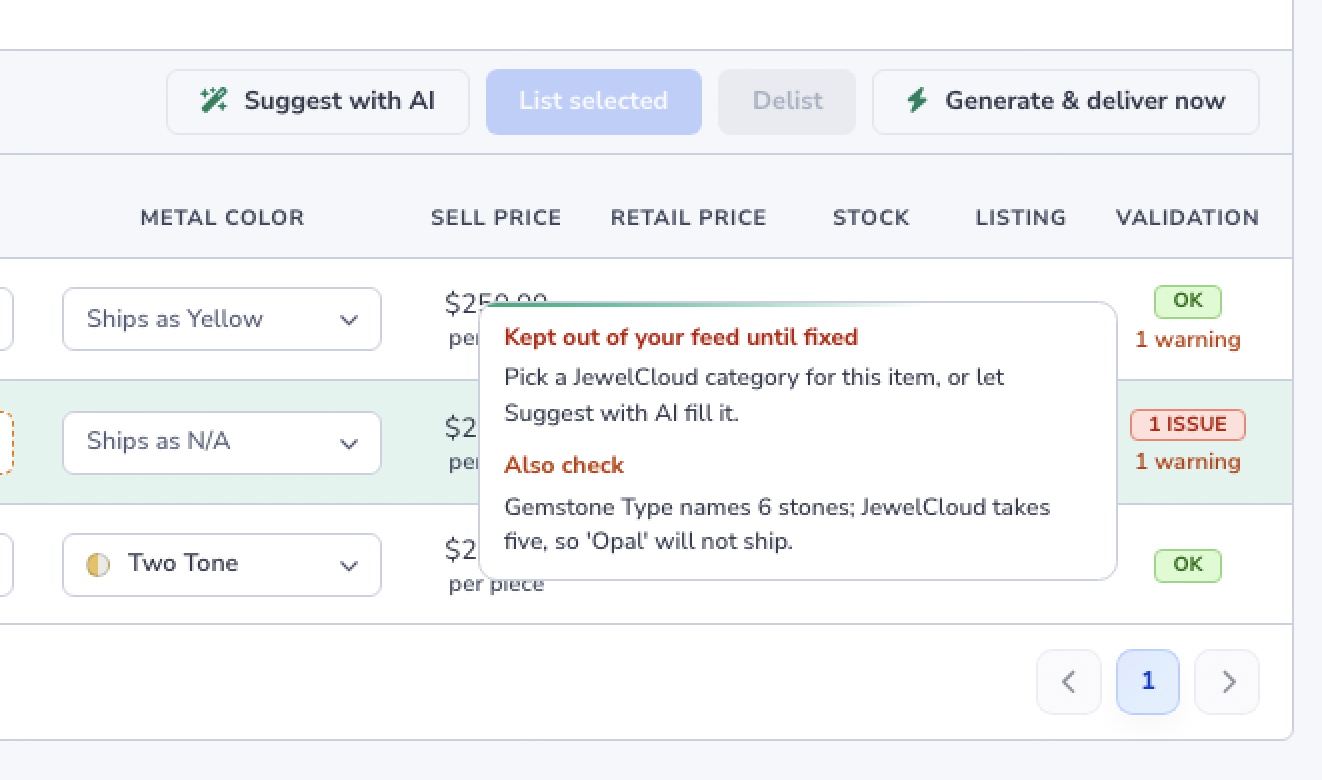
- A red badge, such as 2 issues, means the item is left out of the generated file until you fix it. Examples include a missing clarity, sell price, or photo. The item stays listed in Loupe Factory.
- A warning count under the badge, such as 1 warning, flags something to review. The item still goes in the feed. For example, a style whose Gemstone Type lists six stones sends only the first five.
Hover over the badge, or move to it with the Tab key, to read each issue and warning. Issues are listed under Kept out of your feed until fixed. Warnings are listed under Also check, or under In your feed, but check when the item has no issues.
Jewelry collections, categories, and metal colors
On the Jewelry tab, choose a Collection for each style. You can select a top-level JewelCloud category, such as Rings, or type the name of a collection you have already set up in JewelCloud and press Enter.
A blank Collection is sent as General. Every collection you use, including General, must already exist in your JewelCloud account. The feed does not create collections, and collection names cannot contain ™ or ®.
On the Jewelry tab, choose a Category for each style. This is the JewelCloud category retailers browse, such as Cocktail under Rings. A style without a category is left out of the feed.
You can also choose a Metal color for each style. If you leave it blank, Loupe Factory uses the JewelCloud match for the item's color, such as Rose for Rose Gold, or N/A when there is no match. The blank field shows which value will be used. Collection, Category, and Metal color choices save immediately.
Fill blank fields with Suggest with AI
Select Suggest with AI above the jewelry table to fill blank Collection, Category, and Metal color fields across the jewelry list. Category and metal color fields use different item details: categories use the style's finished type or product type, and metal colors use its color. A blank Collection takes the top-level category for the style, such as Rings for Cocktail. Existing values are kept.
Suggested fields carry an AI mark. Hover over it to see the suggestion's confidence, then review the result and choose another value if needed. Confirm that each suggested collection exists in JewelCloud before sending the feed.
Suggestions for blank categories and metal colors cost up to 2 AI credits per use. Filling collections adds no credit cost; if only collections are blank, the action uses no credits. It also uses no credits when there are no blank fields. Choosing values by hand uses no AI credits. See AI Credits & Billing.
Generate and deliver feeds
Select Generate & deliver now to prepare the current listings. Loupe Factory produces separate files for stones and jewelry where applicable. Each filename includes your organization, the listing type, and the run's date and time in your organization's timezone.
Feed runs shows the last 10 runs, their status, the number of items included or left out, delivery results, and download links for files that were produced.
Manual delivery
Download the files from Feed runs and send them using GemFind's instructions. During onboarding, email your samples to its data team. For ongoing manual delivery, upload the files to the FTP account GemFind provides.
Send every file produced, including an empty file. An empty file clears the last listings of that type from JewelCloud. See Remove items.
FTP delivery
Loupe Factory can upload the files for you after you select FTP and save your credentials. Generate & deliver now can upload files before the page shows Live, so finish preparing your intended catalog first.
If delivery fails, Feed runs shows the reason. The file remains available to download and send manually. Correct the problem and start another run to try again.
After the file arrives
For FTP delivery, Success confirms that Loupe Factory uploaded the file. In Manual mode, you still need to send the downloaded files yourself. JewelCloud checks each file it receives and reports rejected items in its own error report. Accepted items can be published even if other items are rejected.
JewelCloud's import errors are available in JewelCloud, not in Loupe Factory. After delivery:
- Review the error report and listings in JewelCloud.
- Correct rejected items in Loupe Factory.
- Select Generate & deliver now, or let the next nightly run send the corrections.
Nightly auto-feed
Once the page shows Live, turn on Nightly auto-feed to prepare and deliver updates once a night at 03:00 UTC. A file that matches the last one delivered to the same account is skipped as Unchanged. Switching from Manual to FTP, or changing the FTP account, sends the file again on the next run even if its contents have not changed.
In Manual mode, a nightly run prepares the file and emails you to deliver it. Choose FTP if you want Loupe Factory to upload nightly updates for you.
Email receipts
Workspace admins receive a receipt when a run generates or uploads a file, encounters a delivery problem, or finds listing issues. If no admin has an email address on file, the receipt goes to the billing contact.
Receipts include item counts, delivery results, and items left out with their reasons. Issues remain in subsequent nightly receipts until you fix or delist the items. An unchanged run with no issues sends no email.
Remove items
Each delivered file replaces the JewelCloud catalog for that listing type. Review the items and validation results before sending a replacement.
| Change in Loupe Factory | What happens after the next feed is processed |
|---|---|
| Delist an item | The item is left out and removed from JewelCloud. List it again to restore it in a later feed. |
| A stone sells out | It leaves the feed when its weight is zero, or its quantity is zero where quantity is tracked. It stays listed in Loupe Factory and returns to the feed when restocked. |
| A jewelry style sells out | It stays listed. Delist the style when you no longer want retailers to see it. |
| Delete an inventory item | It is left out of the feed and removed from JewelCloud. |
| The last stone or style is removed | An empty file clears the remaining JewelCloud listings for that type. Deliver this file even if you send feeds manually. |
| An item has a validation issue | It is left out. If a file is sent with other valid items, the omitted listing is removed from JewelCloud. Fix the issue and send another feed to restore it. |
If every listed item of one type has issues, Loupe Factory does not send that type's file. JewelCloud keeps the previous catalog for that type until you correct the issues and deliver another file.
Listing details
Feed settings and the fields on each inventory record are what retailers see. Add item-specific details through Item Attributes.
Settings for your listings
| Setting | What to choose |
|---|---|
| Feed currency | One currency for all published prices. The default is USD. Prices are converted at current market rates on each run. |
| Price type | How retailers may price your jewelry: Enforce MSRP, Suggested retail price with retailer markups allowed, Retailer markups allowed, or Call for price. The default allows retailer markups on the suggested retail price. Enforce MSRP requires a retail price on every listed style. |
| Delivery time | The lead time retailers see for jewelry, from 24 to 48 hours up to 6 to 8 weeks. If left unset, it appears as 2 weeks. |
| Gender | The audience for your jewelry. Leave it unset if it does not apply. |
| Vendor type | Whether you manufacture the items you list. |
| Additional information | A note included on every jewelry style, up to 500 characters, such as "Also available in sterling silver and platinum". Keep it suitable for retailers. |
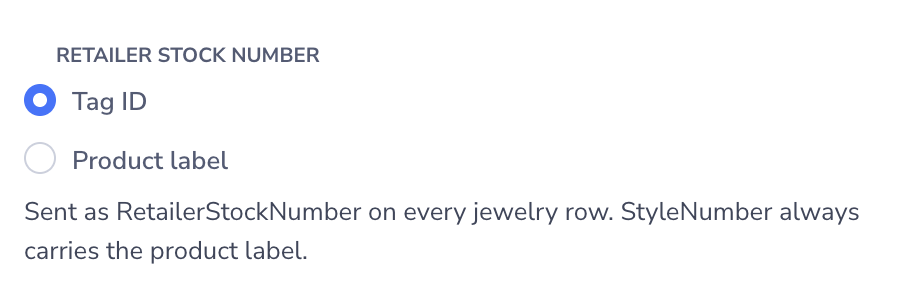
| Retailer stock number | The stock number retailers see for each jewelry style. Tag ID, the default, sends the item's Tag ID. Product label sends the Product Label, the same text as the style number, and the Tag ID is then not sent or checked. Loose stones always use their Tag ID. |
The Retailer stock number choice is in Configuration, with Tag ID selected until you change it.
Stones
Each stone needs a Tag ID, main photo, positive sell price with a price basis, shape, weight, color, and clarity. If its Clarity attribute is blank, Loupe Factory uses Quality. Weight is quoted in carats.
Add the lab and certificate number when available. Missing either gives a warning rather than preventing the listing. Other supported details include measurements, cut grade, polish, symmetry, fluorescence, origin, treatment, video URL, location country, and quantity for multi-stone parcels. Gallery files are not included for loose stones.
Finished jewelry (styles)
Each style needs a Product Label, product, Metal Purity, positive sell price with a price basis, main photo, and Category. A blank Product Label leaves the style out of the feed even if it has a Tag ID. While Retailer stock number is set to Tag ID, the style also needs a Tag ID that is not a dash on its own and has no slashes. Enforce MSRP also requires a retail price.
| Listing detail | Where you prepare it in Loupe Factory |
|---|---|
| Style number and retailer stock number | The item's Product Label supplies the style number. The retailer stock number is its Tag ID, or the Product Label if you chose that in Configuration. |
| Product name and description | The item's product name and Storefront Description. The description is sent as plain text; internal notes are not included. |
| Metal purity, gemstone types, and hallmark | The item's attributes. Separate multiple gemstone types with commas; up to five are included. |
| Gemstone shapes | The item's Shape field. Separate shapes with commas, such as Round, Oval. The first five nonblank shapes are included in the order recorded. Additional shapes are not sent and the item shows a warning. |
| Stone weight | The Stone Weight attribute. Use a value such as 1.25 ct. Grams and grains are converted to carats; a number without a unit is treated as carats. Diamond weight is included when the sole gemstone type is diamond. |
| Collection, category, and metal color | The fields beside each style on the Jewelry tab. A blank Collection is sent as General. Every collection used must already exist in JewelCloud. |
| Photos and video | The main photo, up to four additional photos from the item's Media Gallery, and its first gallery video. See Media Gallery. |
| Sell and retail prices | The item's prices, converted to a per-piece price in your feed currency. Retail price is optional unless you choose Enforce MSRP. Cost price is never included. |
| Number of stones and net metal weight | The No of Stones and Net Metal Weight attributes. |
| Gender, pricing rules, and lead time | Your JewelCloud configuration. |
Additional photos follow the item's saved gallery order. A duplicate of the main photo is skipped. Only the first four additional photos are included; extra photos remain in Loupe Factory and the item shows a warning. Product type galleries, PDFs, and CAD files are not sent.
How prices are converted
The feed quotes stones per carat and jewelry per piece in your chosen currency, even if you price the inventory by gram, piece, carat, or whole lot. Keep each item's sell price, price basis, weight, and quantity accurate so the published price is correct. An item without a positive sell price or price basis is left out; a stone also needs a positive carat weight.
Troubleshooting and FAQ
| Problem | What to do |
|---|---|
| I cannot select an item | Add a main photo using its image box in Listed items. |
| A listed item shows issues or warnings | Hover over its Validation badge. Issues keep the item out of the feed; warnings do not. Correct the details, then generate another feed. |
| A jewelry style has a missing style number issue | Fill in the item's Product Label. A Tag ID does not fill in for a blank label. Generate another feed after correcting it. |
| A style says "Pick a JewelCloud category" | Choose its Category on the Jewelry tab, or use Suggest with AI and review the result. |
| A style warns that its Product Label is on other items | Retailer stock number is set to Product label, so those items send the same style number and stock number. JewelCloud shows a separate, identical listing for each one. List only one of them, give each its own label, or switch Retailer stock number back to Tag ID. |
| JewelCloud reports a collection problem | Check the style's Collection and confirm that it exists in JewelCloud. A blank field sends General, so check that collection too. Names cannot contain ™ or ®. Correct the collection and send another feed. |
| A style has a warning about extra gemstone shapes | JewelCloud receives only the first five nonblank shapes from the item's Shape field, in their recorded order. Review that field before sending the next feed. |
| The run says Unchanged | The file matches the last one delivered to that account. No update was needed. |
| FTP delivery failed | Read the reason in Feed runs. Check your username and re-enter the password for login errors. For connection problems, try again later; contact data@gemfind.com if they continue. You can download the file for manual delivery meanwhile. |
| A delivered item is missing on JewelCloud | First check whether Loupe Factory left it out during validation. If it was sent, review JewelCloud's error report. Correct the item and send the next feed. |
| No email arrived | Unchanged runs with no issues send no receipt. Otherwise, check the workspace admins' email addresses and the billing contact. |
Does anything sync back from JewelCloud?
No. The integration sends listings to JewelCloud. It does not import orders or update your Loupe Factory inventory, prices, or photos from JewelCloud.
Do product labels identify my listings?
For jewelry, yes. Product Label supplies the JewelCloud style number, and a blank label leaves the style out of the feed, even when its Tag ID is filled in. The retailer stock number is the Tag ID by default. You can choose the Product Label for it instead under Configuration > Retailer stock number.
With the default, two jewelry items that share a Product Label are told apart by their Tag IDs. With Product label, they send the same style number and stock number, so JewelCloud shows a separate, identical listing for each. Each of those items shows a warning naming the others.
Loose stones always use their Tag ID as the stock number. If you change a listed item's stock number, the next feed replaces its old JewelCloud listing with a new one. The stock number is the Tag ID, or a style's Product Label if you chose that. Retailers' saved links to the old listing will no longer work. Review labels and Tag IDs before your first delivery.
How should I prepare colored stones?
A stone's product name, such as Sapphire or Ruby, is not included in the stone feed. Ask GemFind's data team how your colored stones will be presented before you go live.
Does using the Media Gallery cost AI credits?
Adding photos or videos and including them in a feed uses no AI credits. Generate product shots with AI in the Media Gallery does, about 400 credits for a set of 10. Finished product shots are ordinary gallery photos. A jewelry listing takes the first four in gallery order, so drag the shots you want listed to the front. See Media Gallery.
Suggest with AI uses up to 2 credits to fill blank category and metal color fields. Filling only blank collections uses no credits. Choosing values by hand also uses no credits.
Next steps
- Prepare your first listings: check jewelry Product Labels, photos, prices, and item details, then choose what to list.
- Send an onboarding sample: use Manual delivery and share the files with data@gemfind.com.
- Keep approved listings current: review your first FTP delivery in JewelCloud, then enable Nightly auto-feed once the page shows Live.
- Compare integrations if your team also uses Shopify, Tally Prime, or QuickBooks Online.