Production Settings
Use Admin Settings > Production Settings to define the defaults, stage catalog, workflow rules, and reset actions that shape how production jobs move through your organization.
Before You Start
Only admins can open Admin Settings > Production Settings. If you do not have admin access, ask an existing admin to make these changes for you.
Production Defaults
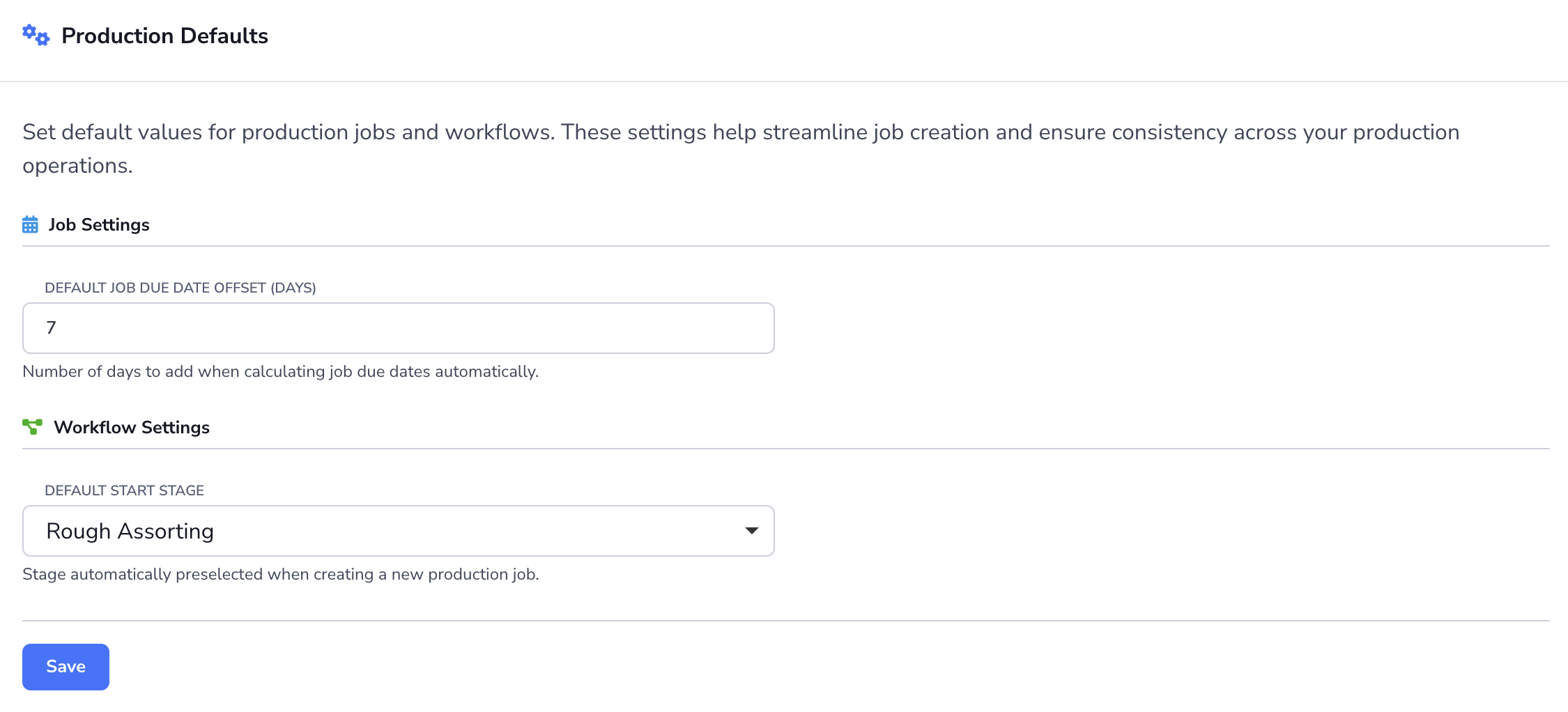
Use Production Defaults to make new production jobs start with the right timing and workflow values.
- Go to Admin Settings > Production Settings.
- In Production Defaults, set the Default job due date offset (days).
- Choose the Default start stage for new production jobs.
- Click Save.
These defaults help your team create jobs faster and keep new work consistent.
Managing Production Stages
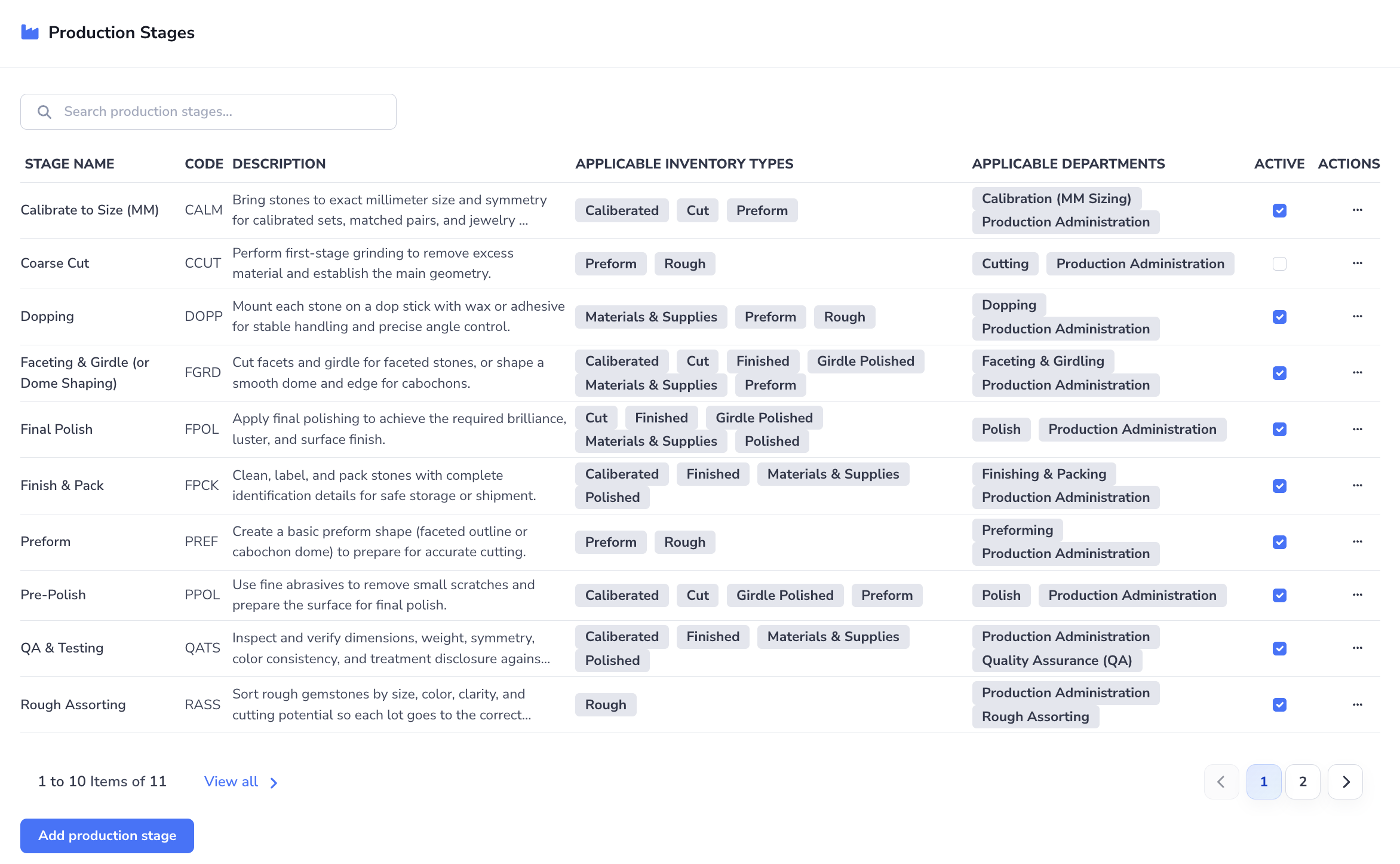
Use Production Stages to define the stages your jobs can move through, and to map each stage to the right inventory types and departments.
Add a Production Stage
- Go to Admin Settings > Production Settings.
- In Production Stages, click Add production stage.
- Enter the Stage name.
- Enter the Stage code if your team uses short internal stage codes.
- Add a Description if helpful.
- Select the Applicable Inventory Types for the stage.
- Select the Applicable Departments responsible for the stage.
- Leave Active enabled if the stage should be available right away.
- Click Save.
Edit, Activate, or Remove a Production Stage
- In the Production Stages list, find the stage you want to update.
- Use the search bar if you need to narrow the list.
- Use the Active checkbox to enable or disable the stage.
- Open the row's three-dot menu to choose Edit or Remove.
- If you edit the stage, update the fields and click Save.
Stage mappings become especially important if you later turn on mapping enforcement in the Policies section.
Production Policies
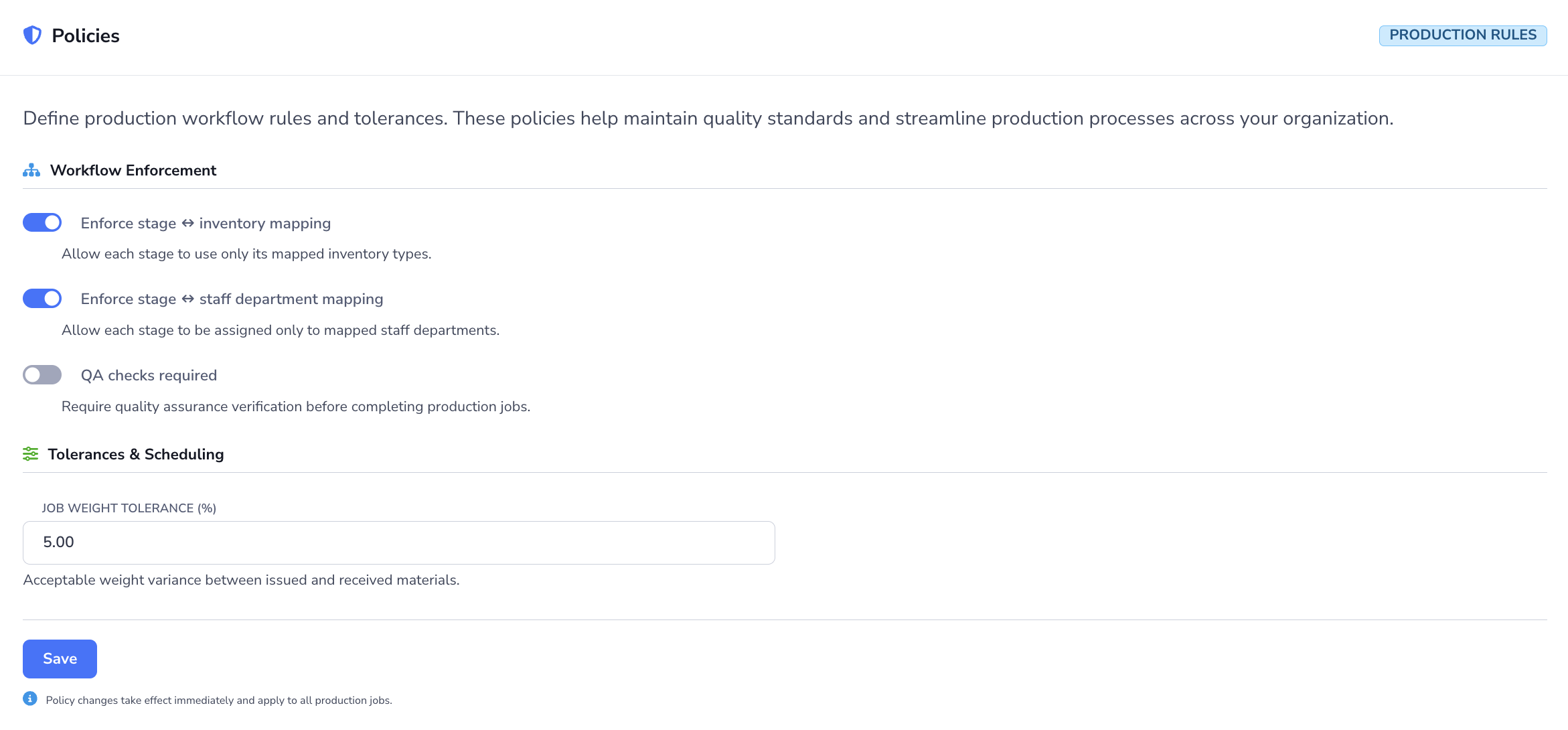
Use Policies to define how strictly Loupe Factory should enforce your production workflow rules.
- Go to Admin Settings > Production Settings.
- Scroll to Policies.
- Turn on Enforce stage to inventory mapping if each stage should use only its mapped inventory types.
- Turn on Enforce stage to staff department mapping if each stage should be assigned only to mapped departments.
- Turn on QA checks required if jobs must pass quality verification before completion.
- Enter the Job weight tolerance (%) if you want to allow a controlled variance between issued and received materials.
- Click Save.
Policy changes take effect immediately and apply across the organization.
Resetting Production Stages
Use the Reset section when you want to restore the production stage catalog to the default setup for your industry. Before resetting, open Industry Starting Points and select your industry to review the stage names that will be restored.
Warning
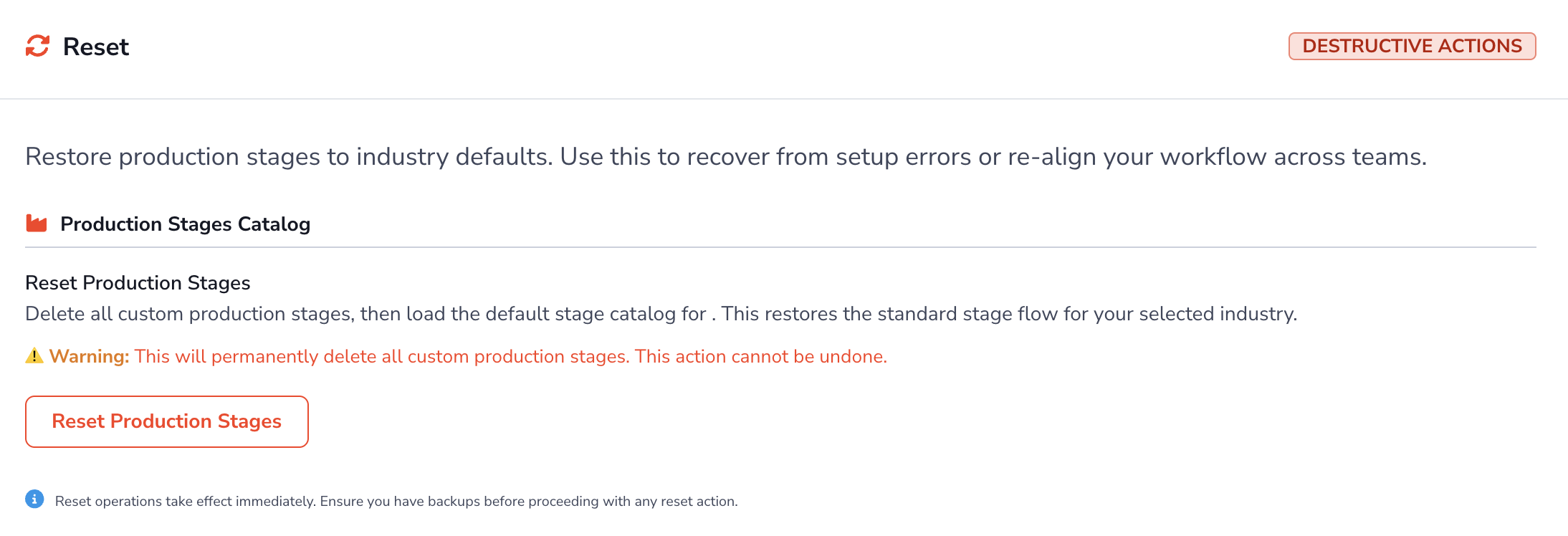
Resetting production stages permanently deletes custom stages and cannot be undone. Review the warning text carefully before you continue.
- Go to Admin Settings > Production Settings.
- Scroll to Reset.
- In Production Stages Catalog, click Reset Production Stages.
- Confirm the action if prompted.
This action removes custom stages and reloads the default production stage flow for your selected industry.
Next Steps
- Inventory Settings: Review inventory type mappings used by production stages
- Production Tracking: Learn how production settings affect daily job execution
- Organization Settings: Keep departments aligned with production stage assignments