AI Credits & Billing
Use this page to understand how Loupe Factory counts AI usage, including Loupe Copilot questions, how extra credits work, and how to review billing records for your organization. If you need to compare plans or current subscription pricing, start with Pricing & Plans.
How AI Credits Fit Into Your Subscription
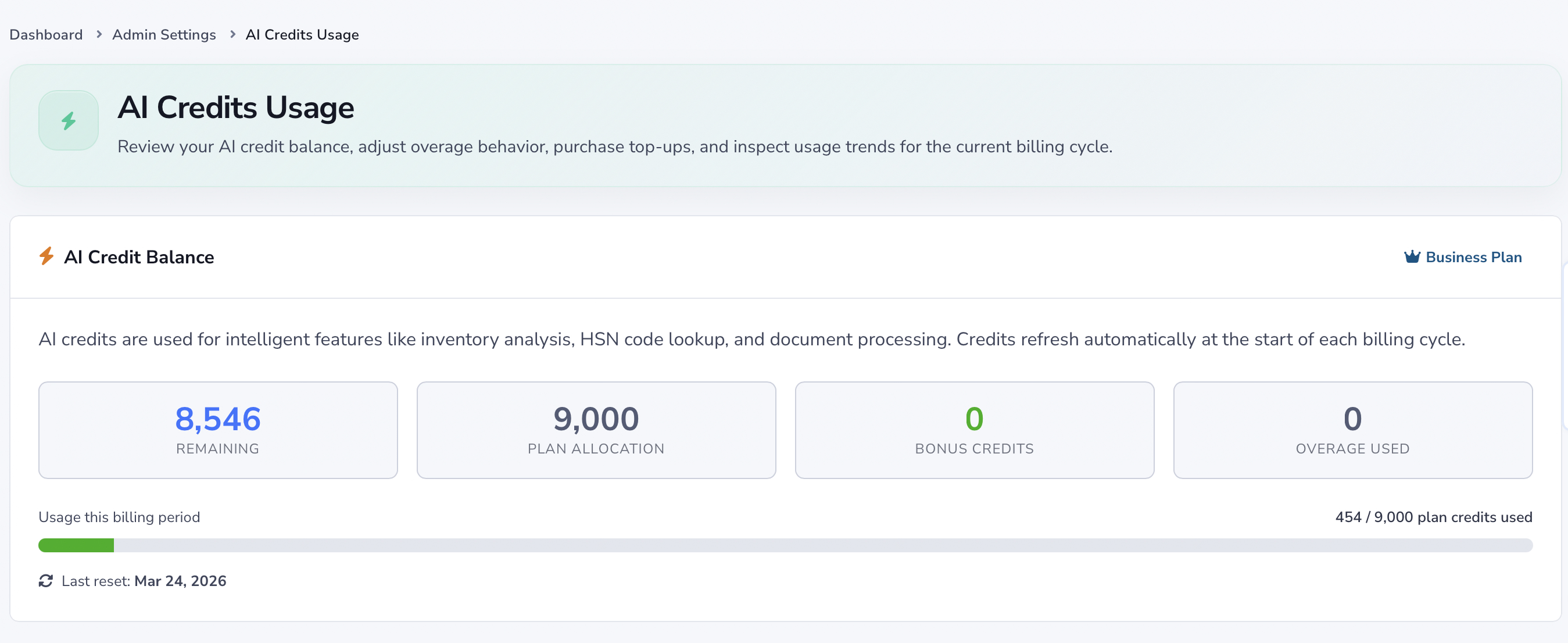
Every Loupe Factory plan includes AI credits for built-in AI workflows. Included plan credits refresh every month. Purchased credits stay available until used.
| Plan | Monthly included allowance |
|---|---|
| Starter | 500 credits |
| Professional | 3,000 credits |
| Business | 9,000 credits |
| Enterprise | 25,000 credits |
These are shared organization allowances, not separate balances for each user. Use Pricing & Plans to compare the current prices and the other limits included with each plan.
| Credit source | How it works |
|---|---|
| Included plan credits | Added automatically as part of your subscription and refreshed every month |
| Purchased credits | Added on top of plan credits and kept until they are used |
| On-demand overage | Optional extra usage billed on your next invoice when overage is enabled |
Understanding the AI Credits System
AI credits are the unit Loupe Factory uses for built-in AI capabilities. Each time your team uses an AI-assisted action, such as asking Loupe Copilot a question, a small number of credits is deducted from your organization's balance. Credits are shared across all team members in your organization.
Your current credit balance is always visible in the top navigation bar. When your balance runs low, Loupe Factory notifies you so you can top up before AI workflows are interrupted.
Higher-tier plans include more AI capacity. Purchased credits stay on the account until they are used, even after a billing cycle resets.
How Credits Are Consumed
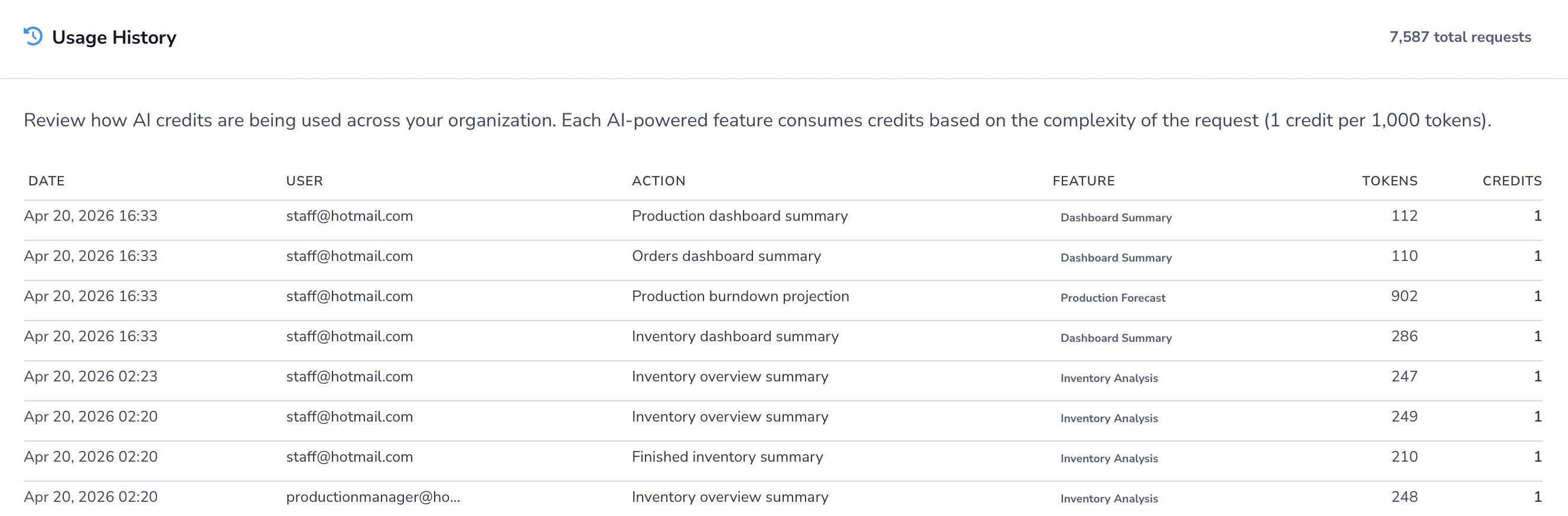
Loupe Factory bills most AI actions by token usage, at 1 credit per 1,000 tokens, rounded up, with a minimum of 1 credit per request.
AI image editing and product shots create images, and images use the image rate of 10 credits per started 1,000 tokens, with a minimum of 10 credits per image. See Image Editing and Product Shots for typical costs.
Loupe Copilot also sends short decision requests to work out what each question asks. Each decision request costs a flat 1 credit, whatever its size.
The usage history table helps you see where credits are going. For each AI request, you can review the date, the user, the action, the feature used, the token count, and the credits consumed. A Copilot decision request can show more than 1,000 tokens beside 1 credit, because it is billed at the flat rate.
Capping AI spend
To cap AI spending, leave on-demand usage turned off. Loupe Factory then stops AI actions once your included and purchased credits run out. See Using On-Demand AI Credits.
Loupe Copilot Questions
Loupe Copilot questions use AI credits as soon as Copilot works out what was asked, even when it replies with a clarifying question instead of an answer. Credit usage depends on the question, the amount of context needed, and whether Copilot uses current web information with cited sources.
Normal work in Loupe Factory does not consume AI credits. Browsing the dashboard, opening records, and opening reports do not use credits. Credits apply only when your team runs an AI-assisted workflow, such as asking Copilot, using AI import, retrieving AI suggestions, editing an inventory image with AI, creating product shots, or generating a storefront description. Writing that description by hand instead costs nothing.
Image Editing and Product Shots
A studio background edit in AI image editing uses from about 30 credits for a small image to 120 or more for a large one. A Soft or Medium ground shadow runs a second edit, which roughly doubles that. Studio lighting runs in the same edit as the background, so it adds nothing.
An image edit or product shot starts only when at least 40 credits are available. A background edit with a shadow needs 80 credits before it starts, enough for both edits. If your balance is lower and on-demand usage is off, nothing starts and no credits are used.
A full set of 10 product shots with AI uses about 400 credits. Planning the set takes about 6 credits at the text rate, and each shot about 40. If your credits run out during a set, the remaining shots are skipped and the finished ones stay in the gallery.
Your usage history lists these requests under Inventory Image Editing and Product Shots. Uploading, captioning, and reordering files in the Media Gallery use no credits.
Spreadsheet Cost Component Matching
Bulk link from spreadsheets uses no AI credits when component names match saved rate profiles. AI matching uses credits only for names that need interpretation. Each distinct spelling is looked up once per upload, even if it appears on hundreds of rows.
The review table shows the credits used and marks AI matches with a wand icon. Copy profile names from the template's Reference sheet to avoid AI matching charges. If AI is unavailable or your credits have run out, you can still read the sheet and choose unmatched profiles by hand.
JewelCloud Listing Suggestions
In JewelCloud, Suggest with AI fills blank Collection, Category, and Metal color fields across the jewelry list. Suggestions for categories and metal colors cost up to 2 AI credits per use from your organization's shared balance. Filling collections adds no credit cost. If only collections are blank, or no fields are blank, the action uses no credits.
Existing values are kept. Review the suggestions before sending a feed, and choose another value by hand if needed. Confirm that each suggested collection already exists in JewelCloud. Choosing values yourself, adding gallery files, and generating or delivering a feed use no AI credits.
JewelCloud is available to admins in Jewelry and Gemstones workspaces on Professional, Business, and Enterprise.
Purchasing Additional Credits
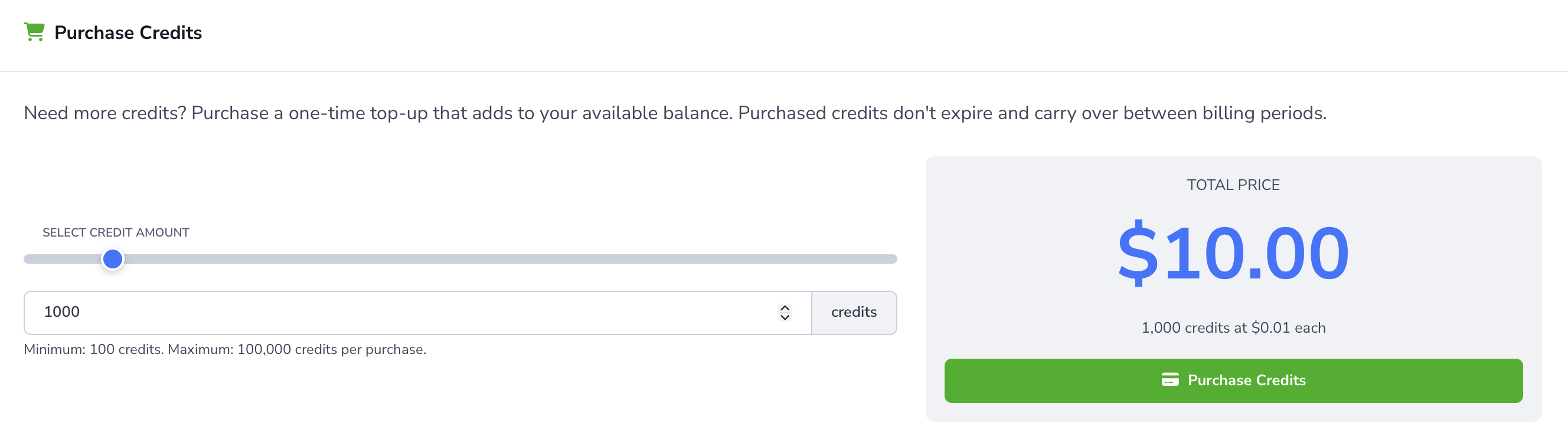
If your balance is running low or you need extra capacity for a busy period, you can purchase additional credits at any time from Admin Settings > AI Credits Usage. Purchased credits are added on top of your included plan credits, they do not expire, and they carry forward until used.
To purchase credits:
- Go to Admin Settings > AI Credits Usage.
- Scroll to the Purchase Credits section.
- Enter the number of credits you want to buy, or use the slider to choose an amount.
- Review the total price. Loupe Factory charges $0.01 per credit.
- Click Purchase Credits.
- Your credits are added to your balance immediately after payment is processed.
Purchase Limits and Pricing
- Minimum purchase: 100 credits
- Maximum purchase: 100,000 credits per transaction
- Price: $0.01 per credit
- Example: 1,000 credits = $10.00
Payment methods
Loupe Factory accepts major credit and debit cards. Loupe Factory uses Stripe as its billing partner to securely handle payment methods, invoices, and receipts. You can update your payment method at any time in Billing > Payment Methods.
Using On-Demand AI Credits
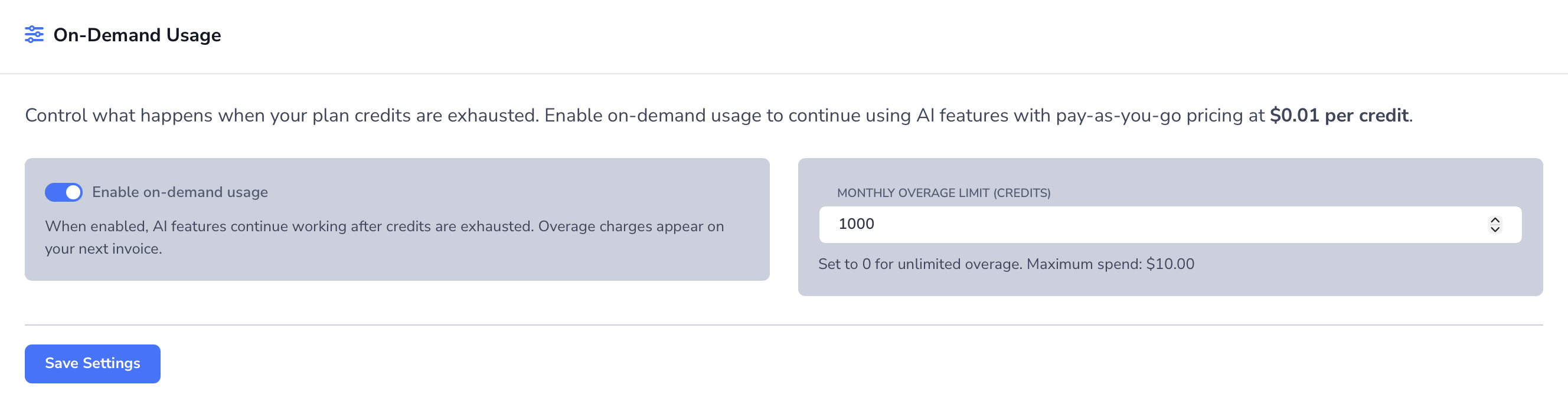
On-demand usage helps avoid interruptions when your included plan credits run out. If this setting is turned off, Loupe Factory stops AI actions as soon as your available credits are exhausted. If it is turned on, your team can keep using AI features and the extra usage is billed on your next invoice.
You stay in control of how much extra usage is allowed. Set a monthly overage limit in credits, and Loupe Factory stops additional overage usage when that cap is reached. If you set the limit to 0, overage is unlimited for that period. Overage usage is billed at $0.01 per credit.
This setting is useful when AI features support time-sensitive work and you do not want a low balance to pause the team. If you prefer a hard stop instead, leave on-demand usage turned off.
To manage on-demand usage:
- Go to Admin Settings > AI Credits Usage.
- In On-Demand Usage, turn on Enable on-demand usage if you want AI features to continue after plan credits are exhausted.
- Enter your Monthly overage limit (credits).
- Use 0 if you want no cap, or enter a number to set a firm limit.
- Click Save Settings.
Simple example
A monthly overage limit of 1,000 credits caps extra spend at $10.00 for that billing period.
Viewing Billing History
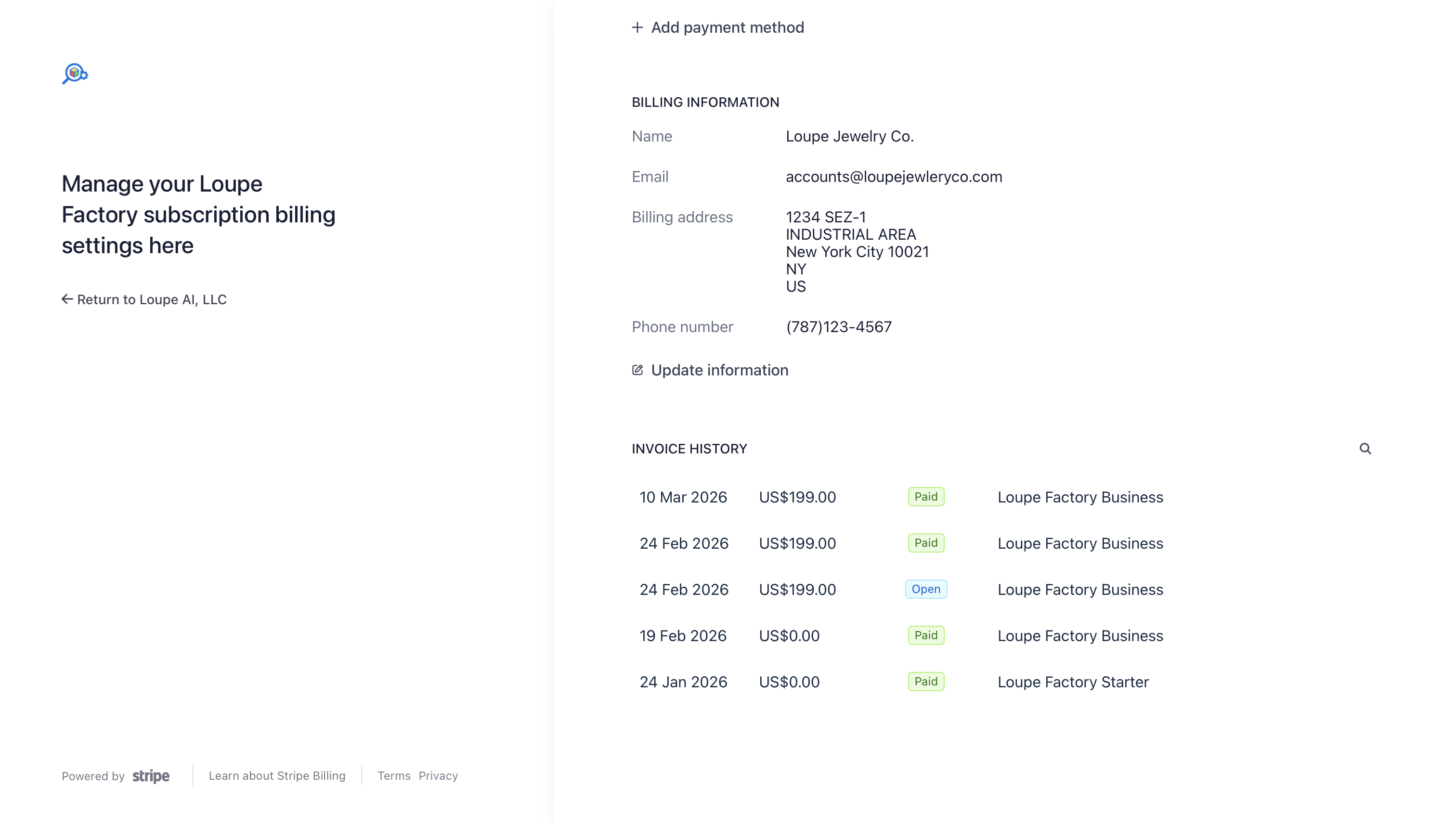
Your billing history shows past subscription charges, credit purchases, and invoices. You can download invoices for your records or share them with your finance team.
To view your billing history:
- Go to the Billing portal.
- Scroll to the Invoice History section.
- Click any entry to view the full invoice details.
- Click Download PDF to save a copy of the invoice.
Understanding Your Invoice
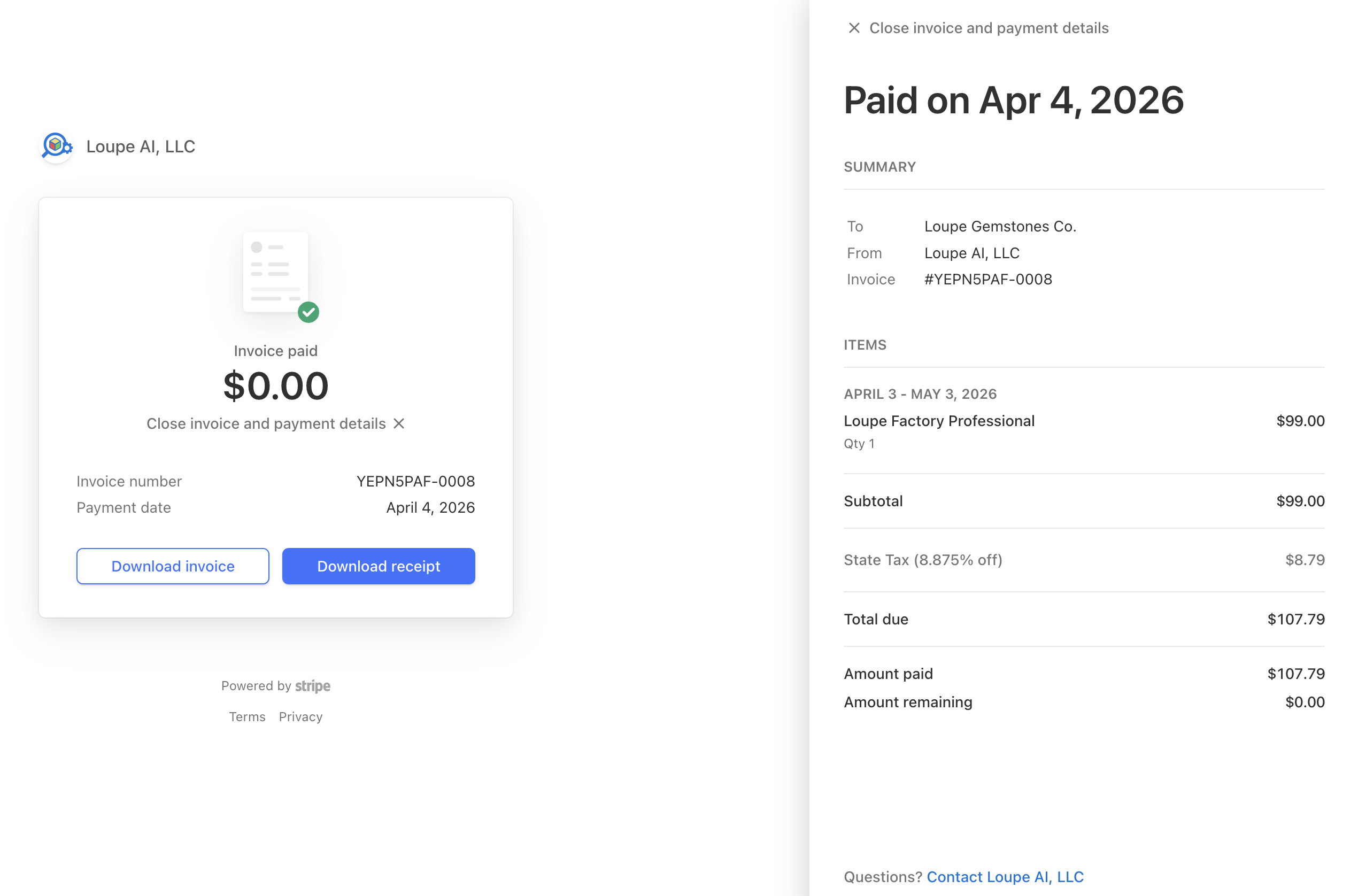
Each invoice includes:
- Billing period: the date range covered by the charge
- Subscription plan: your current plan and its base cost
- Credit purchases: any additional credits purchased during the period
- Tax: applicable taxes based on your billing address
- Total charged: the final amount billed to your payment method
Managing Your Subscription Plan
To upgrade, downgrade, or cancel your subscription plan:
- Go to Billing > Subscription.
- Click Change Plan to see available options.
- Select your desired plan and confirm the change.
Monthly subscriptions are billed each month. For self-serve subscriptions, annual billing is paid upfront and gives you 12 months for the price of 10 at the current rates. Review Pricing & Plans for renewal terms, included login seats, and plan limits before confirming a change.
When Loupe Factory receives confirmation from the billing system, it updates your plan limits, included AI credits, and plan-level features. If your organization uses a custom enterprise contract, the timing and billing rules in that contract apply.
Cancellation
Cancelling your subscription disables plan-based billing and AI access at the end of the active billing term. Nothing is deleted. Your records stay stored, and the workspace reopens when you reactivate from the Billing portal. The same applies when a Starter trial ends without a charge. If you need a full copy of your data, contact support and ask for an export.
Next Steps
- Pricing & Plans: Compare current plan pricing, included users, and plan differences
- Account & Billing Overview: Review the rest of the section
- Profile: Update your personal profile and password
- Loupe Copilot: Ask business questions from the Home dashboard
- Reporting & Analytics: Track AI usage trends alongside your operational data
- FAQ: Billing: Quick answers to common billing questions